es
Jan 17 4:32
Language
*English
Next OK
Previous
Press the digit, or move cursor to 2.Local Device
Info using the [Next]-[Previous] softkeys, and press
the [OK] softkey.
Move to another parameter with the navigation
buttons and continue the session or press the Settings (
) button to exit the
configuration session.
3.6.12 Language
The IP Phone firmware includes an xml file, which, among other things, determines the
languages available to the phone. When the xml file contains more than one (1) language, the
Language parameter will be available.
To select an available language:
Press the Settings (
) button.
Press the
digit, or move cursor to 3.Phone Settings using the [Next]-[Previous]
softkeys, and press the [OK] softkey.
Press the
digits, or move cursor to 12.Language using the [Next]-[Previous]
softkeys, and press the [OK] softkey.
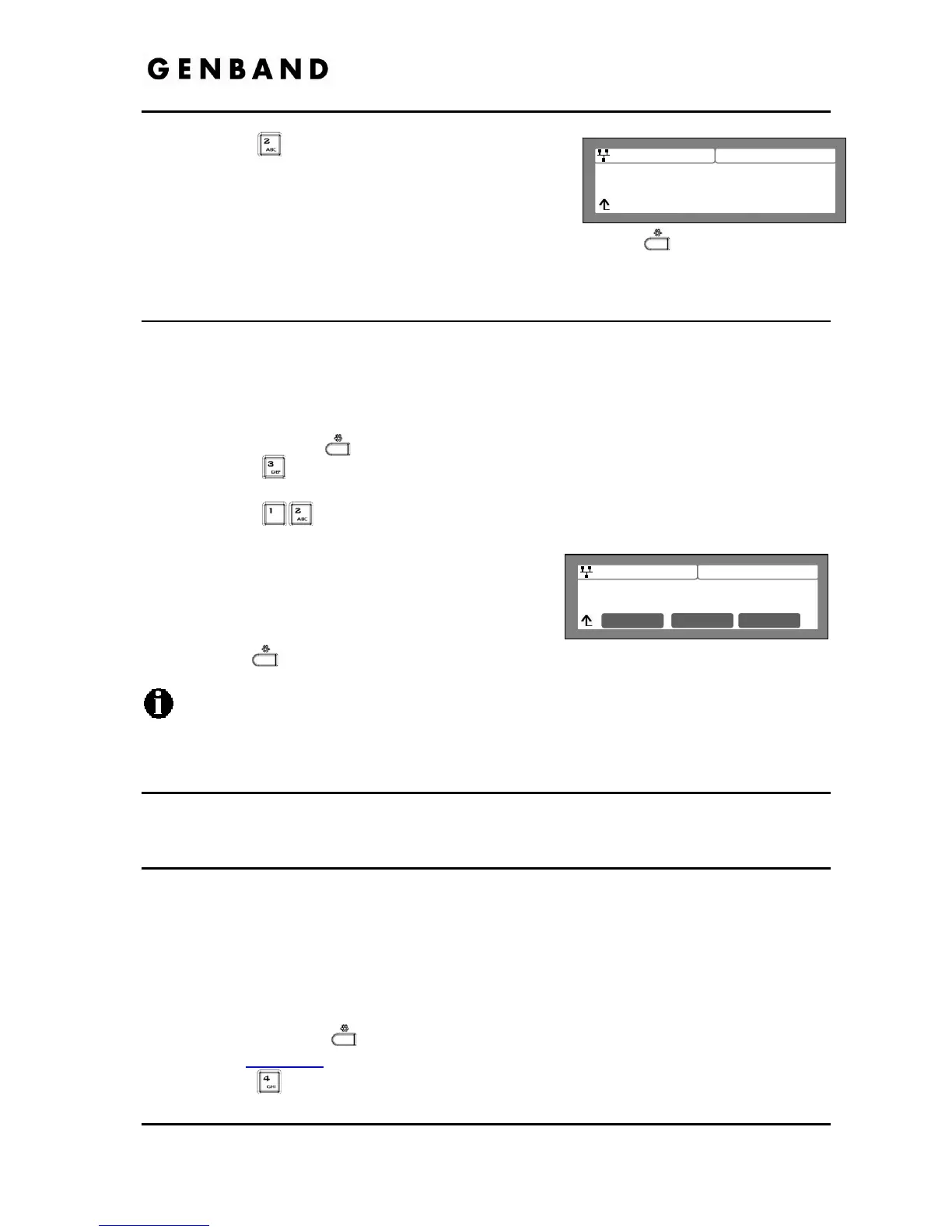
Select a Language from the list using the [Next]-
[Previous] softkeys, and press the [OK] softkey.
Move to another parameter with the navigation
buttons and continue the session or press the
Settings (
) button to exit the configuration session.
An asterisk, , displays in front of the current language selection.
3.7 Call Preferences
Call Preferences define various call handling features of the IP Phones.
3.7.1 Do Not Disturb
When the DND (Do Not Disturb) feature is active, the IP Phone does not notify the user of an
incoming call. The IP Phone does not ring and the associated line LED does not flash. This
allows you to work without interruption from an incoming call. The call server configuration
determines routing of the incoming call while your phone is in DND. To activate DND, DND
must be enabled.
To enable the DND operation:
Press the Settings (
) button. If the LCD Menu is locked, use the unlock procedure.
Refer to section 3.3
.
Press the
digit, or move the cursor to 4.Call Preferences using the [Next]-[Previous]
softkeys and press the [OK] softkey.


 To Next Page