IP8820/IP8830/IP8840
Installer Guide
107
Press [OK] softkey and follow the LCD instructions to input the WiFi Network
Configuration settings including:
Security Key
Network Mode
IP Address
Subnet Mask
Default Gateway
Primary DNS
Secondary DNS
See sections 5.3.1.4 to 5.3.1.9 for entry instructions.
Move to another parameter with the navigation buttons and continue the session or press
the Settings (
) button to exit the configuration session
The maximum number of Access Points supported is 30 and are arranged in the list
based on received signal strength, highest to lowest.
RSSI is indicated for five (5) levels as shown in Appendix H.
Changing any of the WiFi Network Configurations settings requires a reboot of the IP
phone; when you leave the menu, you will receive a reboot notice. The IP phone
must reboot to utilize the new values entered.
5.3.3 Current Connection
The Current Connection menu displays the characteristics of the currently connected WiFi
network. The LED in the upper right corner of the WiFi module will illuminate to indicate a WiFi
connection. Information displayed includes SSID, BSSID, Channel, RSSI, Security, Date Rate,
Network Mode, IP Address, Subnet Mask, Default Gateway, Primary DNS Address, Secondary
DNS Address, and MAC address as shown in Figure 5-1
.
To view Current Connection information:
Press the Settings (
) button. If the LCD Menu is locked, use the unlock procedure.
Refer to section 3.3
.
Press the
digit, or move the cursor to 1.Network Configuration using the [Next]-
[Previous] softkeys and press the [OK] softkey.
Press the
digit, or move the cursor to 2.WIFI
Configuration using [Next]-[Previous] softkeys
and press the [OK] softkey.
Press the
digit, or move the cursor to 3.Current
Connection using [Next]-[Previous] softkeys and
press the [OK] softkey. Detailed information on the current WiFi connection is displayed,
use the Up/Down navigation buttons to scroll through the various items.
Move to another parameter with the navigation buttons and continue the session or press
the Settings (
) button to exit the configuration session
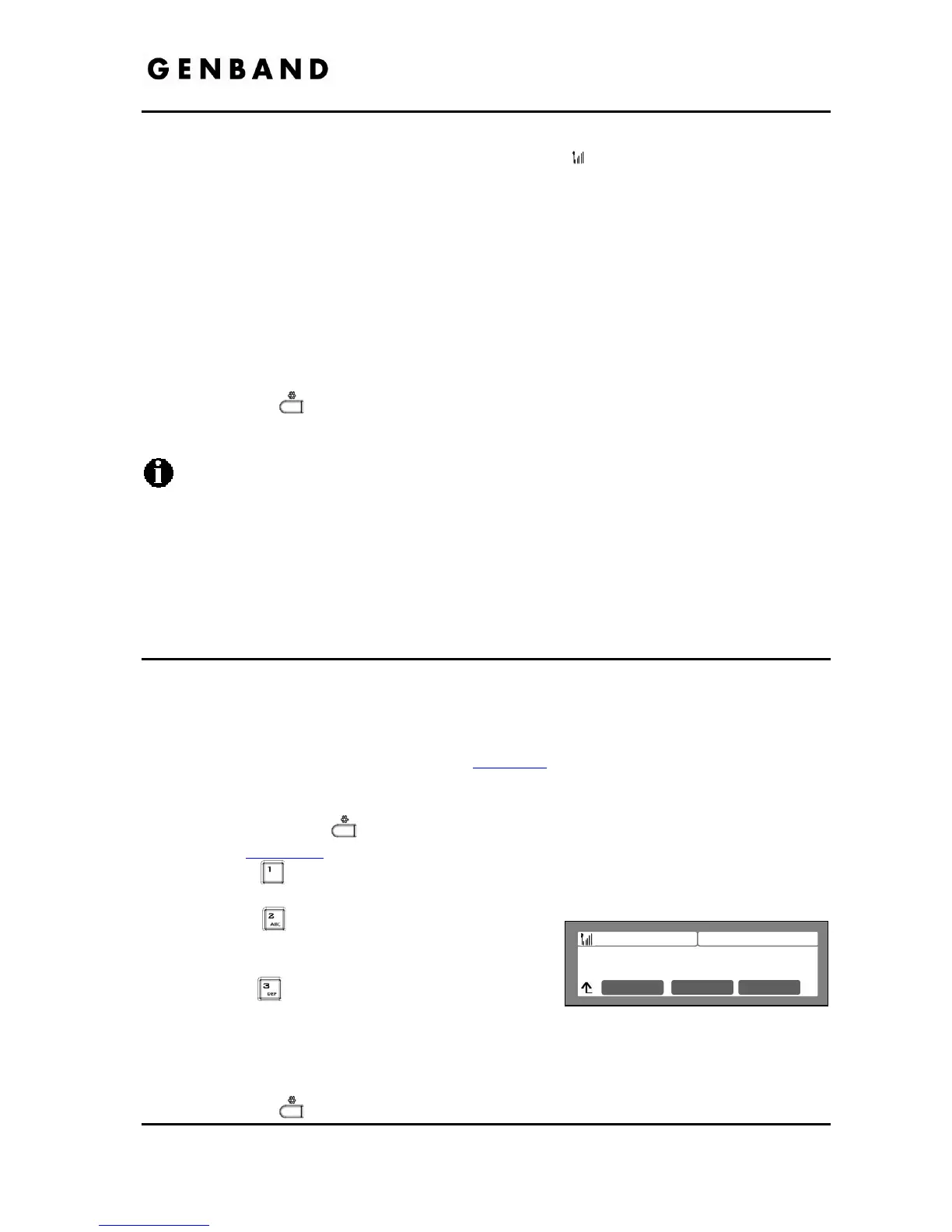
Jan 17 4:32
WIFI Configuration
1.Profile
Next OK
Previous


 To Next Page