dd
Jan 17 4:32
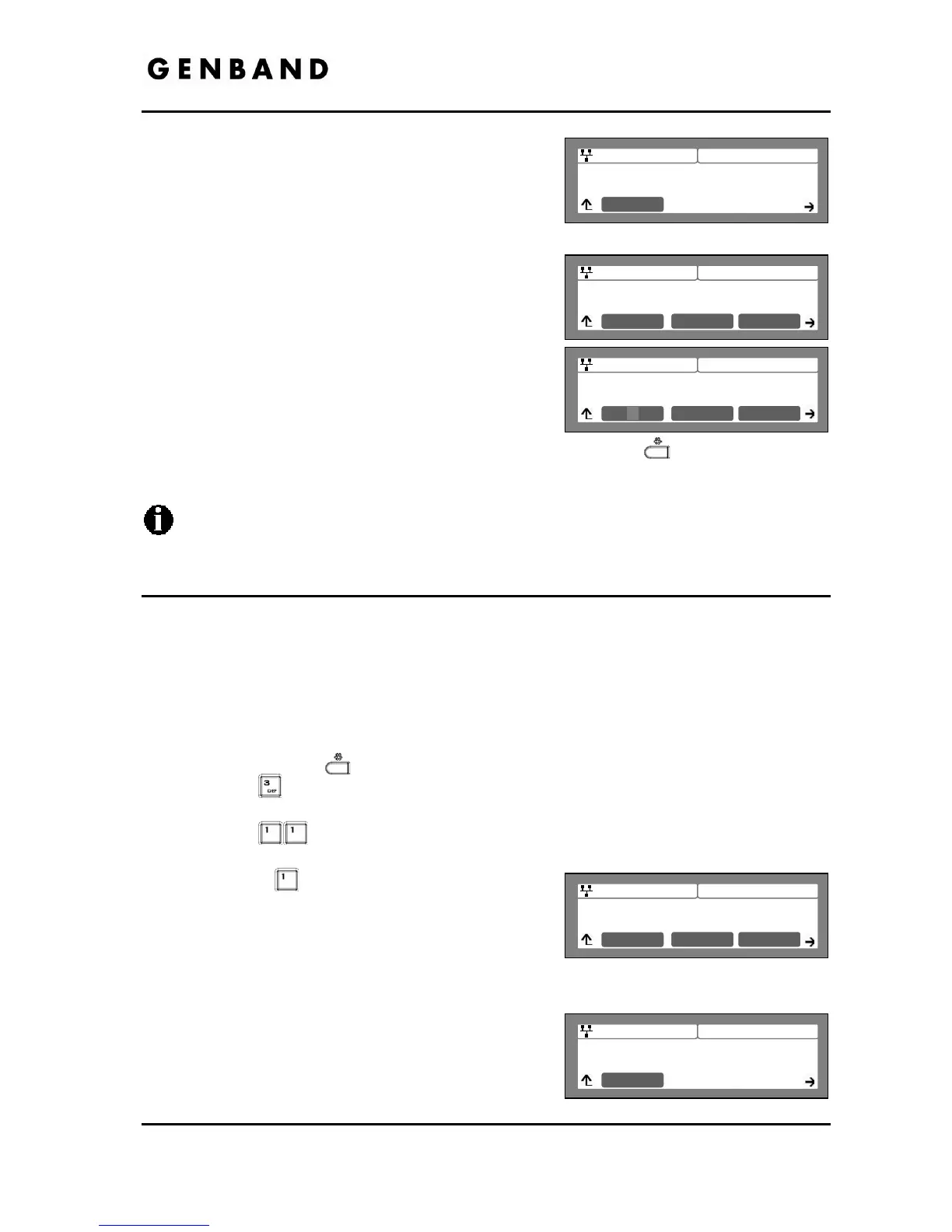
Wireless Headset
00:1A:12:34:56:78:AB
Next Delete
Connect
If no headsets are paired with the IP Phone, press
the [Search] softkey, the IP Phone will search for
nearby Bluetooth headsets. If one or more
Bluetooth headsets are already paired with the IP
Phone, press the [] softkey and select the [Add] softkey to add another headset.
Select a Bluetooth headset from the list of
headsets found using the [Next]-[Previous]
softkeys, and select the [Pair] softkey.
When the “Enter PIN Code” is displayed, input the
PIN associated with the headset and press [OK]
softkey.
Move to another parameter with the navigation
buttons and continue the session or press the Settings (
) button to exit the
configuration session.
If the PIN entered is valid, the Bluetooth headset is paired and automatically connected
to the IP Phone.
3.6.11.2 Connect or Disconnect a Paired Headset
When one or more headsets are paired with the IP8830 or IP8840 phone, the headset must be
connected, activated, prior to use. When it is desired to change the active headset, the
presently active headset must be disconnected, deactivated, prior to connecting the new
headset. The following procedure describes the steps required to connect or disconnect a
headset that is paired to the IP Phone.
To connect to a headset that is already paired or to disconnect an active headset:
Press the Settings (
) button.
Press the
digit, or move the cursor to 3.Phone Settings using the [Next]-[Previous]
softkeys, and press the [OK] softkey.
Press the
digits, or move the cursor to 11.Bluetooth using the [Next]-[Previous]
softkeys, and press the [OK] softkey.
Press the
digit, or move the cursor to
1.Headset Management using the [Next]-
[Previous] softkeys, and press the [OK] softkey.
This displays a list of previously paired headsets.
Select a Bluetooth headset from the list of headsets found using the [Next]-[Previous]
softkeys.
Press the [Connect] softkey to activate the
previously paired headset or press the [Discon] to
deactivate the headset.


 To Next Page