K
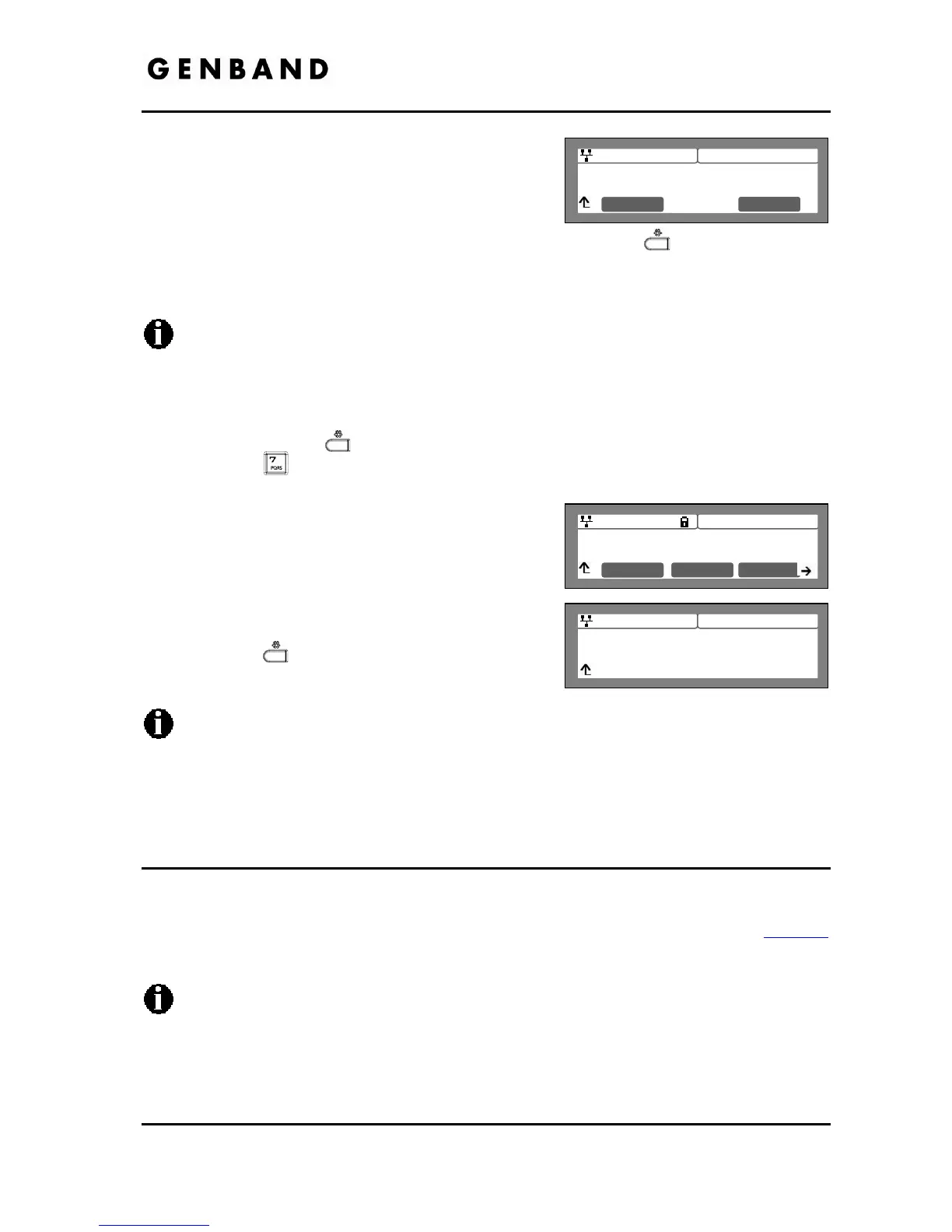
To confirm your password, input the new password
again and press the [OK] softkey to save your
entry.
Move to another parameter with the navigation
buttons and continue the session or press the Settings (
) button to exit the
configuration session, which will lock the LCD Menu automatically if a password is
assigned.
The [None] softkey removes a password.
A password consists of four (4) to eight (8) digits.
Assigning a new password automatically unlocks the LCD Configuration Menu.
To unlock the LCD Menu:
Press the Settings (
) button.
Press the
digit, or move the cursor to 7.Lock/Unlock Config using the [Next]-
[Previous] softkeys and press the [OK] softkey.
Enter the password (4 to 8 digits) and press the
[OK] softkey, the Unlocked message appears for
approximately 2 seconds and the LCD Menu is
unlocked.
Move to another parameter with the navigation
buttons and continue the session or press the
Settings (
) button to exit the configuration
session.
With a password assigned, exiting the LCD Configuration Menu automatically locks the
menu.
Entering an invalid password returns an error message followed by the “Enter
Password” display.
3.4 Network Configuration
Under Network Configuration are the Network mode (DHCP or static), various IP addresses,
DNS (Domain Name Service), and other LAN parameters. In addition, the IP phone MAC
(Media Access Control) address can be viewed. When using the WiFi Module refer to section 5
for the Network Configuration sub-menus.
Changing network parameters requires a reboot of the IP phone; when you exit the LCD
Configuration Menu, you will receive a reboot notice. The IP phone must reboot to
utilize the new values entered.


 To Next Page