IP8820/IP8830/IP8840
Installer Guide
51
Jan 17 4:32
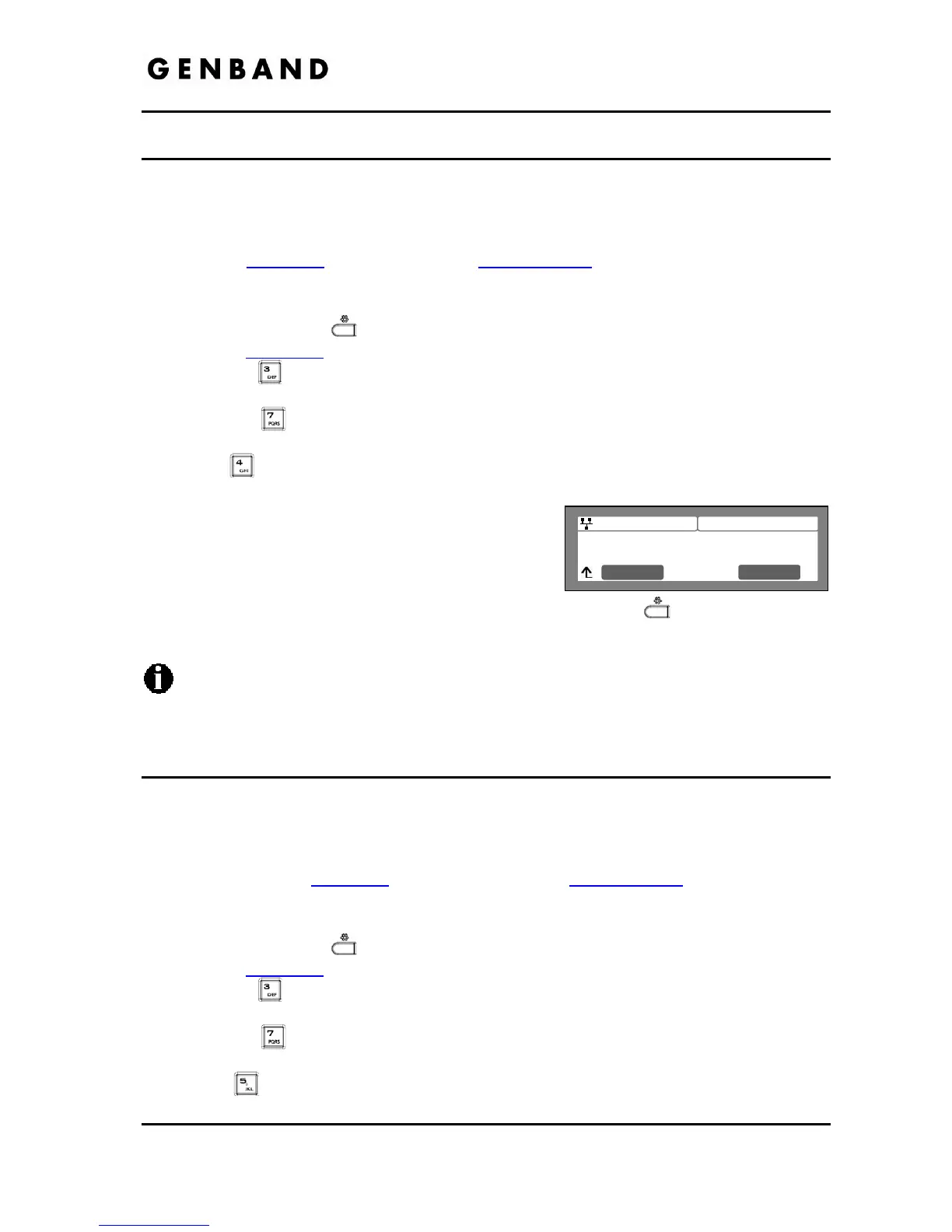
S/W Download Flag
Current value is ‘Yes’
Next No
Yes
3.6.7.4 S/W Download Flag
When Power is applied or a reboot is processed, the IP-Phone automatically checks and
downloads IP Phone Software from the defined provisioning server. The IP Phone will
download software if the software versions are different and the S/W Download flag is enabled.
Note this menu item displays only when the Download Flag function is enabled in the Web
Manager, see section 4.7
, or configuration file, see Appendix D.
To set the S/W Download Flag:
Press the Settings (
) button. If the LCD Menu is locked, use the unlock procedure.
Refer to section 3.3
.
Press the
digit, or move the cursor to 3.Phone Settings using the [Next]-[Previous]
softkeys and press the [OK] softkey.
Press the
digit, or move the cursor to 7.S/W Update using the [Next]-[Previous]
softkeys and press the [OK] softkey.
Press
button, or move cursor to 4.S/W Download Flag using the [Next]-[Previous]
softkeys and press the [OK] softkey.
Press the [Yes] softkey to enable the S/W
Download, or press the [No] softkey to disable the
S/W Download.
Move to another parameter with the navigation
buttons and continue the session or press the Settings (
) button to exit the
configuration session.
Changing the S/W Download Flag requires a reboot of the IP Phone; when you leave
the menu, you will receive a reboot notice. The IP Phone must reboot to utilize the new
values entered.
3.6.7.5 Config Download Flag
When Power is applied or a reboot is processed, the IP-Phone automatically downloads a
Global (system) and a Phone specific (MAC) Configuration file from the defined provisioning
server. To download the configuration files during provisioning, the Config Download flag must
be enabled. Note this menu item displays only if the Download Flag function is enabled using
the Web Manager, see section 4.7
, or the configuration file, see Appendix D.
To set the Config Download Flag:
Press the Settings (
) button. If the LCD Menu is locked, use the unlock procedure.
Refer to section 3.3
.
Press the
digit, or move the cursor to 3.Phone Settings using the [Next]-[Previous]
softkeys and press the [OK] softkey.
Press the
digit, or move the cursor to 7.S/W Update using the [Next]-[Previous]
softkeys and press the [OK] softkey.
Press
button, or move cursor to 5.Config Download Flag using the [Next]-
[Previous] softkeys and press the [OK] softkey.


 To Next Page