IP8820/IP8830/IP8840
Installer Guide
103
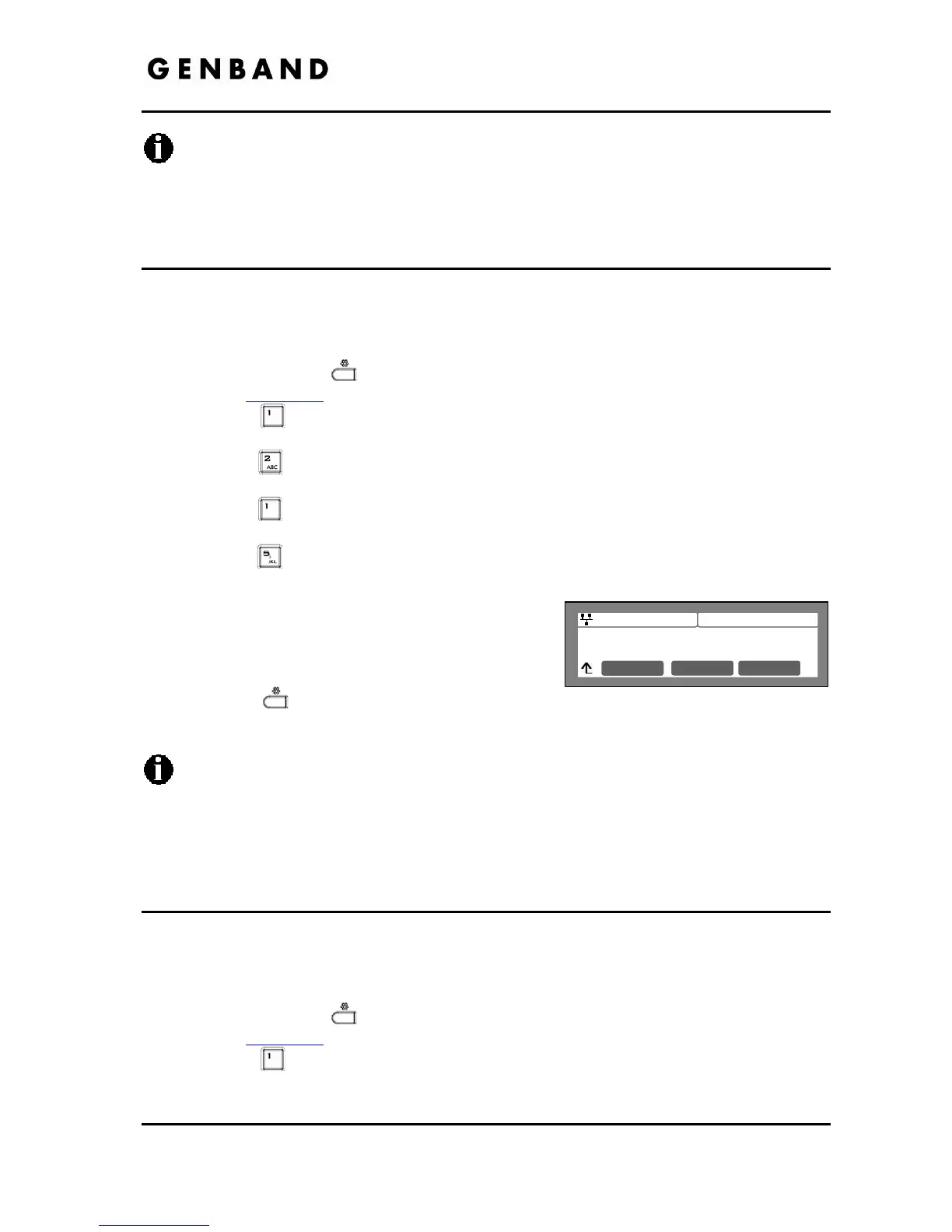
Jan 17 4:32
IP Address
192.168.0.2
Clear OK
An asterisk, , is displayed in front of the current selection.
Changing the Network Mode requires a reboot of the IP phone; when you exit the LCD
Configuration Menu, you will receive a reboot notice. The IP phone must reboot to
utilize the new values entered.
5.3.1.5 IP Address
Selecting static addressing for the Network mode requires manual entry of an IP address for the
WiFi Module. The WiFi Module requires a valid available IP address for proper operation.
To set the IP Address:
Press the Settings (
) button. If the LCD Menu is locked, use the unlock procedure.
Refer to section 3.3
.
Press the
digit, or move the cursor to 1.Network Configuration using the [Next]-
[Previous] softkeys and press the [OK] softkey.
Press the
digit, or move the cursor to 2.WIFI Configuration using [Next]-[Previous]
softkeys and press the [OK] softkey.
Press the
digit, or move the cursor to 1.Profile using [Next]-[Previous] softkeys and
press the [OK] softkey.
Press the
digit, or move the cursor to 5.IP Address using [Next]-[Previous] softkeys
and press the [OK] softkey.
Input the IP Address using the dial pad and press
the [OK] softkey to save your entry.
Move to another parameter with the navigation
buttons and continue the session or press the
Settings (
) button to exit the configuration
session.
Changing the IP Address requires a reboot of the IP phone; when you exit the LCD
Configuration Menu, you will receive a reboot notice. The IP phone must reboot to
utilize the new values entered.
The IP address can be changed only in static mode and not if DHCP mode is active. In
DHCP mode, the IP phone retrieves an IP address from the DHCP server.
5.3.1.6 Subnet Mask
Selecting static addressing for the Network mode requires manual entry of a subnet mask for
the WiFi Module. The WiFi Module requires a valid subnet for proper operation.
To enter the Subnet Mask:
Press the Settings (
) button. If the LCD Menu is locked, use the unlock procedure.
Refer to section 3.3
.
Press the
digit, or move the cursor to 1.Network Configuration using the [Next]-
[Previous] softkeys and press the [OK] softkey.


 To Next Page