IP8820/IP8830/IP8840
Installer Guide
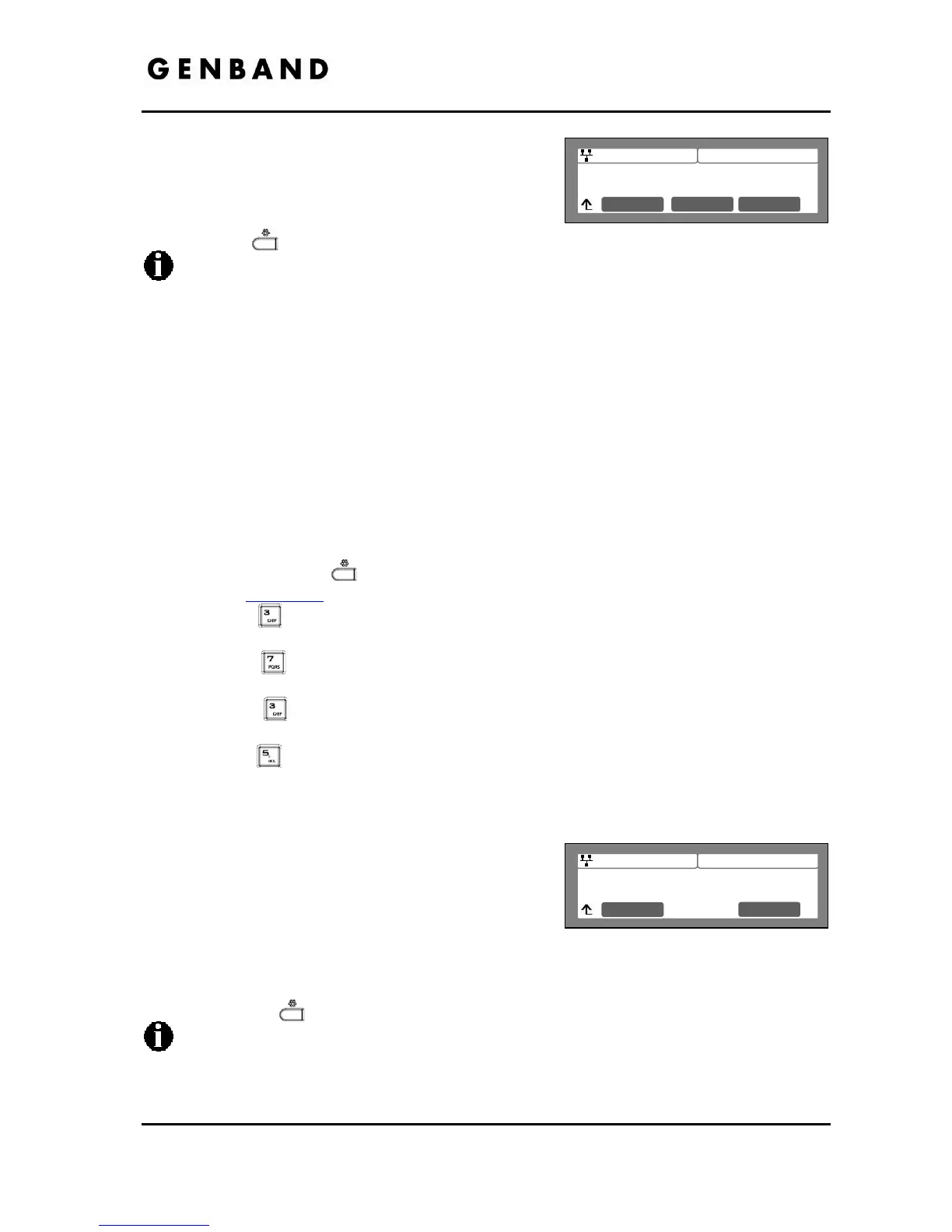
50
Jan 17 4:32
DHCP Option Number
160
Clear OK
Jan 17 4:32
Check Verified Cert.
Current value is ‘Yes’
Next No
Yes
Input the DHCP option, 1 to 255, using the dial pad,
and press the [OK] softkey to save your entry.
Move to another parameter with the navigation
buttons and continue the session or press the
Settings (
) button to exit the configuration session.
Changing the DHCP option requires a reboot of the IP Phone; when you leave the
menu, you will receive a reboot notice. The IP Phone must reboot to utilize the new
values entered.
3.6.7.3.5 Certificate Verification
The IP8800 series IP Phones can
verify specific characteristics of the HTTPS server and the
Certificate of Authority stored on the server. Verifiable characteristics are:
- Valid Certificate signature
- HTTPS server name
- Certificate of Authority expiration date
If the verification fails, IP Phones terminate the HTTPS session.
To modify the verification options:
Press the Settings (
) button. If the LCD Menu is locked, use the unlock procedure.
Refer to section 3.3
.
Press the
digit, or move the cursor to 3.Phone Settings using the [Next]-[Previous]
softkeys and press the [OK] softkey.
Press the
digit, or move the cursor to 7.S/W Update using the [Next]-[Previous]
softkeys and press the [OK] softkey.
Press the
digit, or move the cursor to 3.HTTPS Provisioning using the [Next]-
[Previous] softkeys and press the [OK] softkey.
Press the
digit, or move cursor to 5.Checking Certificate using the [Next]-[Previous]
softkeys and press the [OK] softkey.
Select the desired option using the dial pad digits 1-3 or the [Next]-[Previous] softkeys
and press the [OK] softkey.
For each option, press the [Yes] softkey to enable
the check, or press the [No] softkey to disable the
check
1. Check Verified Cert.
2. Check Server Name
3. Check Expiration
Move to another parameter with the navigation buttons and continue the session or press
the Settings (
) button to exit the configuration session.
Changing the verification options requires a reboot of the IP Phone; when you leave the
menu, you will receive a reboot notice. The IP Phone must reboot to utilize the new
values entered.
The display will indicate the present value (Yes or No) for each option.


 To Next Page