IP8820/IP8830/IP8840
Installer Guide
29
Jan 17 4:32
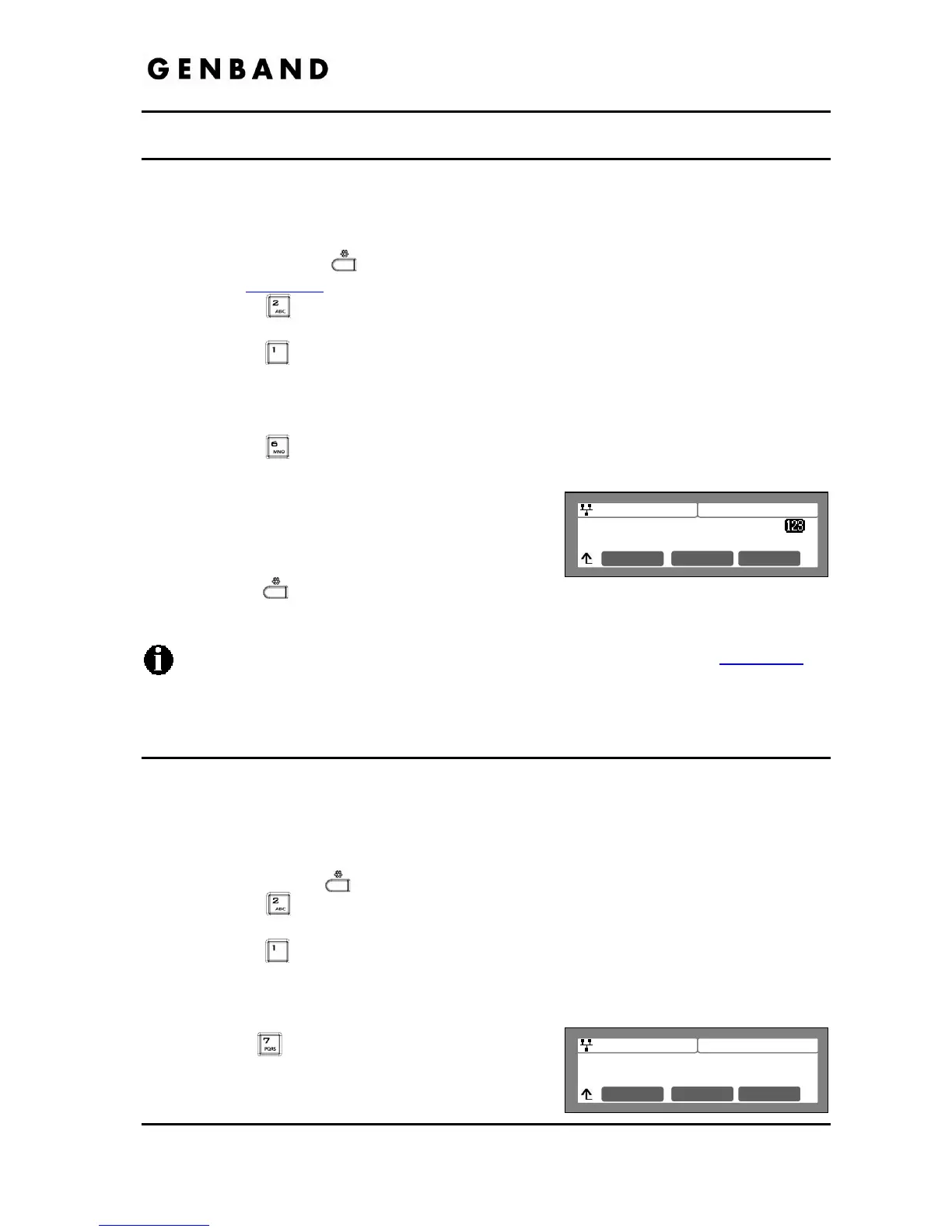
Enter Auth. Password
*******
Mode OK
Jan 17 4:32
7.Reg. Status: OK
8.Line Type
Next OK
Previous
3.5.1.6 Authentication Password
Authentication of the line appearance with the SIP call server uses the Authentication Password
in conjunction with the user name.
To assign the Authentication Password:
Press the Settings (
) button. If the LCD Menu is locked, use the unlock procedure.
Refer to section 3.3
.
Press the
digit, or move the cursor to 2.SIP Configuration using the [Next]-
[Previous] softkeys and press the [OK] softkey.
Press the
digit, or move the cursor to 1.Line Configuration using the [Next]-
[Previous] softkeys and press the [OK] softkey.
Enter the line button number or move the cursor using the [Next]-[Previous] softkeys and
press the [OK] softkey to select a line button.
Press the
button, or the move cursor to 6.Auth. Password using the [Next]-
[Previous] softkeys and press the [OK] softkey.
Input the Authentication Password using the dial
pad and press the [OK] softkey to save your entry.
Move to another parameter with the navigation
buttons and continue the session or press the
Settings (
) button to exit the configuration
session.
To enter alphanumeric characters select the [Mode] softkey. Refer to Appendix E
for
the character mapping of dial pad digits.
Do not assign an Authorization Name or Password when the line type is DSS/BLF.
3.5.1.7 Registration Status
The status of the line registration with the SIP call server can be viewed. The status is
displayed as OK, NOK (Not OK) or undefined. The latter displays when no call server address
is assigned.
To view the Registration status for a line:
Press the Settings (
) button.
Press the
digit, or move the cursor to 2.SIP Configuration using the [Next]-
[Previous] softkeys and press the [OK] softkey.
Press the
digit, or move the cursor to 1.Line Configuration using the [Next]-
[Previous] softkeys and press the [OK] softkey.
Enter the line button number or move the cursor using the [Next]-[Previous] softkeys and
press the [OK] softkey to select a line button.
Press the
button, or move the cursor to 7.Reg.
Status using the [Next]-[Previous] softkeys, view
the registration status.


 To Next Page