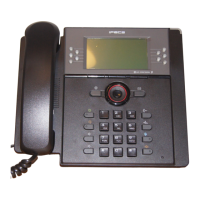
IP8820/IP8830/IP8840
Installer Guide
112
6.2 Troubleshooting Guide
Table 6.2-1 Troubleshooting
Symptom Corrective Action
LCD Off
1. Switch power source ON
2. Check/replace AC/DC adapter
3. Check/correct input power from the LAN
Handset off-hook,
no dial tone
1. Assure the Network Type is properly selected for Wired or
Wireless; a WiFi module must be installed for selection of
wireless.
2. Assure the RJ-45 LAN cable is connected correctly.
3. Make sure that the call server IP Address is correct.
Button LEDs flash red
then orange
Line not registered with the call server,
1. Check phone configuration
2. Check network connections
3. Check call server.
Phone displays “DHCP
Searching” constantly,
more than 2 minutes.
DHCP server is not responding.
1. Check DHCP server.
2. Check VLAN settings.
To exit the DHCP Searching mode, press Settings button 3 times,
the phone will complete the boot and return to idle.
Phone displays “VLAN
Changed. Reboot?“.
The downloaded configuration file has changed the VLAN
settings. After the next reboot, the phone will use the new
settings. Select [Yes] to reboot now using the new settings.
Select [No], the Phone will not use the changed VLAN settings
until the next reboot.
Network setting error
1. Verify the Network Type is correct, wired or wireless.
2. Network Mode: DHCP
Make sure Network Mode is DHCP.
Make sure the RJ-45 LAN cable is connected securely to your
IP Phone and LAN switch, hub, or router.
Make sure that all network ports, routers, or switches are
working.
Make sure your network supports DHCP.
3. Network Mode: Static
Make sure Network Mode is static.
If you entered the IP Address through a phone, make sure you
reset your IP Phone.
When I attempt to make
a call, I can’t hear
1. Check all cables and connections.
2. Make sure the call server IP Address is correct.


 To Next Page