20
IMPORTANT NOTE ABOUT THE WEB-BASED INTERFACE
The SDP-75‘s full user interface can only be accessed by connecting a display or through a VNC client.
If you’ve already completed the setup of the SDP-75 in your home theatre system and you only need to operate it, a
limited part of the SDP-75‘s user interface is also available from a web browser.
NOTE: The web browser can only display the HTML-based pages of the user interface. However, most
of the system setup pages of the SDP-75
are currently Linux-based. Therefore, the web browser can
only be used for daily operations of the SDP-75 but cannot be used to setup, measure and align the
level and delay of your speaker system.
To connect to the web user interface of the SDP-75‘s you need to enter its IP address in your web browser.
The IP address of the SDP-75 can be retrieved:
• via the front panel: go to the Setup/Network/Ethernet menu.
• by connecting a monitor and a mouse to the back panel. Go to the Network page of the graphical user interface.
If you are already connected to the SDP-75 with a VNC Client, you can easily check its IP address:
• Using Mocha VNC: click on the blue arrow, located at the right of the VNC Server address field;
• Using Chicken VNC: select the SDP-75 from the server list.
Please refer to the Network Setup chapter for further details about network configuration.
USING A DISPLAY, MOUSE AND KEYBOARD CONNECTED
TO THE SDP-75
A very straightforward option to access and control the user interface of the SDP-75, provided that you have the
necessary equipment, is to connect a physical display and use a mouse and a keyboard to control the SDP-75 software.
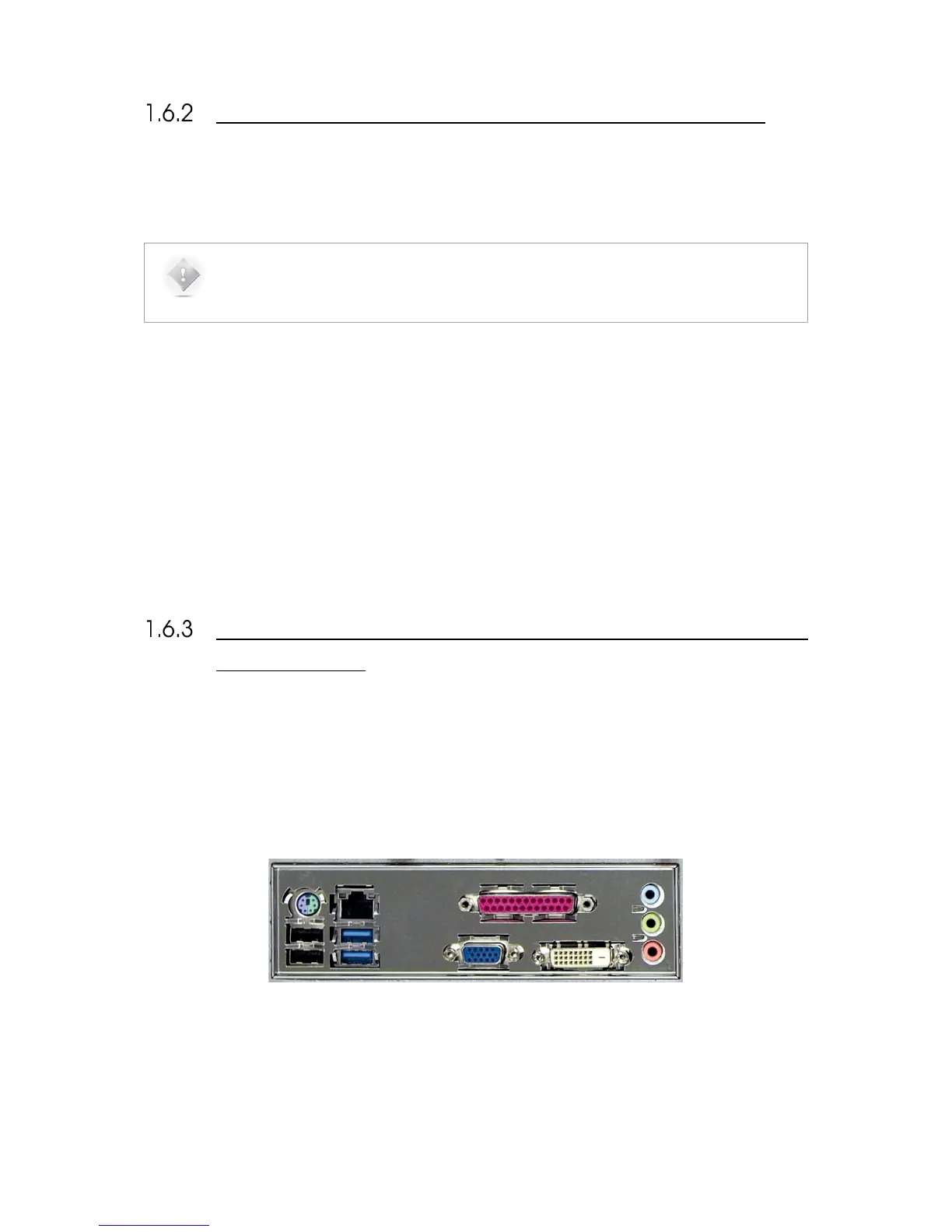
These devices shall be connected to the PC’s connectors, located on the rear panel of the SDP-75:
• PC/Mouse can be connected either using the PS/2 or USB ports.
• Physical monitor can be connected through the VGA, DVI-D or HDMI ports. The PC video outputs may change
following the mother board reference.
Figure#3:#SDP-75#PC#connector’s#panel#


 To Next Page