To connect to the SDP-75’s VNC Server from
your Mac OS X computer, you can use the
integrated Screen Sharing VNC client included
since OS X version 10.5 (Leopard):
1. Open the Finder application in your
Mac OS X computer.
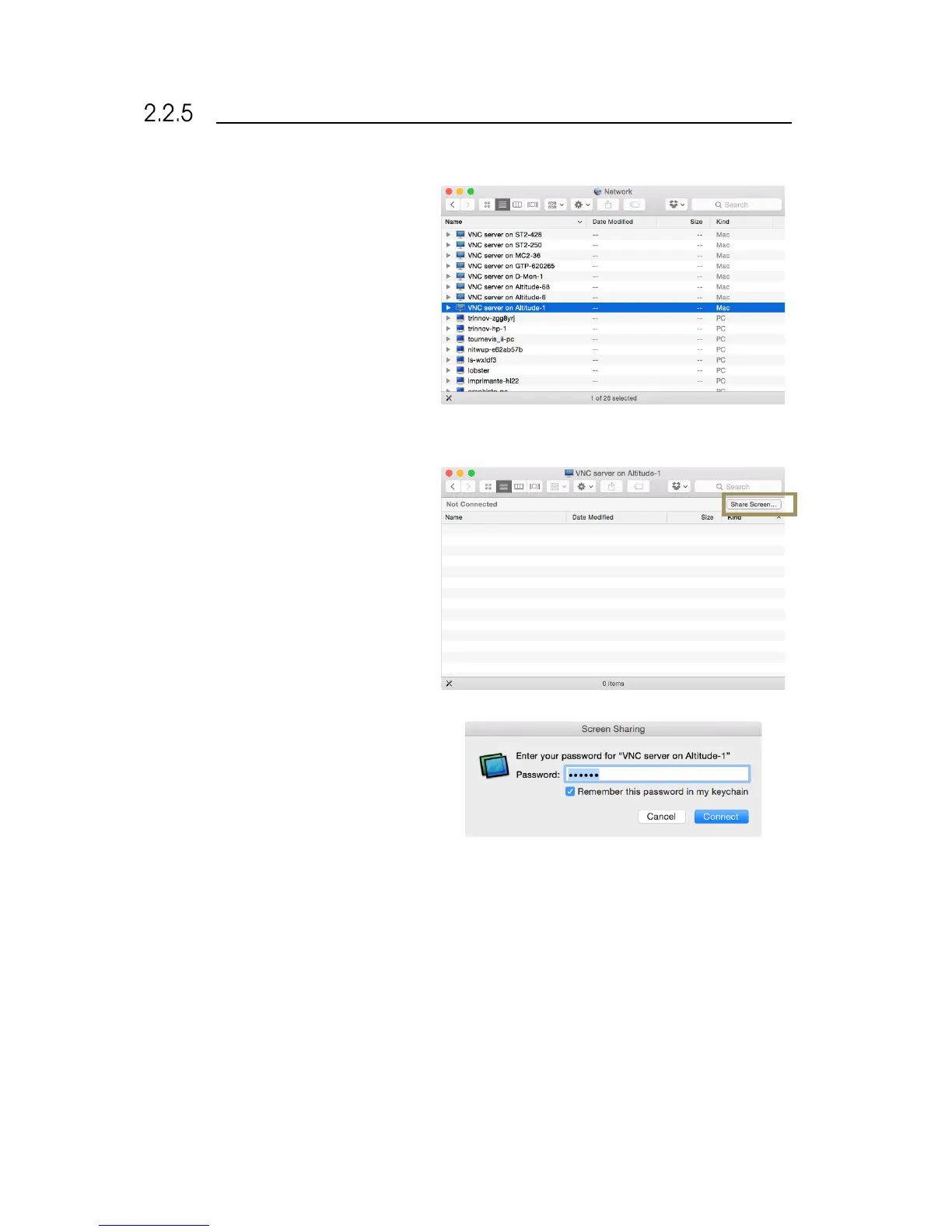
2. Select the item Go > Network in the
Finder’s menu. This will display the
available VNC servers in your
network.
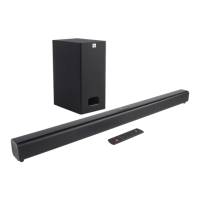
3. Select (double-click) the server “VNC
server on SDP-XX”, where XX is the
number of your SDP-75. This will
display the following window;
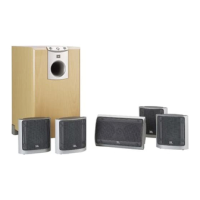
4. Click on the Share Screen… button.
This will display the Screen Sharing
login panel;
5. Enter the password, which is the six-
digit serial number of your SDP-75:
a. the password is 00000X, if the number
of your SDP-75’s VNC Server has a
single digit;
b. the password is 0000XX if the number
of your SDP-75’s VNC Server has 2
digits;
c. the password is 000XXX if the number
of your SDP-75’s VNC Server has 3
digits;
d. etc.
6. Click on the Connect button located
in the lower left corner of the window.
7. The graphic user interface of your
SDP-75 should now be visible on the
screen of your Mac.


 To Next Page