38
USING A WINDOWS COMPUTER WITH TIGHT VNC
Since Tight VNC is not a zero-conf client, the connection procedure requires some additional steps, which are described
below.
WRITE DOWN YOUR SDP-75’S SERIAL NUMBER
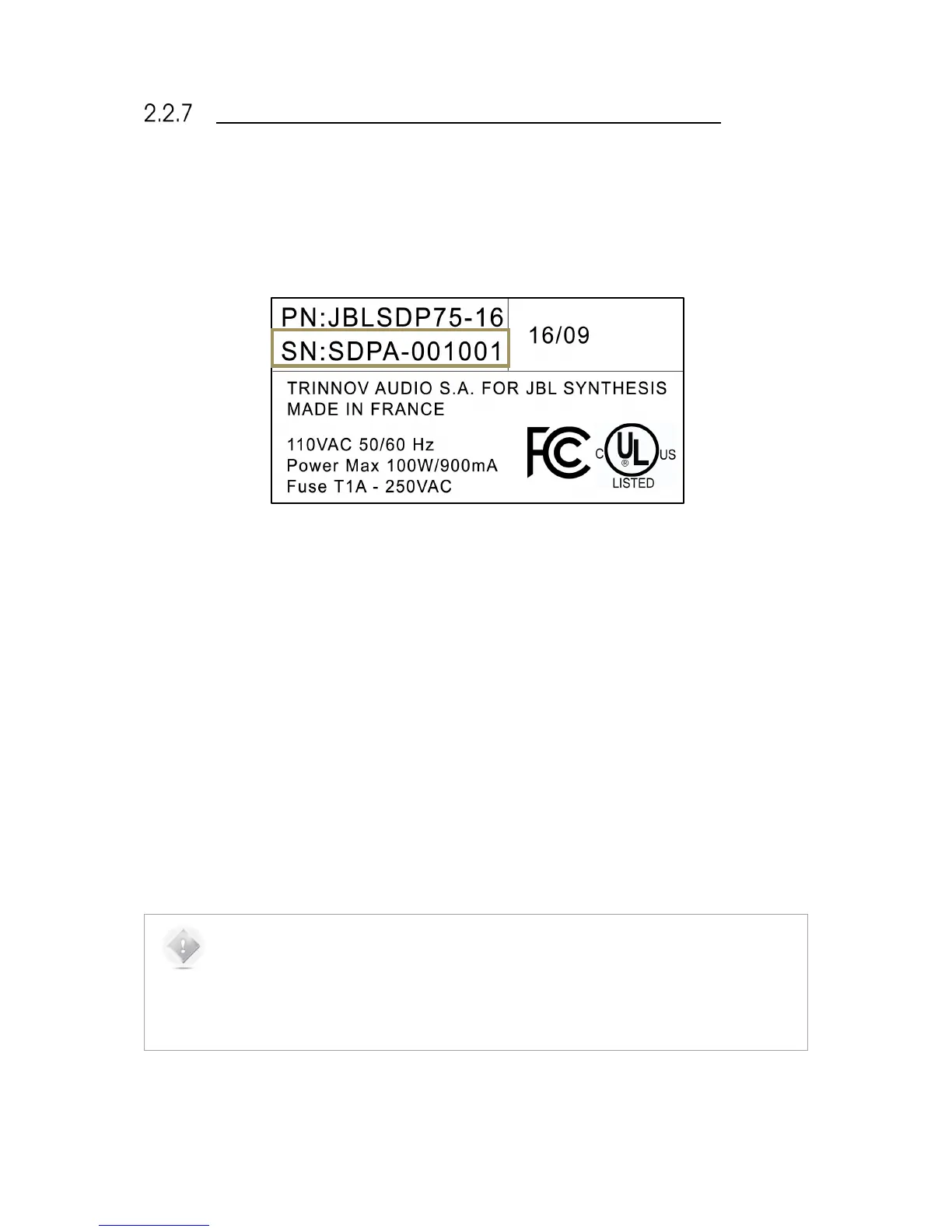
1. Go to your SDP-75’s back panel to find out its serial number. The 6-digit serial number is printed above the
MADE IN FRANCE tag: it is “123456” in the example below:
Figure#23:#a#serial#numbe r#a s#printed#on#th e #b a ck #p a n e l#o f#th e #SDP-75#
2. the VNC password is the six-digit serial number of your SDP-75:
• The password is 00000X, if the number of your SDP-75’s VNC Server has a single digit;
• The password is 0000XX if the number of your SDP-75’s VNC Server has 2 digits;
• The password is 000XXX if the number of your SDP-75’s VNC Server has 3 digits;
• Etc…
WRITE DOWN THE IP ADDRESS OF THE SDP-75
If your VNC client is not zeroconf-enabled it cannot find the SDP-75‘s VNC Server automatically. This is the case of the
Tight VNC client for Windows. Therefore, you’ll need to enter the SDP-75‘s IP address in the connection window. More
precisely, the IP address you need to enter is:
● The IP address of the Ethernet interface, if the SDP-75 is connected to the router via an Ethernet cable.
● The AP IP address of the Wi-Fi interface, if the remote device is connected to the Access Point of the SDP-75.
● The IP address of the Wi-Fi interface, if the SDP-75 is connected to an existing Wi-Fi network.
NOTE:
the IP address of the SDP-75 can be retrieved:
● via the front panel, in the Setup/Network/Ethernet page or in the Setup/Network/Wi-fi
page;
● from the Network page of the graphical user interface, displayed to a monitor via the VGA
or DVI port.


 To Next Page