IMPORTANT NOTE: be careful about the output level before playing a test signal.
The Pink Noise generated from Speakers/Room setup tool is following the THX recommendations and
is generated at -30dBFS
The sine wave and pink noise generated from the Processor/Input page are both generated at -20dBFS
RMS.
NOTE: To be able to produce pink noise, the SDP-75 needs to have Word Clock synchronization. Be
careful to use an analog source to be in master clock, or that your digital device connected to the SDP-
75 and selected
is providing a clock signal.
Pink noise can be played:
• from the Speakers/Room setup tool
• in the Advanced Settings interface, from the Processor/Inputs page
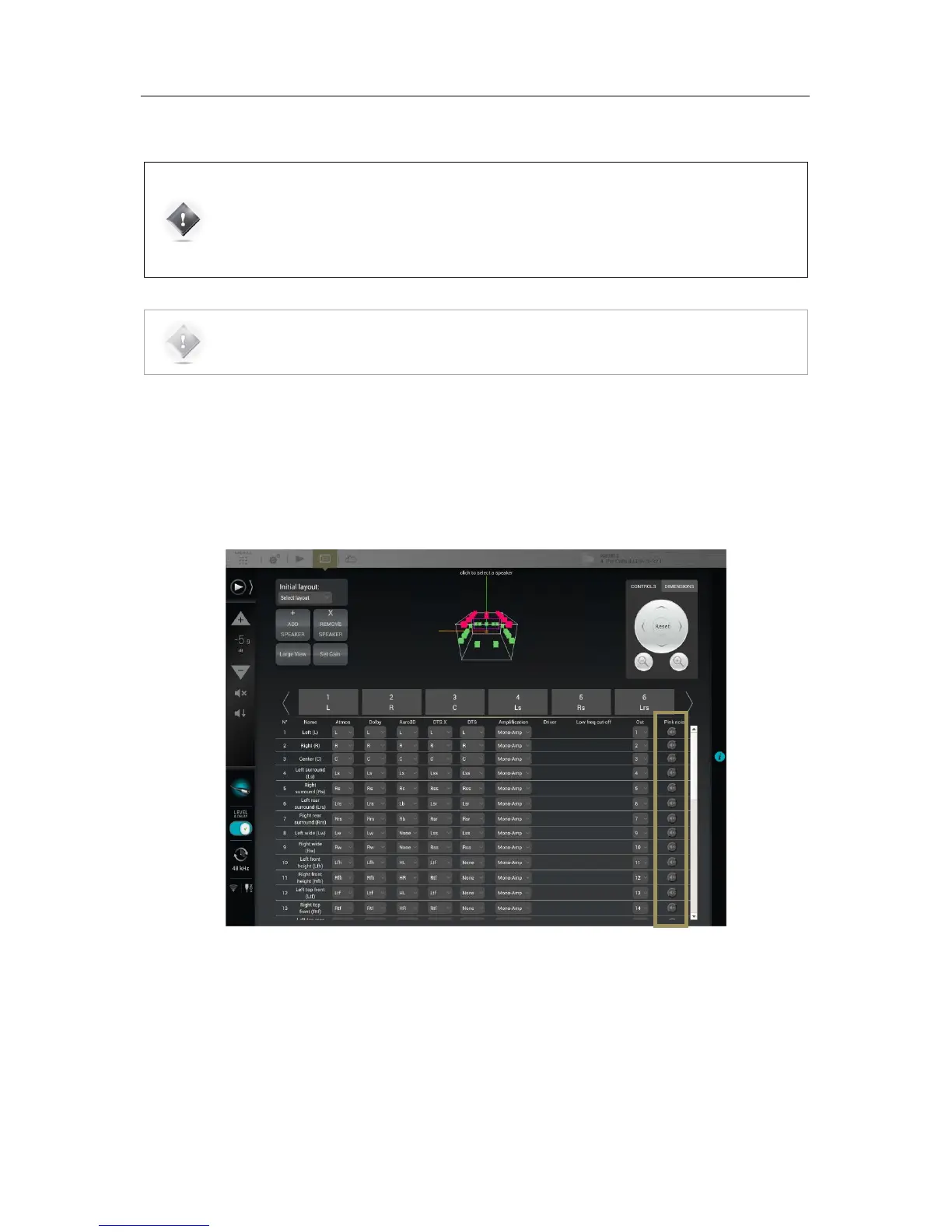
To play a pink noise from the Speakers/Room setup tool, click on the Pink Noise button of the
corresponding output channel:
Figure#51:#playing#Pink#N o ise #fr om #the#Speakers/Room#setup#tool#
The Processor/Inputs tab provides a complete set of processing options for each input channel. It allows you to send a
1000Hz sine wave or pink noise for every channel.
• To send a 1000Hz sine wave, click on the Sine button.
• To send pink noise, click on the Pink Noise button.
For instance, you can use Pink Noise for setting up your equalization as follows:
• In the Processor/Inputs page, press on the Pink Noise button for the channel you want to equalize,
• Switch to the Processor/Outputs page and open the Preset EQ or User EQ for that same channel,
• Make your EQ adjustments,
• Use the Previous/Next buttons: the pink noise will follow to the same channel.


 To Next Page