35
STEP 3: CONNECT TO THE SDP-75 FROM YOUR DEVICE
2.2.4.1 USING A TABLET WITH MOCHA VNC LITE
To connect to the SDP-75’s VNC Server from an iOS or an Android device, use the Mocha VNC Lite application:
• Open the Mocha VNC Lite app in your iOS or
Android device.
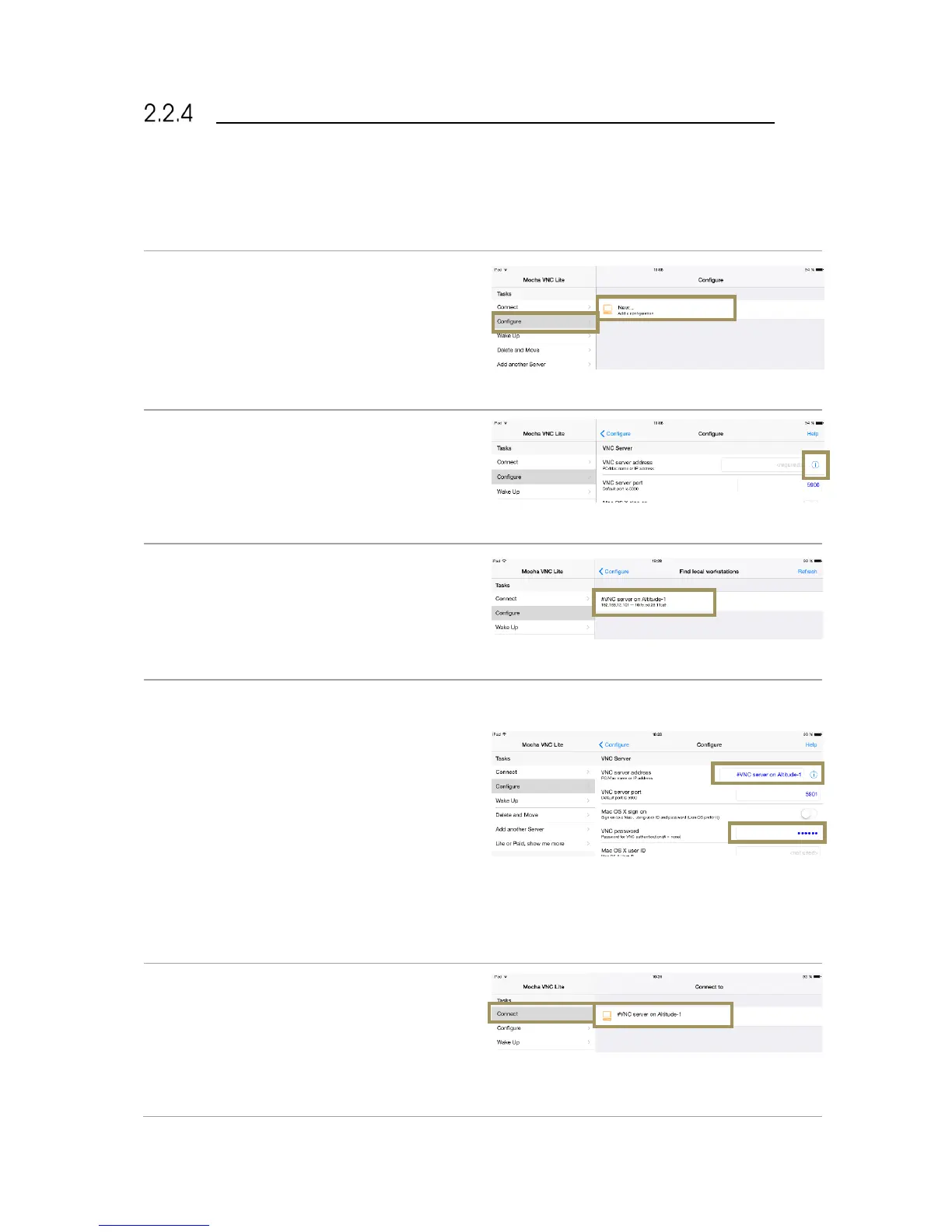
• Click on the Configure menu item located in the
top left of the page.
• In the Configure page, click on the line “New…
Add a configuration”.
#
Figure#16:#adding#a#new #V NC#Server#co n figuration#
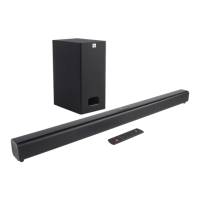
In the list of VNC Server parameters, click on the “i”
button located in the top right of the page, next to the
VNC server address.
Figure#17:#configuring#the #V N C #S e rv er #
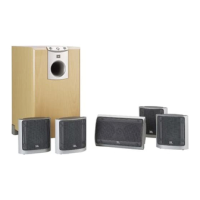
In the list Find local workstations, select the line
named “#VNC Server on SDP-XX”, where XX is the
number of the SDP-75.
#
Figure#18:#selecting#the#VN C #S e rve r# SDP-XX#
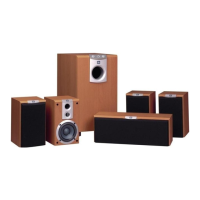
The field VNC server address now shows the name
“#VNC Server on SDP-XX”, where XX is the number of
the SDP-75.
Go to the field VNC password and enter the password,
which is the six-digit serial number of the SDP-75:
● the password is 00000X, if the number of
the SDP-75’s VNC Server has a single
digit;
● the password is 0000XX if the number of
the SDP-75’s VNC Server has 2 digits;
● the password is 000XXX if the number of
the SDP-75’s VNC Server has 3 digits;
● etc…
The VNC Server is now configured.
Figure#19:#entering#the#pa ss w o rd#
Now click on the Connect menu item. The “#VNC
Server on SDP-XX” should be listed in the page.
Select the line “#VNC Server on SDP-XX”.
The graphic user interface of the SDP-75 should now
be visible on the screen of your device.
Figure#20:#connecting#to #th e #SDP-75
'
s#VNC#server##


 To Next Page