87
ADDING DOLBY ENABLED UPFIRING SPEAKERS
If you configuration has some Dolby-Enabled up-firing speakers, they appears on the 3D view as ceiling speakers as
they are used to reproduce elevation channels. In the drop-down list, those speakers are end in an “e” which stands for
“enabled”.
Here are the available Dolby-Enabled speakers:
• Le: Left up-firing Dolby-Enabled speaker;
• Re: Right up-firing Dolby-Enabled speaker;
• Lse: Left Surround up-firing Dolby-Enabled speaker;
• Rse: Right Surround up-firing Dolby-Enabled speaker;
• Lrse: Left Rear Surround up-firing Dolby-Enabled speaker;
• Rrse: Right Rear Surround up-firing Dolby-Enabled speaker;
To add a Dolby-enable speaker from the drop-down list, please use the normal procedure explained above in the Adding
Regular Speakers sub-chapters.
To add a Dolby-enable speaker from the 3D view, click on one of the Dolby Top Speakers. As explained above, the Dolby
enabled speakers are using the signal from Top speakers to recreate the immersion effect. The speakers concerned are
• Left and Right Top Front (Ltf/Rtf);
• Left and Right Top Middle (Ltm/Rtm);
• Left and Right Top Rear (Ltr/Rtr).
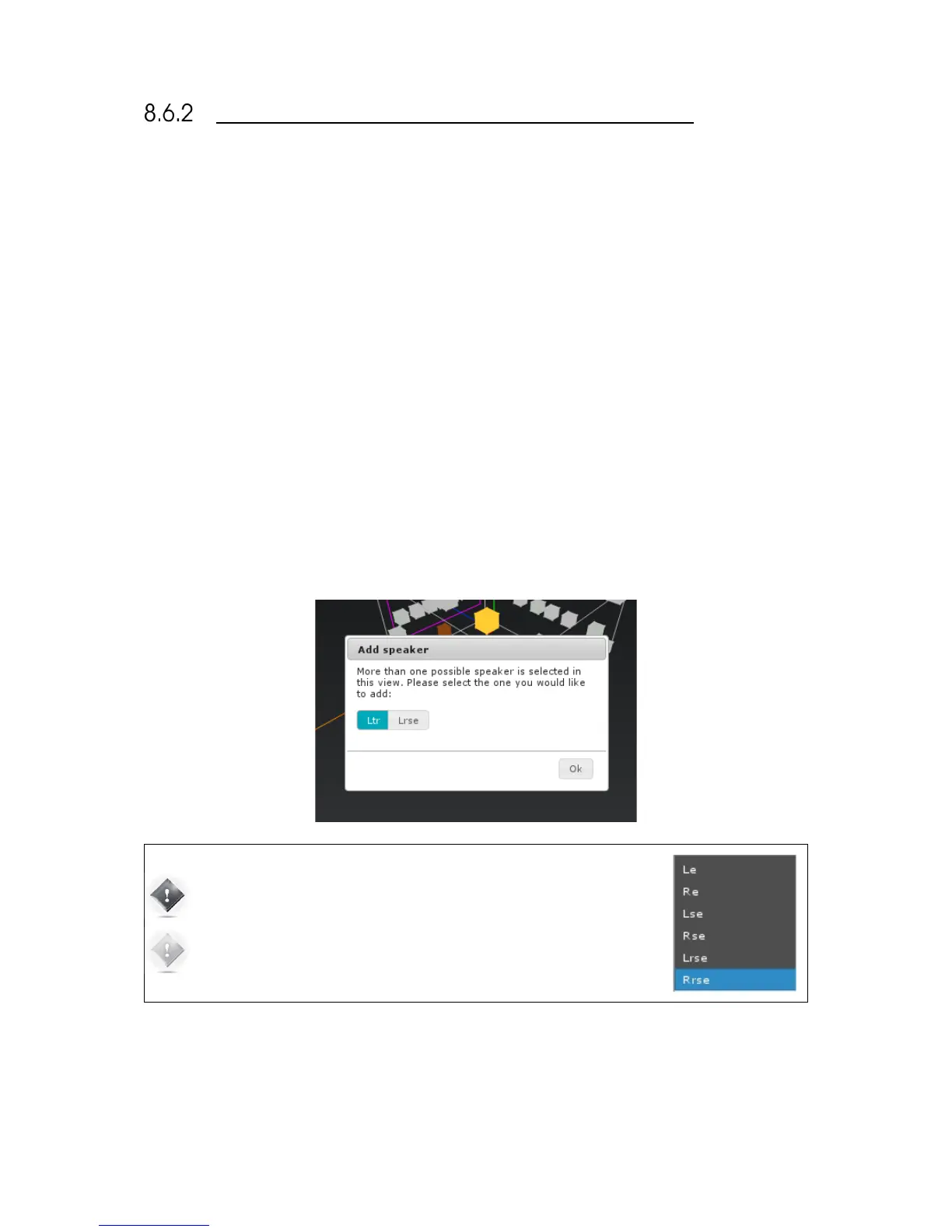
Use the procedure explained in the previous chapter to add a speakers from the 3D view. Select of the speakers listed
above. When clicking on Add, a dialog box will appears asking you to choose between the regular in-ceiling speaker or
the associated Dolby-enabled up-firing speaker. Select the desired one.
IMPORTANT NOTE: The last speakers on the list are up-firing Dolby-Enabled
speakers. Dolby-Enabled speakers have an included filter designed to enhance
the immersion effect.
NOTE: Dolby-Enabled up-firing speakers uses elevation speaker channels. In
cases in which both Dolby-Enabled and celling speakers are used, some
conflicts can occur. It will appear on the side panel.


 To Next Page