86
8.6 ADDING SPEAKERS
ADDING REGULAR SPEAKERS
If required, the next step is to add speakers to achieve a configuration that fits your system.
To add one or more speakers:
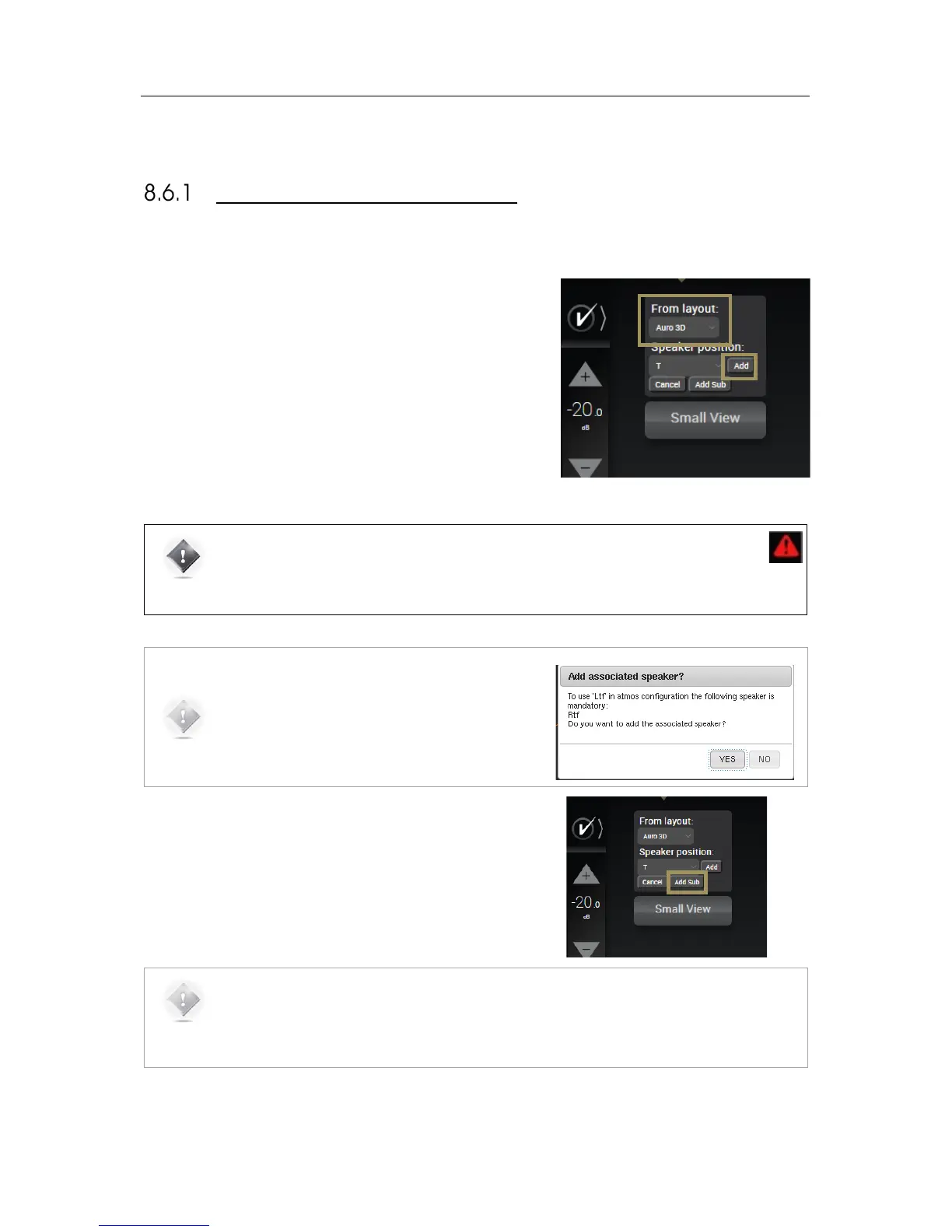
• click on the Add Speaker button
• in the From Layout drop-down list, select the speaker
template from which you want to add one or more speakers:
all the speakers available in the selected speaker layout are
displayed in grey color;
• click on the speaker you want to add: it will be displayed in
yellow color;
• click on the Add button next to the Speaker position drop-
down list;
Repeat this process for each additional speaker you want to add.
#
Figure#61:#Adding#a#speaker#
IMPORTANT NOTE: Some configurations are not allowed by the decoder specifications. In such
case, a red warning will be displayed on the side panel and the relevant speakers will be
highlighted in red.
The side panel gives you some information on the prerequisite conditions for some speakers.
NOTE: If you choose to add a speaker, the SDP-75 will
automatically suggest to add the mandatory associated
speaker(s). This will help you to keep the integrity of the
recommendations of each decoder.
To add a subwoofer:
1. Click on the Add Speaker button;
2. Click on the Add Sub button below the Speaker position drop-
down list.
NOTE: The Add Sub button adds subwoofers regardless of formats. The subwoofer positions displayed
are not significant and will not affect the sound.


 To Next Page