User’s Guide Kona cutting plotter
Basics
30 AP-75380 - Revision 1.2
3.2 Installing firmware
3.2.1 Normal procedure
Step 1: Make a connection between the Kona cutting plotter and your computer using a
USB cable (standard in-the-box item).
Step 2: Be sure that the USB driver is already installed!
Refer to Uninstall/update USB drivers on page29
Step 3: Power ON the cutter and computer.
Step 4: Be sure that the pressure rollers are raised.
Step 5: Download the latest firmware from Mutoh’s member Site
> window drivers or insert
the Kona cutting plotter installation CD.
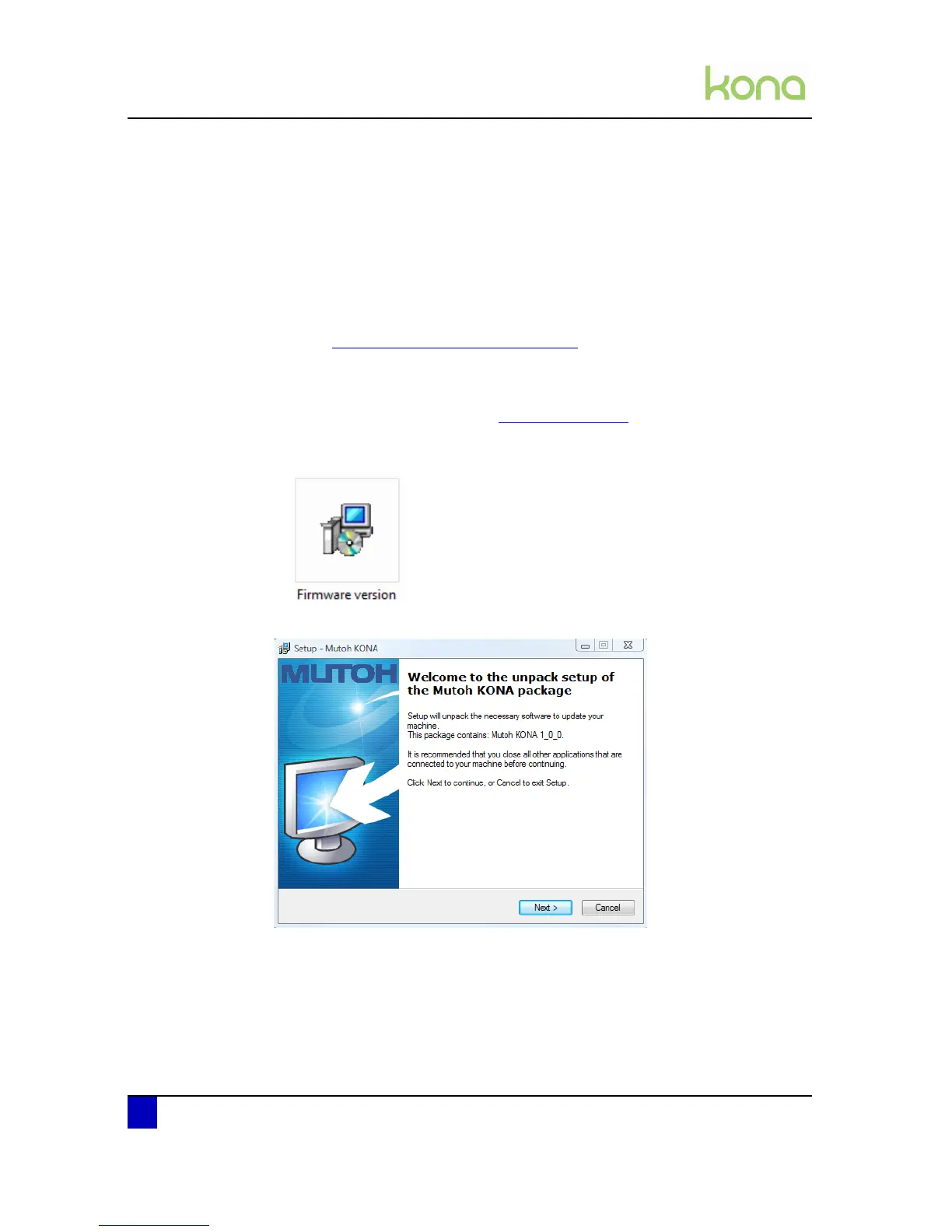
Step 6: Double click on the exe file.
Step 7: Press next.
Step 8: Read the License Agreement and select I accept the agreement and press next.



 To Next Page