186 • secamVSA 535/seca mBCA 525
17-10-05-353-002g_10-2020 B
6.3 Setting up a connection to the seca connect 103 software
The device must be connected to the seca connect 103 software in order to
be able to communicate with your EMR system.
The following requirements must be met for this:
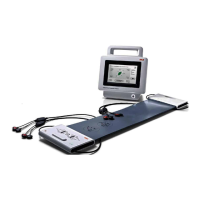
• The BIA measuring mat is deactivated ➔ Retrofitting the measuring mat
(secamVSA 535 only)
• The device is connected to your LAN or WiFi network
• The server address and port for the
seca connect 103 are known
• The EMR system is connected to the
seca connect 103 software. In-
formation on this can be found in the
seca 103/452 system instructions
for use (from version 2.0 or higher)
NOTE
• Follow the information in this section of the document ➔ Monitor
interfaces and network ports.
• Information on connecting the EMR system to the
seca connect 103 software can be found in the seca 103/452
system instructions for use (from version 2.0 or higher)
Entering connection data 1. Press the Peripherals tab.
2. Press the seca connect button.
The seca connect configuration dialog window opens.
➔ Setting up a seca 360° proximity connection
➔ Making workflow settings



 To Next Page