Factory settings • 191
English
17-10-05-353-002g_10-2020 B
7.2 Resetting the device
Use the Reset device function to reset the device to factory settings
(➔ Overview of factory settings). seca patient files and user accounts are
deleted from the device in this process.
NOTE
If seca patient files and user accounts are to be retained, proceed as
described in the section entitled ➔ Resetting the user interface.
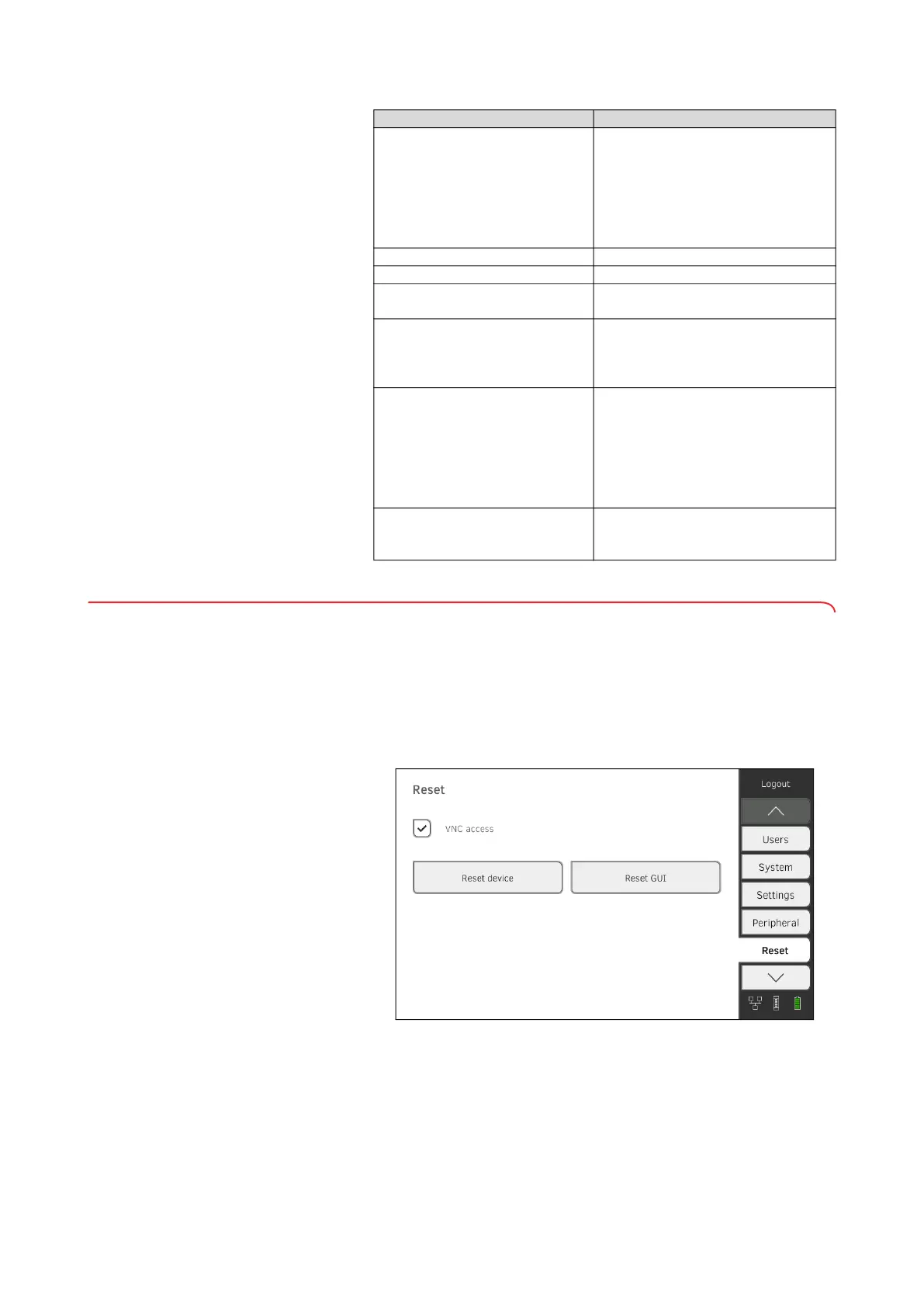
1. Press the Reset tab.
2. Ensure that seca patient files and user accounts have been exported or
synchronized using the
seca analytics 115 PC software.
3. Press the Reset device button.
seca patient files and user accounts will be deleted.
The device will be reset to factory settings ➔ Overview of factory settings.
WiFi client (device <-> network):
Connection data
Direct WiFi (device <->
measuring mat):
seca mBCA 525
secamVSA 535
Off
None
On
Off
Device name [serial number]
Integration mode Standalone
seca 360° wireless:
Connection data
Off
None
seca software
seca connect 103:
Communication server IP
Connect port
None
22020
seca software
seca analytics 115:
UDP
Communication server IP
TCP port
UDP port
File transfer port
Off
Off
None
20010
20011
20012
Active analysis modules
seca mBCA 525
secamVSA 535
All
Vital signs
Function Setting



 To Next Page