155
Helios Systems
Caution
Risk of damage to the unit!
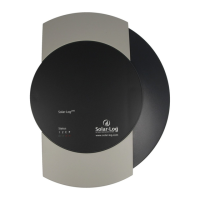
The Solar-Log™ also has an RJ45 socket, which must never be connected to the RJ45 socket on the
inverter.
► Only connect inverters via the RS485/422 Solar-Log™ interface(s).
Connect the inverters to each other
•
Connect using a network cable (patch cable)
•
Where to connect: 2 RJ45 sockets
Procedure
1. Open the inverter as shown in the inverter's instructions.
2. Insert the RJ45 plug into any RJ45 socket on the first inverter.
3. Insert the other end of the wire into any RJ45 socket on inverter 2.
4. Connect the other inverters to each other in the same way.
5. Terminate the last inverter in accordance with the manufacturer's specifications.
6. Close the inverter if no other inverters are to be connected.
7. Insert the terminal block connector into the Solar-Log™ RS485 socket.
Central inverter
Overview
•
Integrated interface
•
Connected using network cable (patch cable) and Ethernet router or switch
•
Communication address must be allocated.
•
Installation steps
• Allocate communication address
• Connect inverters to the Solar-Log™
• Connect the inverters to each other
Caution
The IP addresses for the inverter must be in the same Class C network as the Solar-Log™. Alternatively,
it is sufficient if the first three groups of digits in the IP addresses are the same.
Allocate communication address
•
Setting: Using the inverter operating display.
Please follow the instructions in the manufacturer's manual.
Connect inverters and the Solar-Log™.
The wiring is done using a
•
network cable (patch cable) and the
•
Ethernet router or switch.
Procedure
1. Set different unit IPs on each inverter in accordance with the inverter's instructions.
2. Connect the Solar-Log™ and the inverter to the router or switch.


 To Next Page