The next step is to define the price preset. Press <6> and <1> to go to
the scale prices input (menu 3.5.x.x.6.1). Enter the respective net price
depending on the delivery quantity. Press <Print>. MultiFlow has now
accepted the price.
If you are specifying only one price irrespective of the delivery quantity,
define only scale price 1. Set all further scale prices and delivery
quantities to "0".
Confirm the entered price by pressing <PRINT>.
The price factor indicates the quantity factor. In this example the price
refers to one piece so a price factor of "1" is entered.
In the case of liquid products the price is normally related to 100 litres
so you would need to select liters as the measurement unit and 100 as
the factor.
A price factor of "0" indicates a fixed price (for bulk goods only). In this
case it is no longer required to indicate the quantity.
Confirm the entered price factor by pressing <PRINT>.
Finally, you define the tax rate.
You enter the tax rate applicable to the product.
Confirm the entered tax rate by pressing <PRINT>.
You can disregard point 7 "Temp. compensation". This point is only
active for liquid products discharged through the flow meter.
7.2 Additive Dispensing
7.2.1
Activating the Additive Pump
When using an additive pump (also called „dosage pump“), the injection
point of the additive into the product flow is an important factor.
If additive dispensing takes place before the measuring system, the
product including the additive is measured. In this case the additive is not
indicated on the receipts. The difference to a product without additive is
shown by a changed name (and price).
In contrast, with additive dispensing after the measuring system, the
additive is shown in addition to the main product (e.g. heating oil).
However, in this case it is necessary to have the additive pump accepted
by the W & M office. This is not required when injection takes place
before the measuring system.
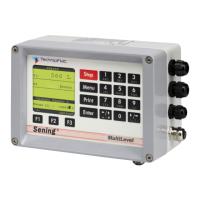
Call up the configuration menu with function key <F3>.




 To Next Page