Chapter 3 ’Web Browser Interface’ — Advanced Settings
Amethyst III DTV Smart Switch 113
User Manual
schedule parameters, even if the current one is not ended, it activates it.
If it does not and if all time-limited scheduled configurations are ended,
it activates the default configuration.
Creating a Schedule
1.
Go to the Automation tab.
2.
Click the Edit button in the toolbar to enable automation editing.
3.
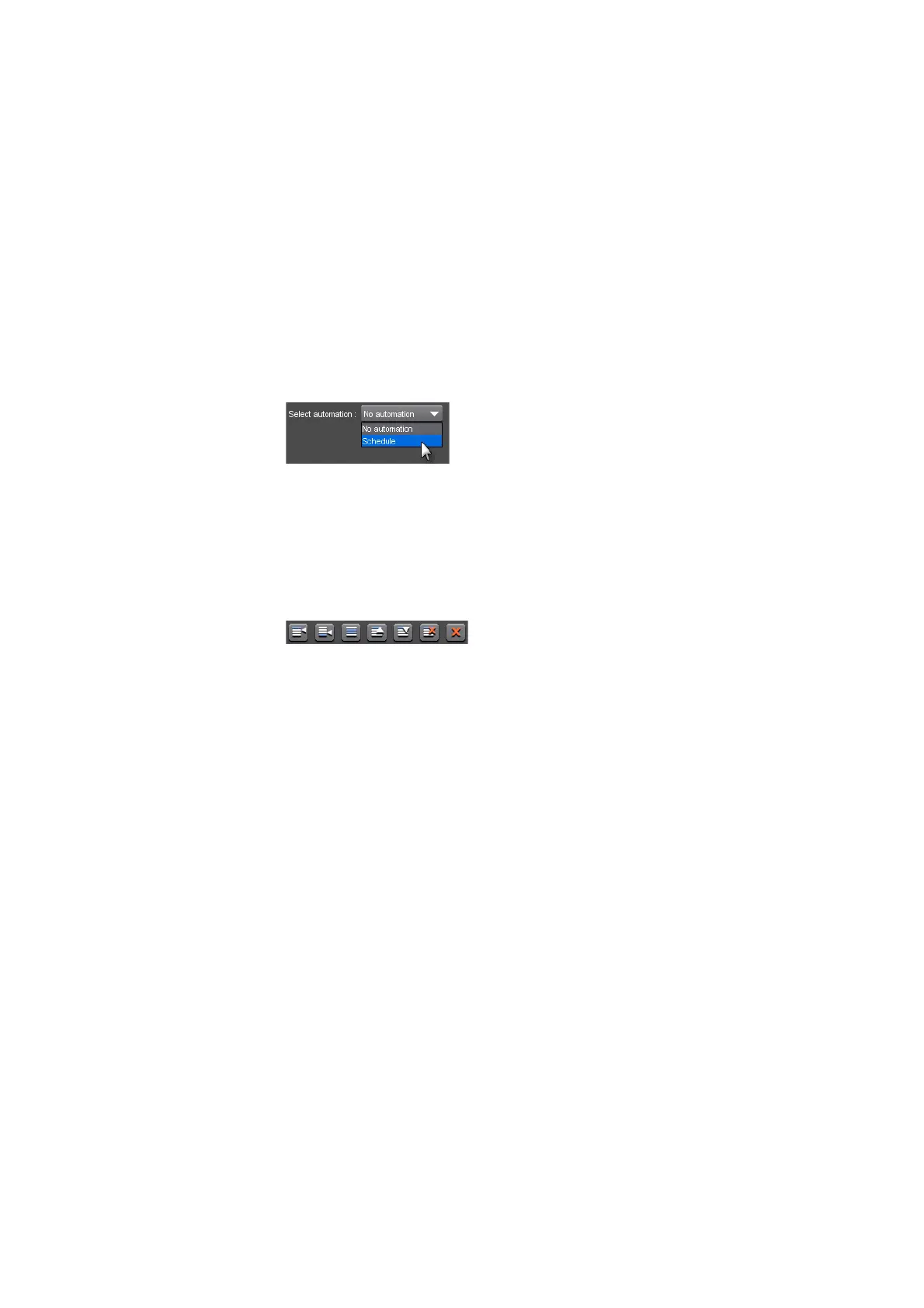
Select Schedule from the Select automation drop-down list.
Figure 3-65. Selecting the Schedule mode
When Schedule type is selected,
Configurations will be activated using a schedule.
Basic tools are available in the tool bar for schedule editing.
Figure 3-66. Basic tools
For a description of these tools, refer to
Section ’Automation
Tab’
on page 176.
4.
In the Default configuration drop-down list, select the configuration
that will be applied by default, i.e. when no configuration of the list is
due to be applied.
5.
To create the first configuration of your schedule, click the Insert after
the current selection button.
6.
Where applicable, replace the stars (*) by appropriate values
according to the schedule you want to create. Different criteria are
available for the scheduled configuration:
Day of the week
Day
Month
Year
Hour
Minute
Two types of events can be selected:
Event without duration. The scheduled configuration is applied
at the date specified and until another scheduled configuration
is applied.


 To Next Page