shows the second option. With "Continuous Logging" you have a maximum of two files of
the file size in the memory, which you can see above. The number of files field is not
changed accordingly, it is only changed by the "new file at restart" option.
"New file at restart" opens new options (as seen in the screenshot). Now the option
"Number of files" is enabled and you can set the number of files in the ringbuffer. Please
note that this is a file based ringbuffer not a variable based one. As you can see here the
maximum filesize is calculated with Number of files + 1. The reason is because we open a
new file and delete afterwards.
For variable logging you can use half of the available mass storage of your device. The
usage is indicated by two fields. One is the current disk usage and the two color coded
fields with the 512MB and 1GB label. These are in first place indicators. At runtime the real
available space is checked. If the space is not sufficent older data is overwritten. This is
shown by the error variable @LogCopyError (codes 20 and 25).
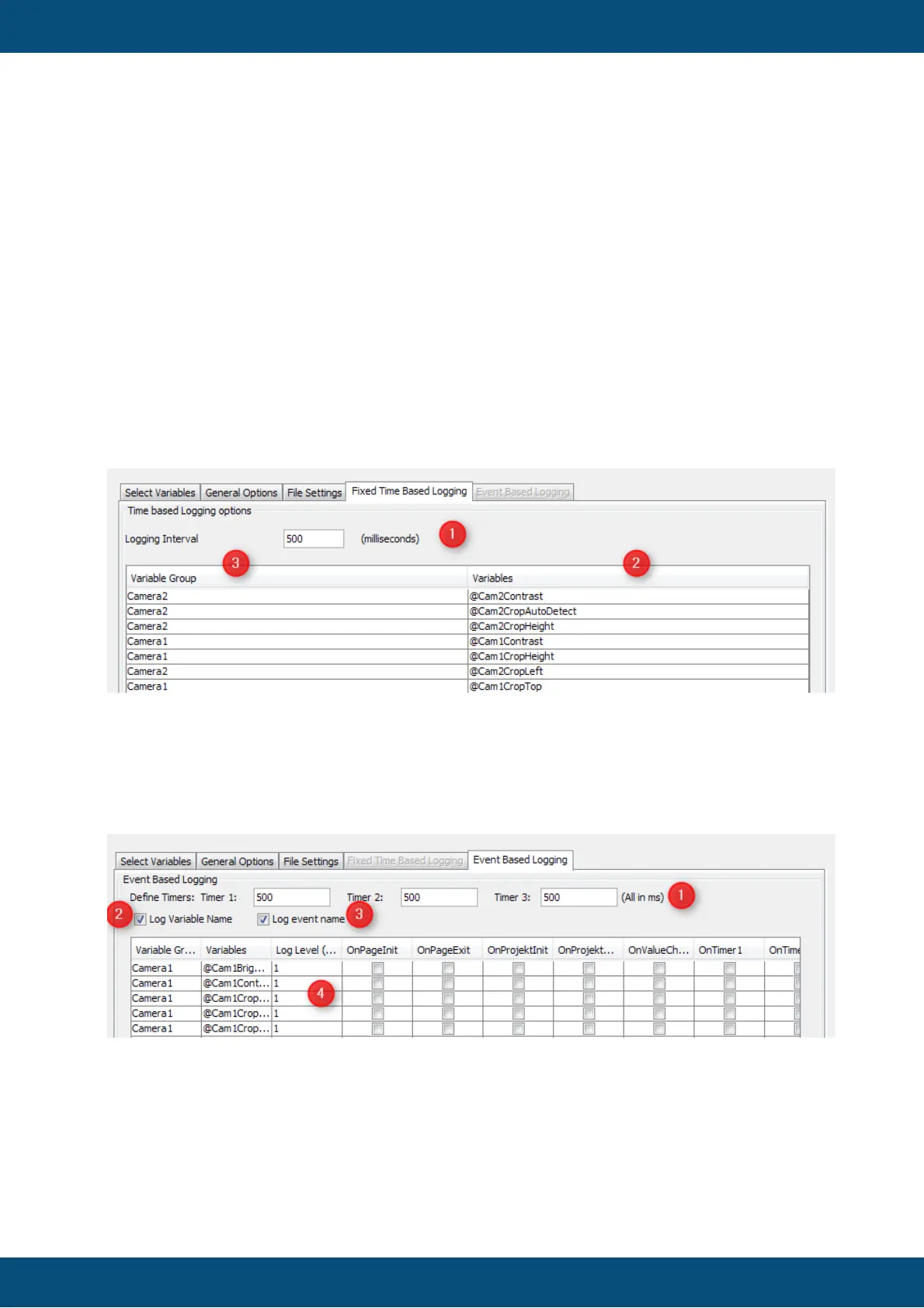
Here is only one option for the time based logging. It is a timer value (1) that can be defined
in the line edit field besides the Logging Interval label. The lowest number, the user can
enter shall be 500. You can sort the variables by drag and drop. The shown order will be the
order in the log file. The header columns can not be used for sorting.
Timer settings (1)
When doing event based logging, the user can select three timers. He can enter the timers
in milliseconds besides each label (Timer X:). A variable can be assigned to one of these
timers (then it will be logged each time the timer expires).
To shorten the log lines you can use option (3) and (4). Per default everything will be
logged.
Sorting the table
You can sort the table by clicking on column headers.



 To Next Page