310
OPUS Projektor Manual
CAN
1. Select CANFreestyle on the CAN port configured before - in our example we
configured it for CAN 1.
2. Type a valid name and description - these are mainly for your convenience and
may help others to understand the GUI configuration in future.
Properties of Owner ECU(s)
ECUs are configured in the same "Terminal and Owner ECU(s) Configuration" dialog
that was used above to activate CANFreestyle protocol and to configure the display's
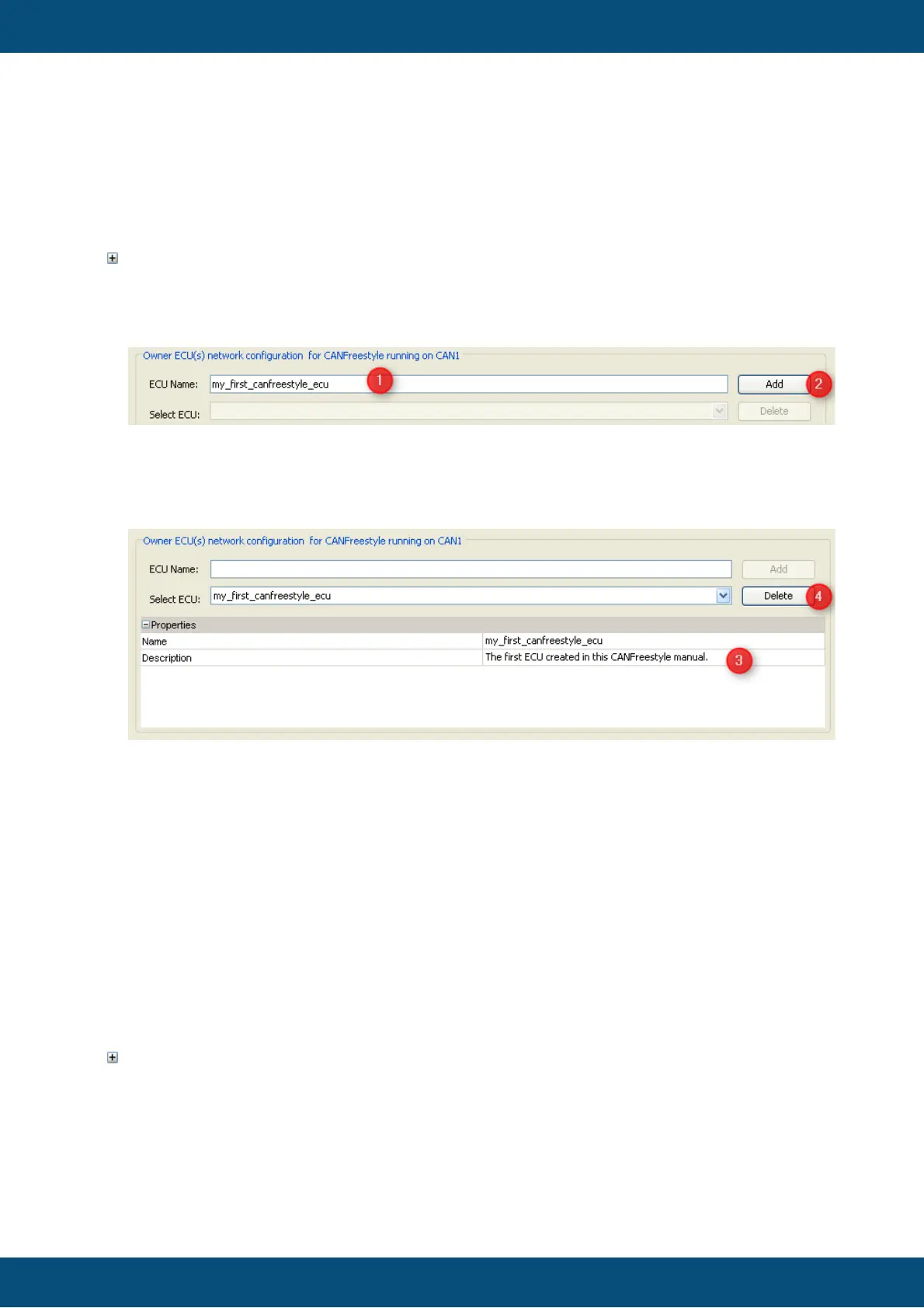
address. ECUs are configured in the lower part of this dialog:
1. Type a name describing the ECU
2. Press "Add"
Then the new ECU will automatically be selected and one can modify the other
parameters:
3. Provide a description that could help others to understand better which ECU is
meant here
4. In case the ECU is not needed anymore it can be deleted again. If it already owns
any variables, the owner will be changed to the display (PClient) when you delete
it.
Adding Variables to the CANFreestyle ECUs
As mentioned above we mainly configured the CANFreestyle ECUs because they own
some variables whose values we want to show and/or modify on the display.
Before we can use these variables we have to do two things:
1. Create the variables and use one of the CANFreestyle ECUs as owner.
2. Define the Mappings we want to use to send and receive the variables.
Creating dedicated variable groups for variables owned by CANFreestyle ECUs
Knowing that we could end up with a lot of variables per ECU it's a good idea to create
one variable group per ECU. Of course you are free to organize variables in groups
however you prefer.



 To Next Page