5. Fill in a name of the variable
6. Type an index for the variable. You are free to enter the value in decimal or
hexadecimal, starting with "0x". Anyways hexadecimal will be displayed. (Although
the concept comes from CANopen you should use index and subindex as a
means of ordering and grouping of variables)
7. Add a subindex for the new variable. Note: Combination of index and subindex
has to be unique among all variables in the GUI definition.
8. Select signed or unsigned data type at least as wide as the variable will be in
CAN message.
9. Change owner from default "PClient" to the newly created CANFreestyle ECU.
Note: If you keep "PClient" you could handle the variable also but would not notice
if the ECU is not available anymore.
10.Select the newly created variable group for the variable.
11.Press "Add" to finally create the new variable with the settings made above.
If the variables was created successfully the above message will be shown at the lower
left box of the dialog.
Now you can either create more variables by editing the settings with or without "Reset"
or leave the dialog with "Close".
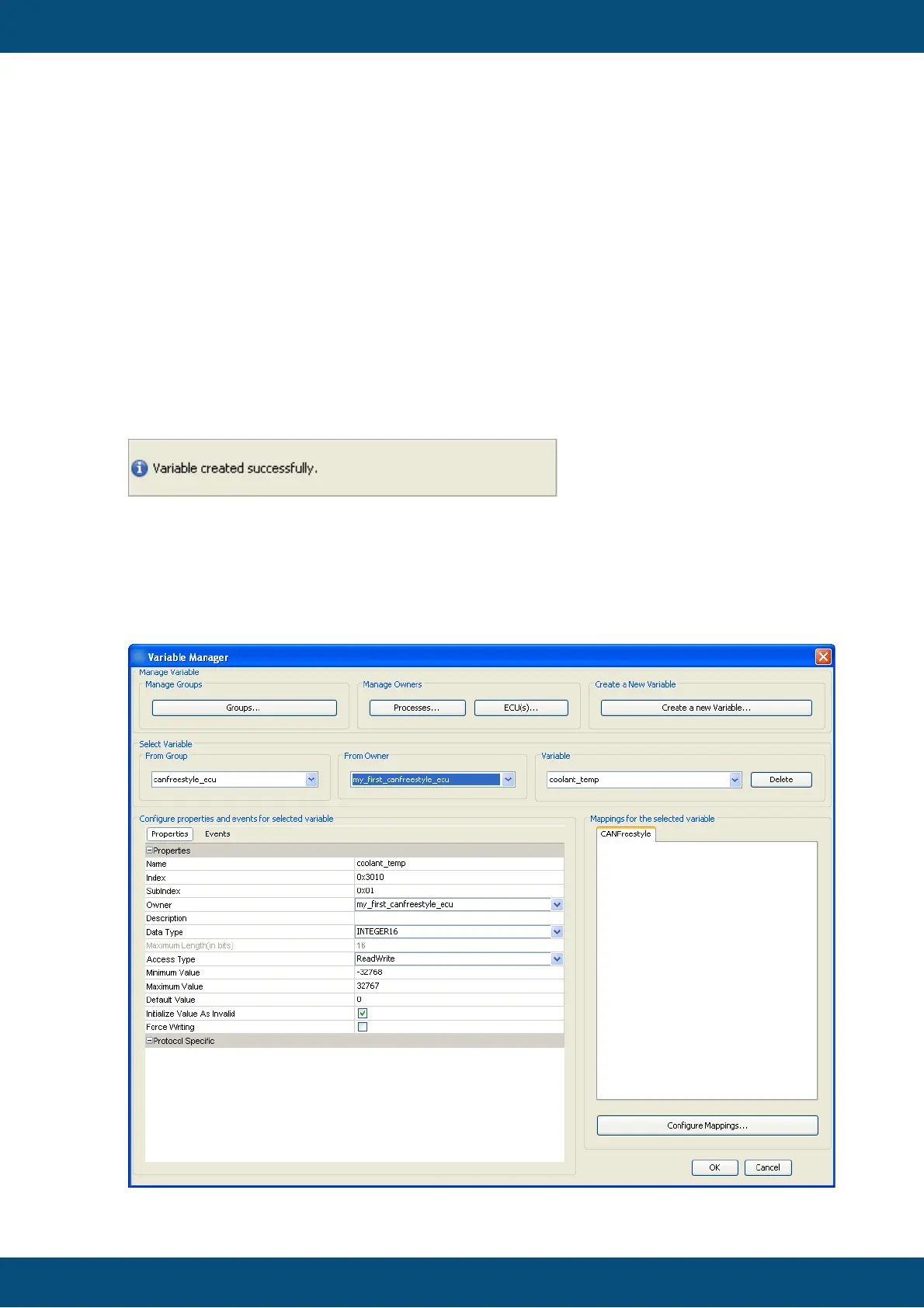
After closing the "Add New Variable" dialog you can modify all the properties of the
variable(s) just created or already existing in "Variable Manager" dialog:



 To Next Page