(2) Open Variable Manager...
The variable manager will be opened and the selected variable of the variable tree will
be shown. At this dialog you can edit the variable.
If you want to learn more about the "Variable Manager" dialog please have a look
here .
(3) Reset Colors
Sometimes it can happen that variables have the same color. So it is difficult to differ
them.
In that case the colors can be recalculated and all variables get different colors again.
Note:
The colors of mapped variables will not be stored.
If the tool is closed and started again, it could be that colors of mapped variables
changes.
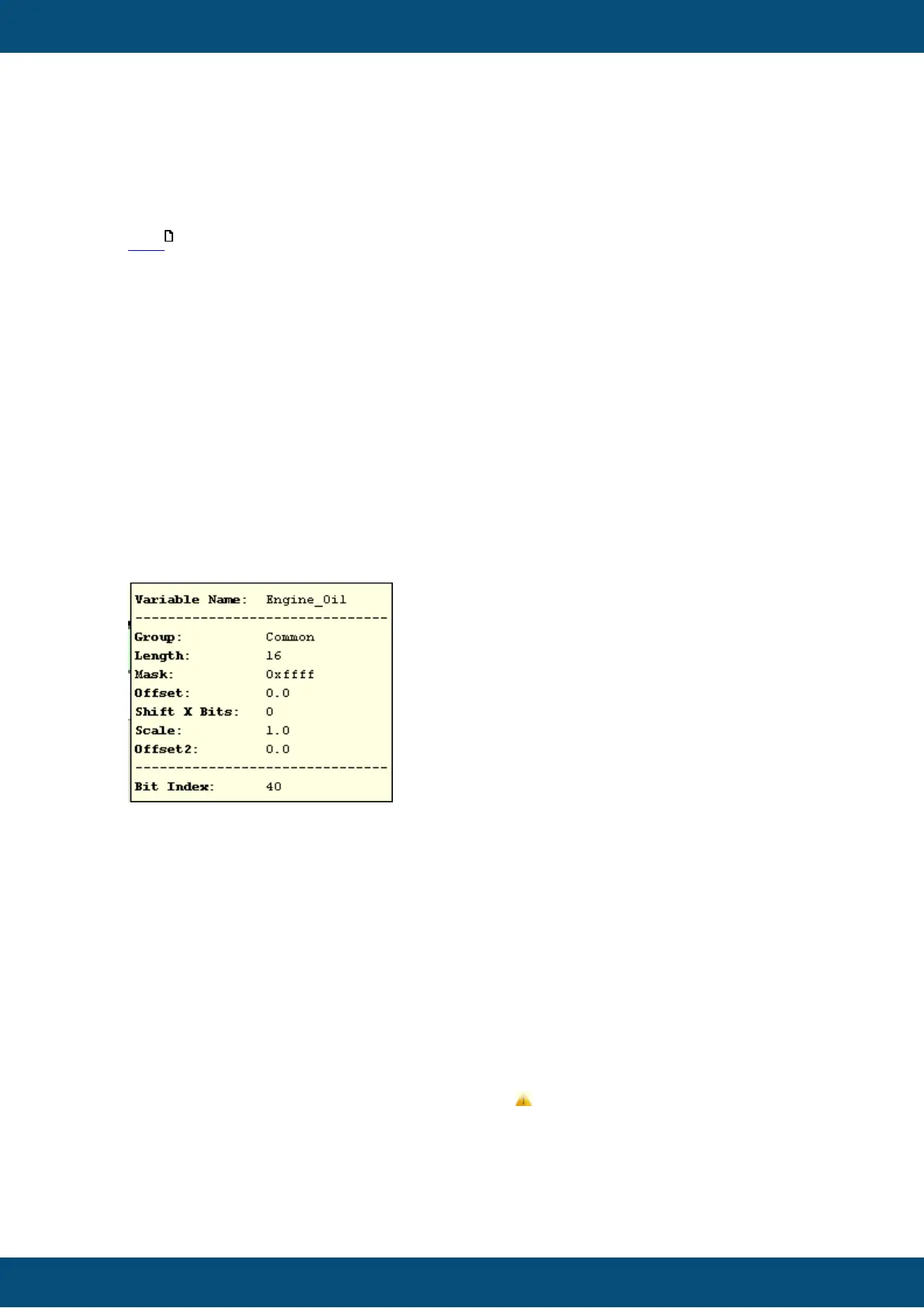
If the mouse hovers over a variable at the variable tree, a tool tip will be shown with the
useful information
Information for all mapped variables
- Variable Name
- Group
- Length (Mapped Length)
- Mask
- Offset
- Shift X Bits
- Scale
- Offset 2
If a variable is mapped to a mapping object and afterwards the length is reduced, the
mapped variable gets an attention symbol ((1,2) ).
This should help to identify mapped variables with a wrong length. If everything is fine,
the attention icon can be ignored.



 To Next Page