478
OPUS Projektor Manual
Object Reference
Note: This property can only be changed if the property Open For Input is enabled.
Default value: 1
Possible values: 1 ... 255
List Items
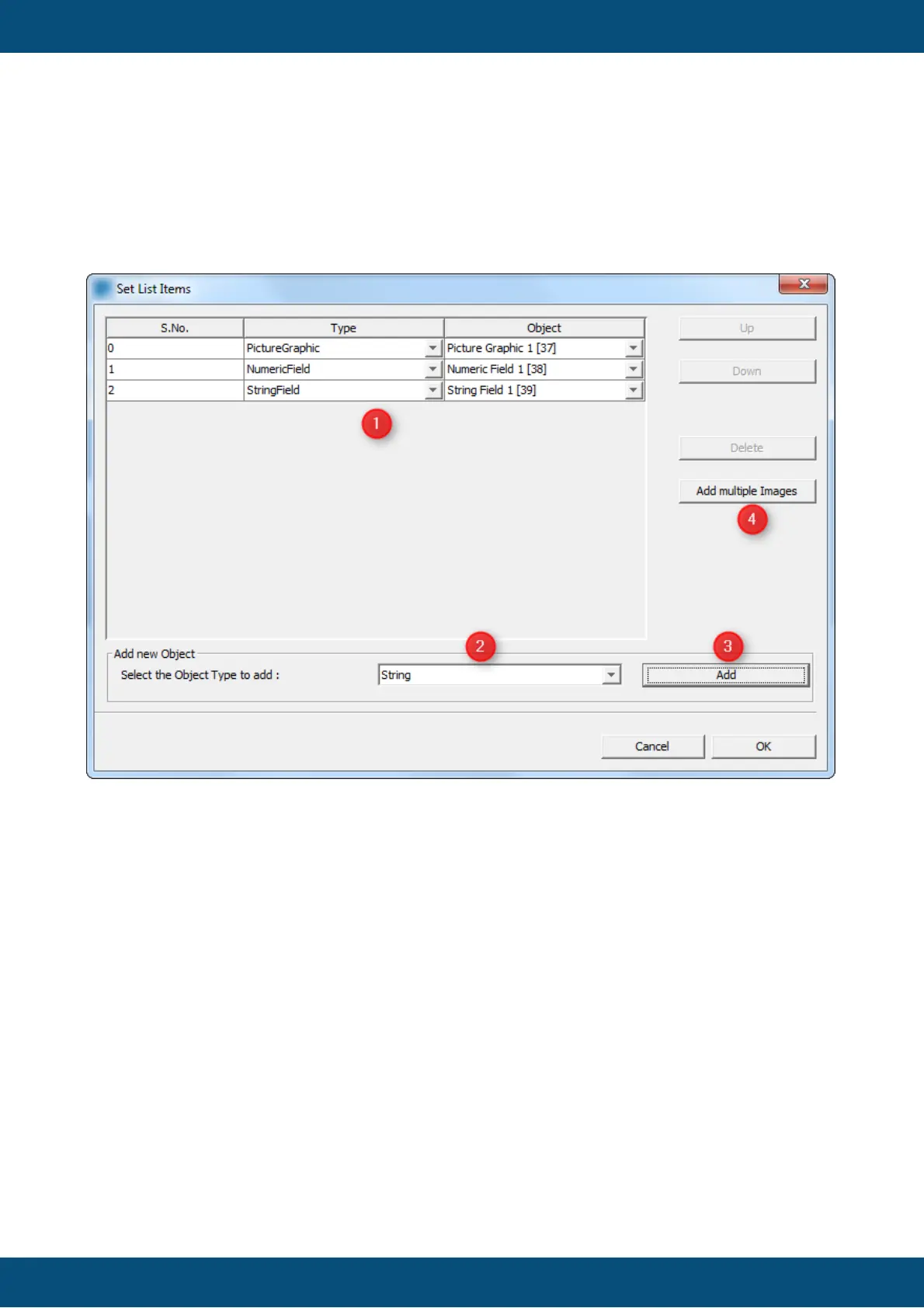
When editing this property a dialog will pop up that provides some ways to change the items
in a list
-Add a single object
(1) In the upper part of the dialog, the items of List is shown.
(2) In the lower part of the dialog, objects can be added to the selected list. To change which
type of object shall be added, the drop down box Select the Object Type to add can be used.
(3) When the settings are made, the Add button can be pressed to add the object to the list.
(4) With the button Add multiple Images many images can be loaded into the list object at
once. New Picture Graphic objects will automatically be created, one for each image.
-Delete a single object
Just select one object in the table and hit the Delete button on the right side of the dialog.
-Add multiple images
It is possible to add multiple images to the list in one step.
Click the Add multiple Images button on the right. A file dialog will appear. In this file dialog
open as many images (from the same directory) as wanted.
For each selected image a new picture graphic object will automatically created (with default
settings) and added to the list.
-Change the order of the items



 To Next Page