585
OPUS Projektor Manual
Functionalities
The pre-defined themes cannot be changed.
However, duplicates of these themes can be made. These duplicates can then be modified
by the user.
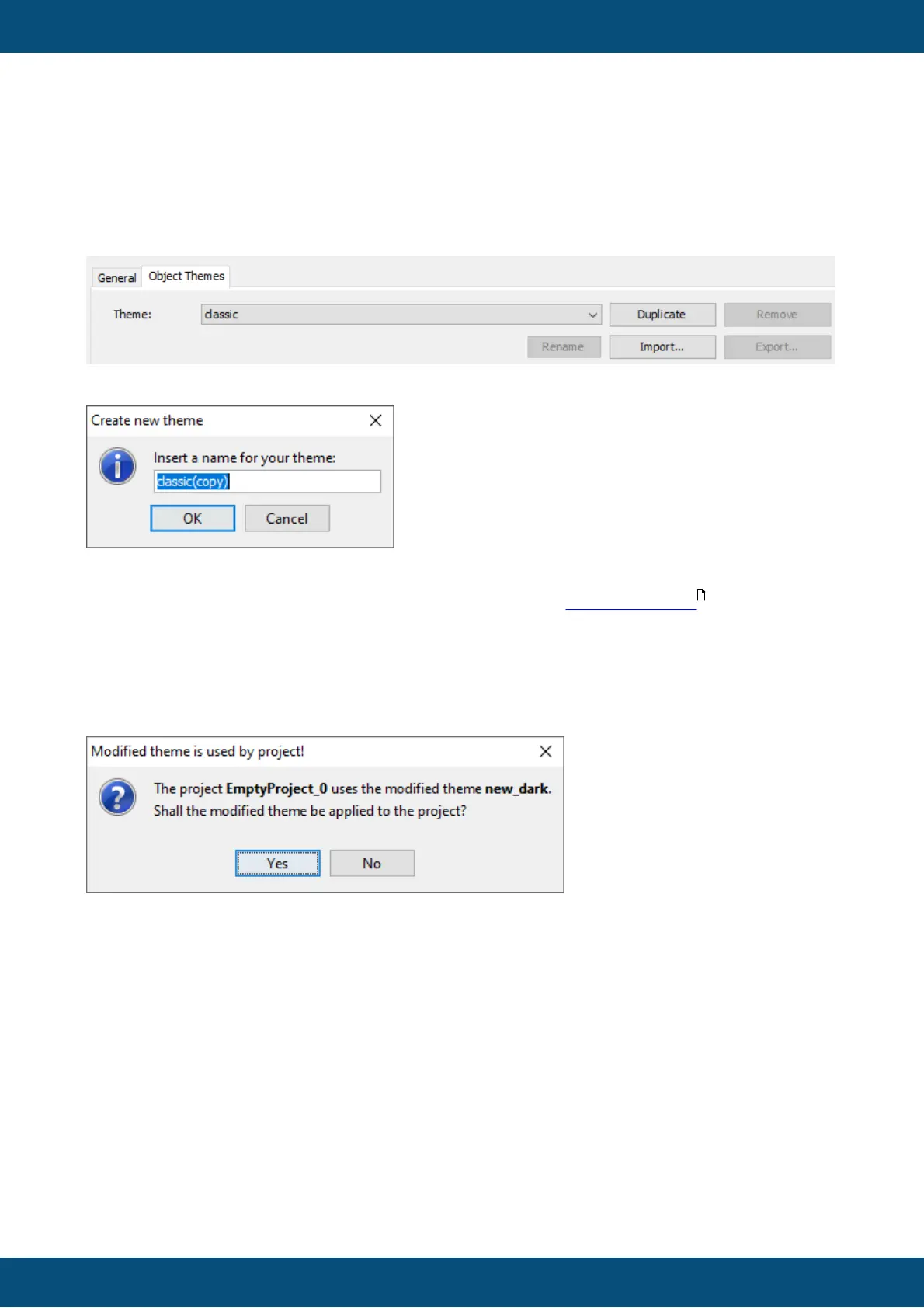
In the dialog reached over the menu Tools -> Options and then Scene -> Object Themes an
existing theme can be duplicated by selecting the theme and clicking "Duplicate".
A new name needs to be given to the new theme. By clicking OK, the new theme will be
created. The name needs to be unique compared to existing theme names.
Theme-dependent properties of each object can then be edited in the "Properties" window on
the right side of the dialog. To apply the changes, click the "Apply" button.
The theme dependent properties are marked as such in the object reference .
Now it gets a bit complicated if a custom theme, in our example "new_dark", which is already
used on objects, is changed in the Options dialog.
After you changed any of the theme settings and press "Apply" or "OK", the following dialog
appears.
No - The changes will still be saved to the theme, but they won't be applied to the project.
This means that the project theme "new_dark" is now different than the "global" theme
"new_dark".
The consequence of this is that now the global "new_dark" theme is not available anymore in
this project.
Instead a theme called "new_dark_<project_name>" will be displayed. The theme will still
have the same name, the attached project name is just to differentiate it from the global
theme.
412



 To Next Page