599
OPUS Projektor Manual
Simulations
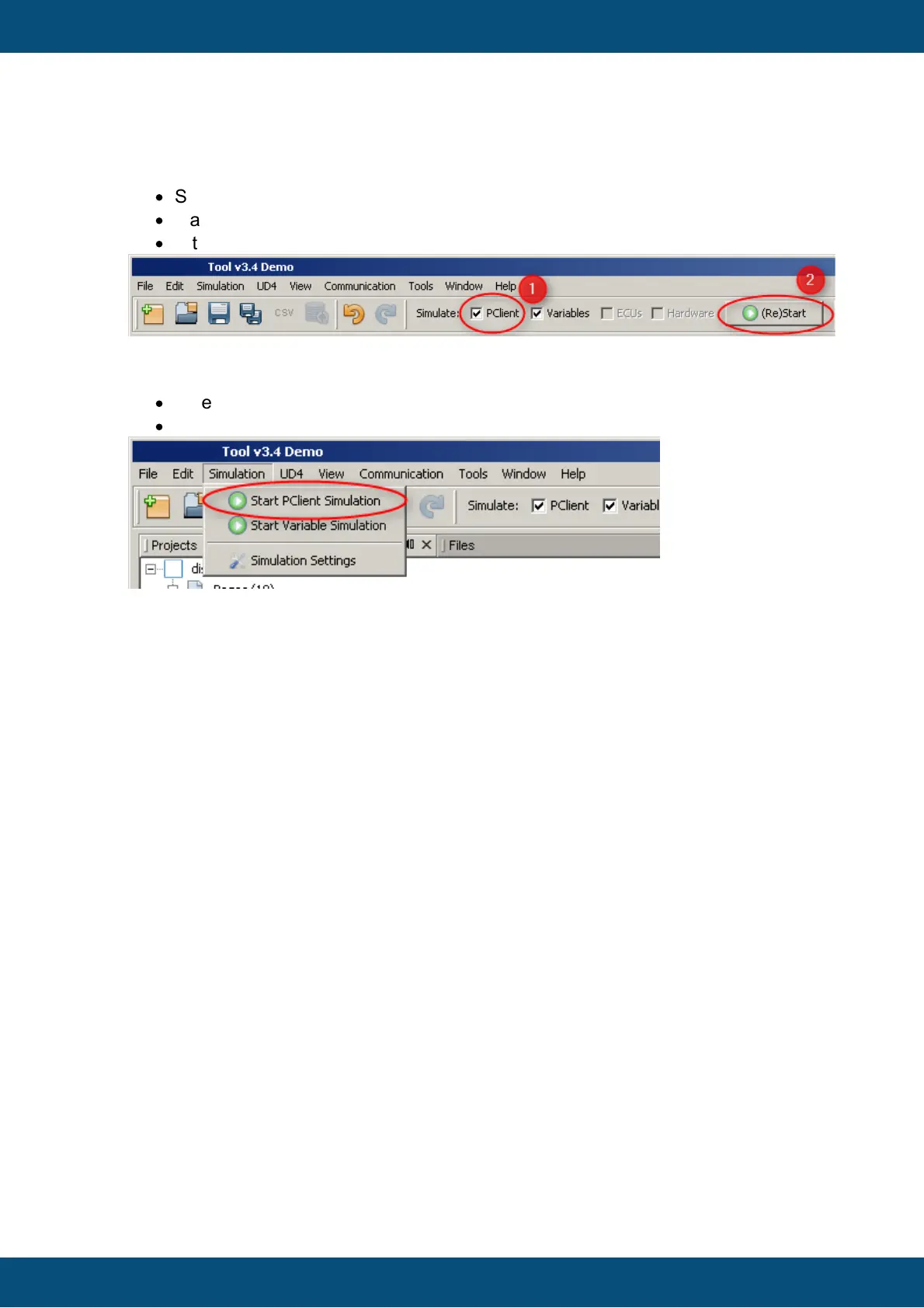
Starting from Simulation Toolbar
·
Select the project you want to simulate from the project tree.
·
Make sure that the PClient checkbox is set.
·
After that just hit the (Re)Start button.
·
Select the project you want to simulate from the project tree.
·
Open the Simulation menu and click on Start PClient Simulation.
Note: If the connection mode of the PClient was configured to connect via ethernet to a
running PClient on a device, the local PClient simulation cannot be started (checkmark
in the simulation toolbar is disabled).
The running PClient Simulation
The running PClient should behave like the "real" PClient on the device with the exception
of some hardware and operating system depending functions that can not be simulated
properly (yet). This includes for example that all hardware variables will not work with the
simulated PClient when running on local PC.
Navigation
The running PClient can be operated via keyboard or mouse.
Mouse / Touchscreen Navigation
All painted elements will react to mouse clicks like they would on touches on the real
hardware. Input objects and Softkeys can be clicked and the assigned actions will be
executed.
Additionally the keys directly on the housing will react like the real hardware keys: The
softkeys on the sides, ESC, 3-Arrow and Home key on the housing can be clicked.



 To Next Page