B-4 The MassLynx Tune window
The Tune window toolbar
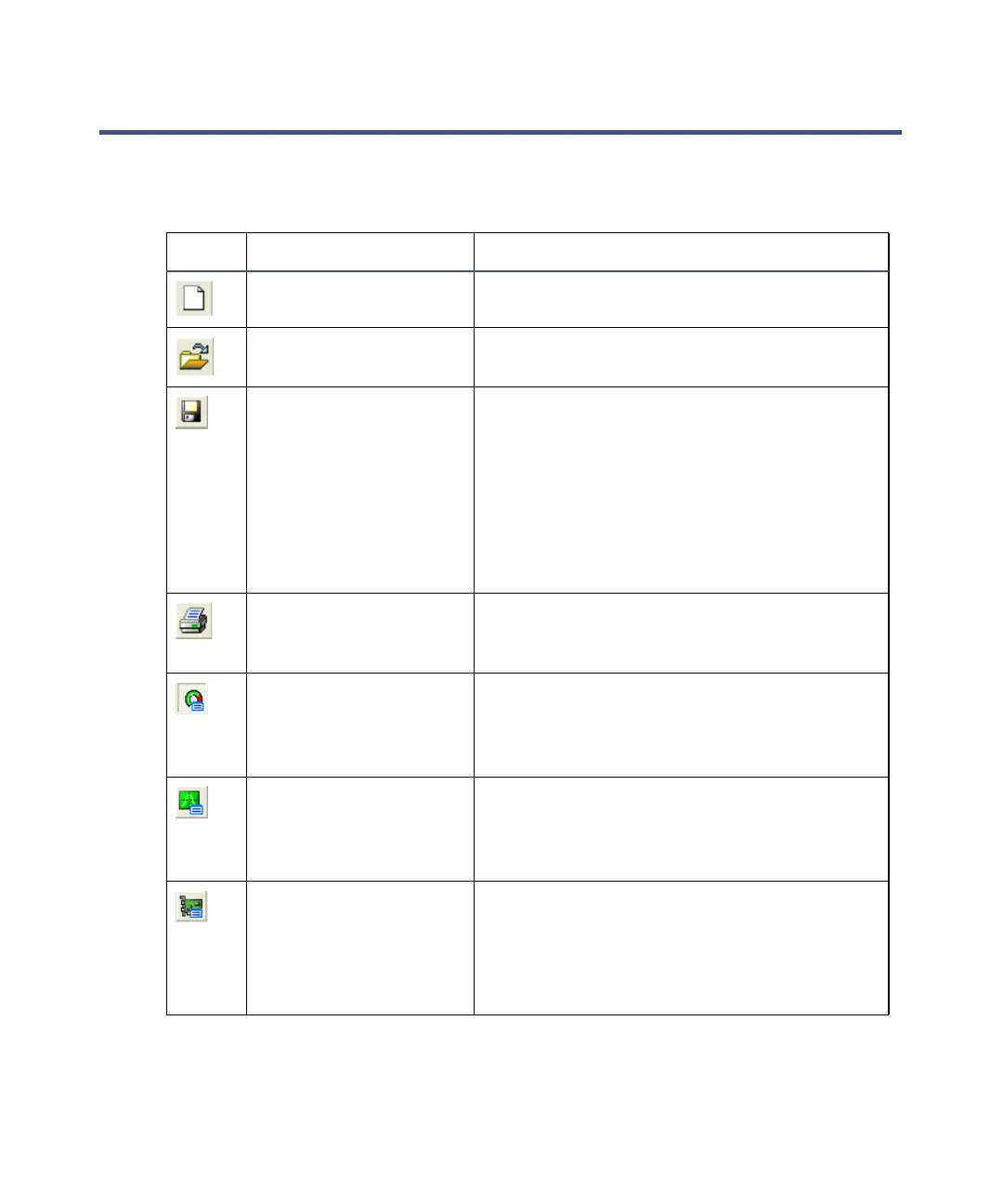
The following table details the Tune window toolbar buttons.
Toolbar buttons:
Tool Equivalent menu item Function
File > New Creates a new set of default instrument
parameters in the Tune window.
File > Open Opens an existing instrument parameter
file (.ipr).
File > Save Saves all the current instrument parame-
ters into the current instrument
parameter file (which is indicated in the
Tune window title bar).
Tip: This option is only available if
changes have been made to Tune window
parameters since opening the instrument
parameter file.
File > Print Prints a report containing the peak
display and the tune parameters for the
current ion mode.
Vacuum > Monitor Opens the Vacuum Monitor window; this
displays the Pirani and ionization gauge
outputs (in mbar) for the various parts of
the instrument.
Settings > Tuning
Setup
Opens the Tuning Setup dialog box. This
is used to define the start and end mass,
scan time, and data format to be used for
the peak display.
Settings > TDC
Settings
Opens the TDC Settings dialog box. This
is used to define the TDC, DXC and Low
Mass cut-off parameters.
See also: Low Mass Cut-Off on
page B-16.



 To Next Page