Master Pages 3
PageMaker 6.5 Intermediate 2001 Cheltenham Computer Training
FOR USE AT THE LICENSED SITE(S) ONLY
Cheltenham Computer Training 1995-2001 - www.cctglobal.com
Using the
Master Pages
palette
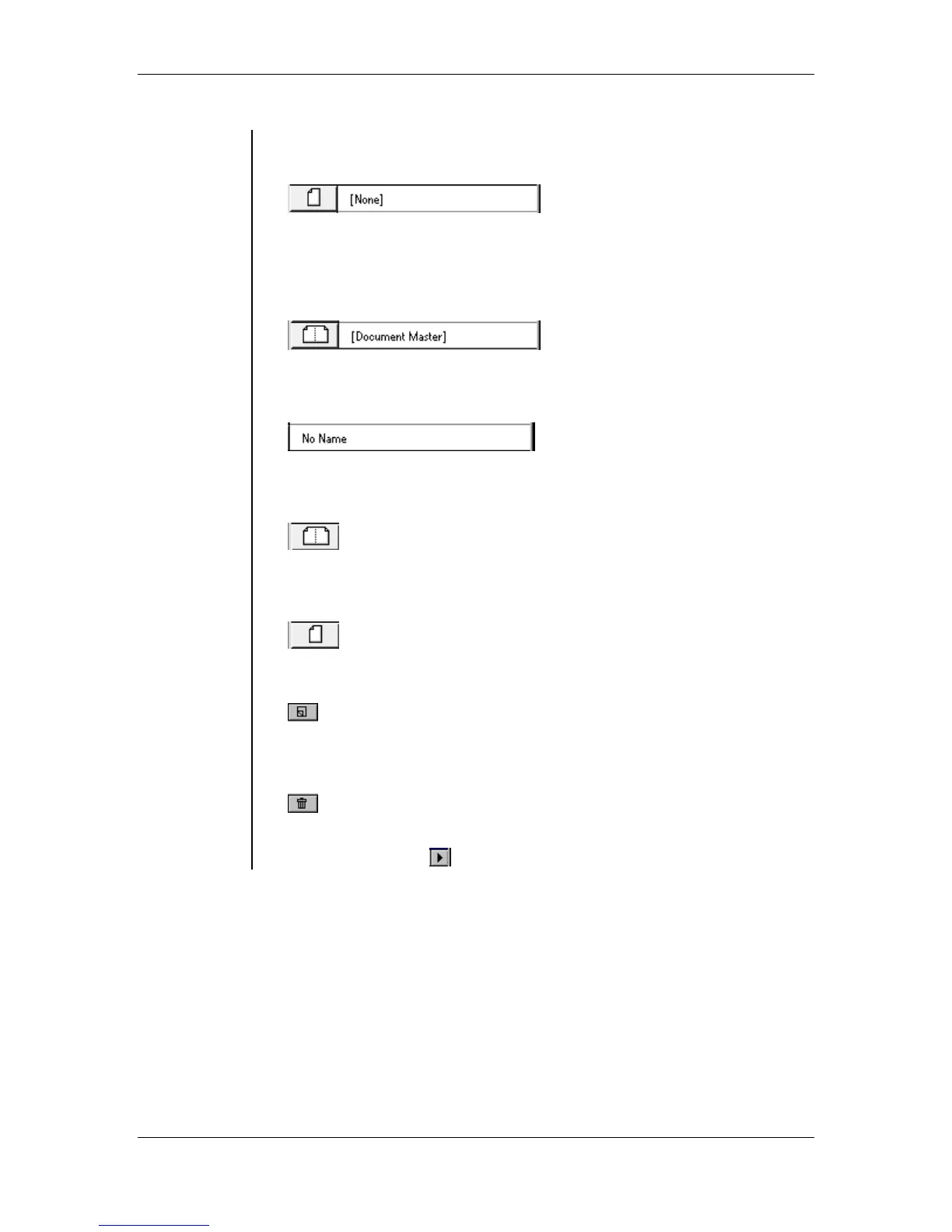
• None – Allows you to remove any Master Page content from a
publication:
• Document Master – Every new publication will include a Document
Master, which is the default master for your initial pages. The
Document Master margins and orientation are determined by the
options specified in the Document Setup:
• Master Name – Allows you to organize and recognize your master
pages:
• Facing Page Icon – Informs you that a specific master page is a Two
Page Master:
• Single Page Icon – Informs you that the specified master page is a
One Page Master:
• New Master Page Button – Allows you to create a new master page:
• Trash Button – Allows you to trash or delete a selected master page
from the palette:
Note: The Palette Arrow allows you to obtain more options available
to a specific palette:



 To Next Page