Document Page Features 19
PageMaker 6.5 Intermediate 2001 Cheltenham Computer Training
FOR USE AT THE LICENSED SITE(S) ONLY
Cheltenham Computer Training 1995-2001 - www.cctglobal.com
Displaying
the Insert
Pages dialog
box
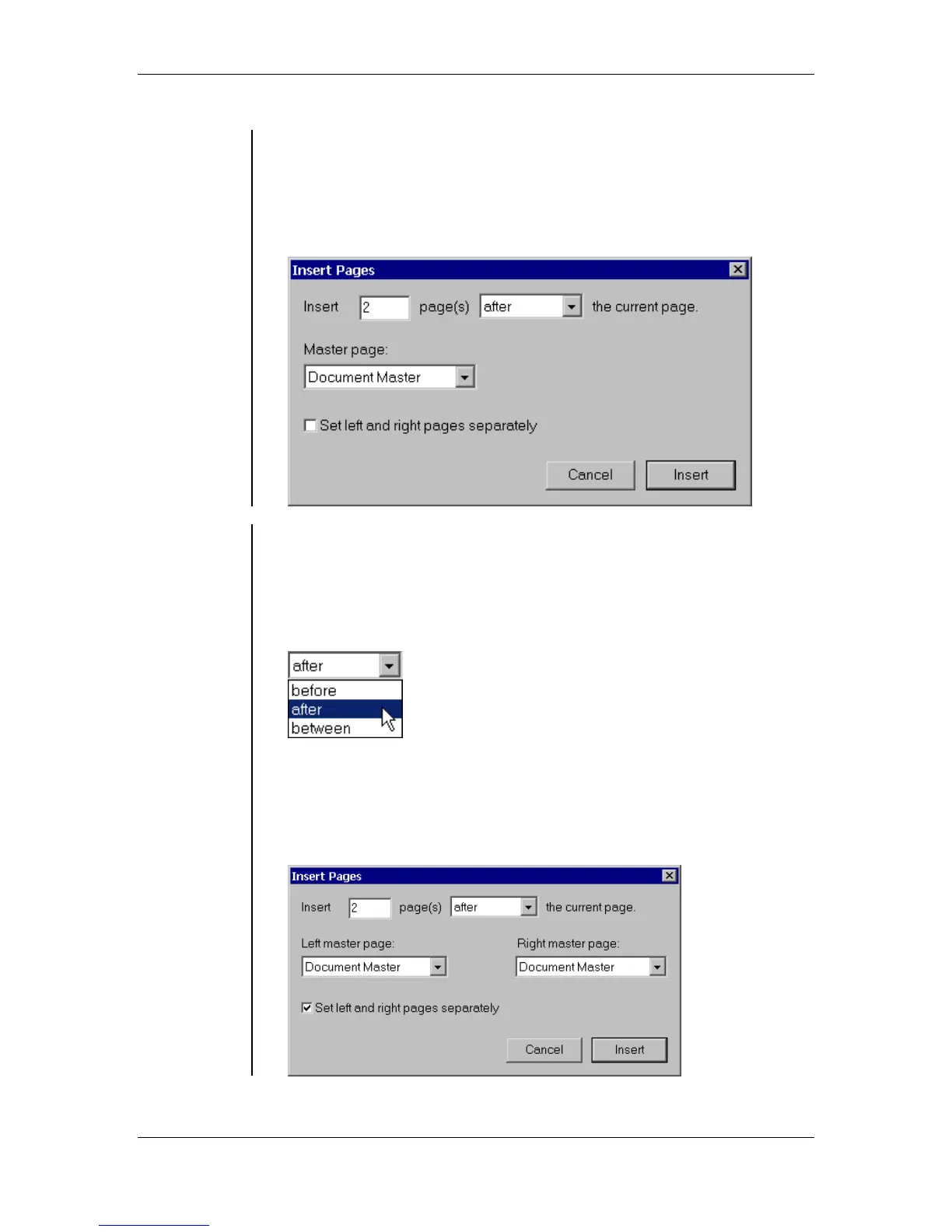
• The Insert Pages dialog box allows you to add new pages to a
publication. You can add pages before or after your current
publication page, and insert new pages between facing pages.
To display the Insert Pages dialog box:
• From the main menu, choose Layout > Insert Pages:
Using the
Insert Pages
dialog box
The available options in the Insert Pages dialog box are:
• Insert – allows inputting the number of pages you want to add to your
publication.
• Page Location – allows you to determine where you want to start
adding the pages. You can insert the pages Before the current page,
After the current page, or Between the Facing Pages:
• Master Page – allows you to choose which master will be used on the
inserted pages.
• Set left and right pages separately – if you check this option, it will
display a Left Master Page and Right Master Pages drop-down lists
that allow you to choose a different master for each side of the page:



 To Next Page