Text 61
PageMaker 6.5 Foundation 2001 Cheltenham Computer Training
FOR USE AT THE LICENSED SITE(S) ONLY
Cheltenham Computer Training 1995-2001 - www.cctglobal.com
To Resize a
Text Block
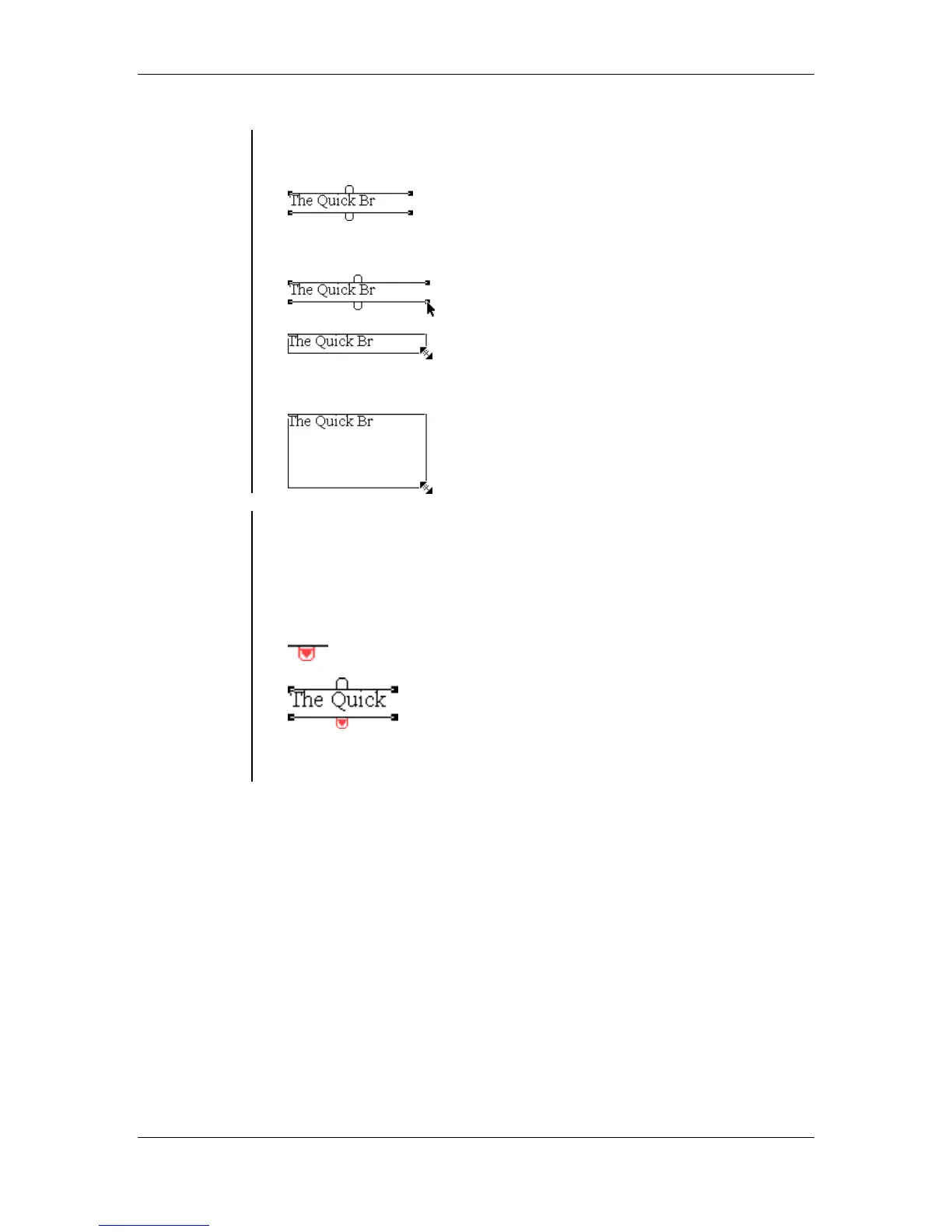
• Select the Pointer Tool from the tools Palette.
• Select the Text block you would like to resize:
• Select the text block handle:
• Click and drag the handle to the new desired size:
Overset Text
Icon
• When resizing a Text Block you have to click and then drag the text
block handle from one of its corner points to the new desired size of
the text block. If you make the text block smaller than it original size
you will cause the text to become overset. If the text becomes
overset, an Overset Text icon will indicate that not all of the text fit
inside the new text block size:
Note: A text block must be rectangular; and if it is empty it will
disappear. It is also not possible to apply a stroke or fill to a text block.



 To Next Page