32 Working With Type
2001 Cheltenham Computer Training PageMaker 6.5 Intermediate
FOR USE AT THE LICENSED SITE(S) ONLY
Cheltenham Computer Training 1995-2001 - www.cctglobal.com
Control Palette Text Formatting
© Cheltenham Computer Training 2001
Adobe PageMaker 6.5 - Slide No 14
Control Palette Text Formatting
•
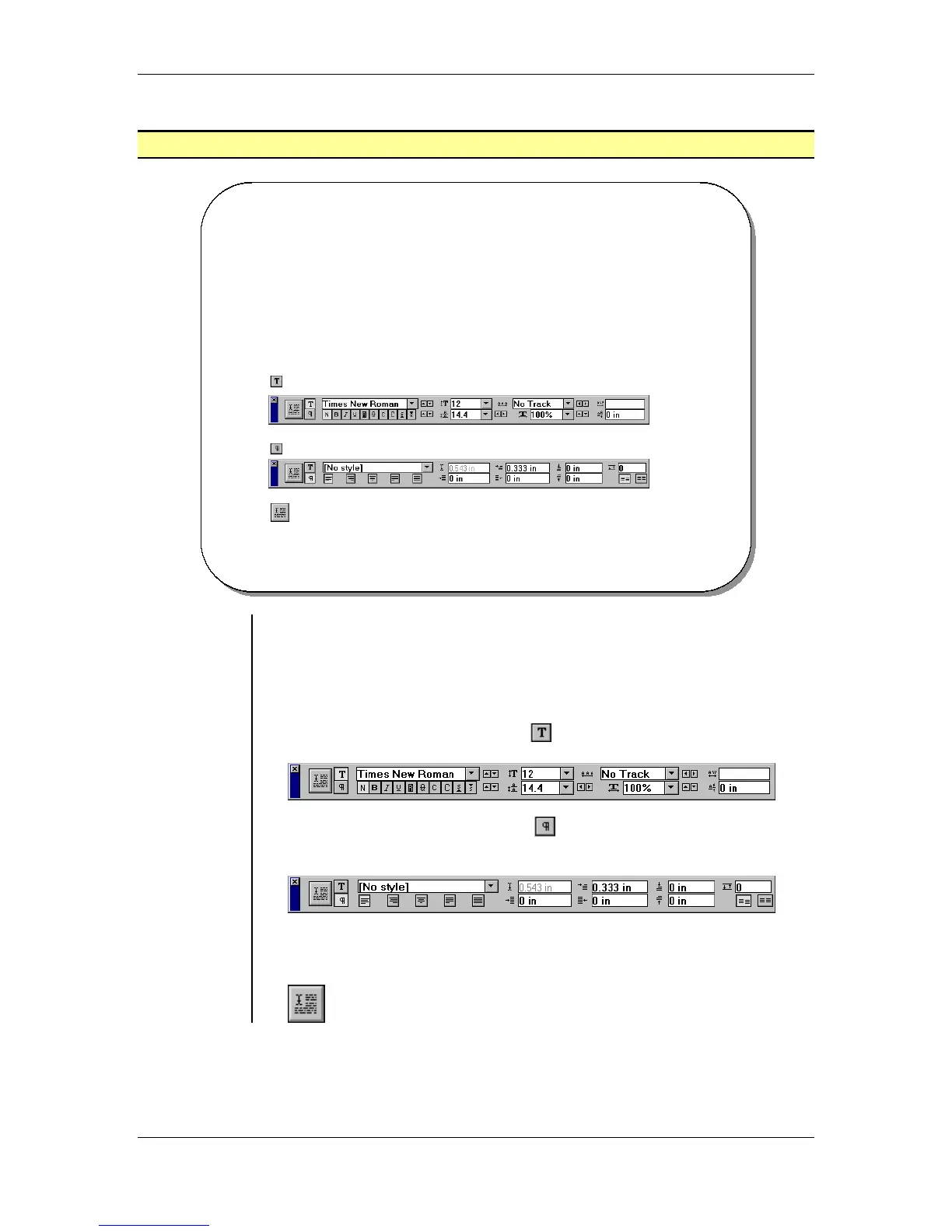
The Control palette allows you to change several
formatting options in one place rather than making repeat
trips to the Type menu.
Use the Apply Icon button to apply the changes you have made in the control palette.
Use the character Icon button to display the character View.
Use the paragraph Icon to display the Paragraph View.
Displaying
the Control
Palette
• The Control Palette allows you to change several formatting options
in one place rather than making repeat trips to the Type menu.
To show or hide the Control palette:
• From the main menu, choose Window > Show Control Palette
OR
press the Ctrl + ‘ key combination.
• Select the Character View button
to display the Character View:
• Select the Paragraph View button
to display the Paragraph
View:
• Select the Apply button to apply the changes you have made in the
Control Palette:



 To Next Page