Tools 43
PageMaker 6.5 Foundation 2001 Cheltenham Computer Training
FOR USE AT THE LICENSED SITE(S) ONLY
Cheltenham Computer Training 1995-2001 - www.cctglobal.com
Using the
Rounded
Corners
dialog box
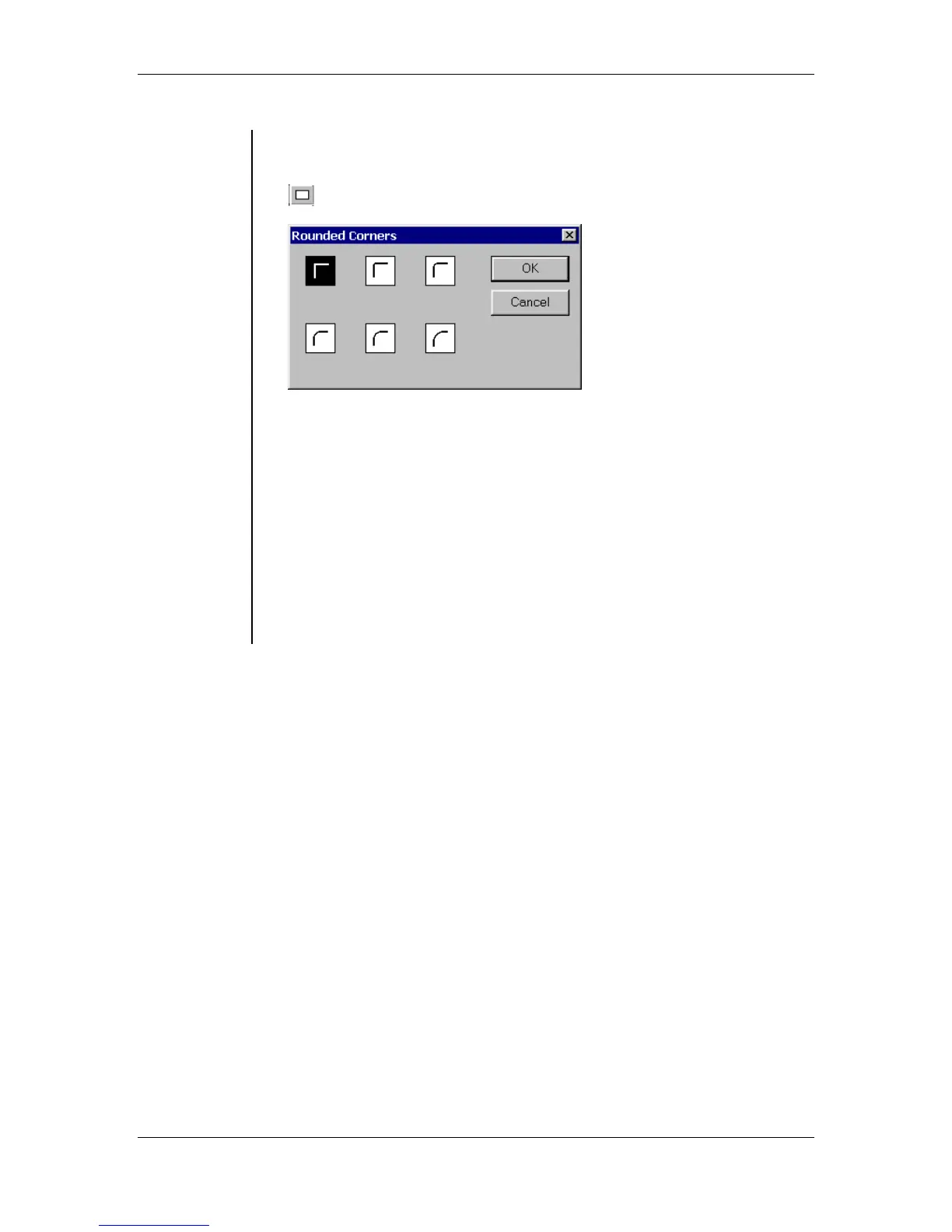
• Double-clicking the Rectangle tool will display the Rounded Corners
dialog box:
• The Rounded Corners dialog box allows you to select the shape of
corners when a PageMaker-drawn box is selected.
• After you create a rectangle, you can change the shape of its corners.
• After you create a polygon, you can add, move, or delete its vertices
and line segments.
• For regular polygons only (created by dragging the polygon tool), you
can also use the Element > Polygon Settings command to change
the number of sides it has, and its inset value (the angle at which the
sides point toward the center of the shape).
Note: With no object selected, the chosen setting becomes the default
for PageMaker-drawn boxes. Unavailable if the selected object is not
a box drawn in PageMaker.



 To Next Page