102 Working With Multiple Objects
2001 Cheltenham Computer Training PageMaker 6.5 Intermediate
FOR USE AT THE LICENSED SITE(S) ONLY
Cheltenham Computer Training 1995-2001 - www.cctglobal.com
Using the
Layers
palette
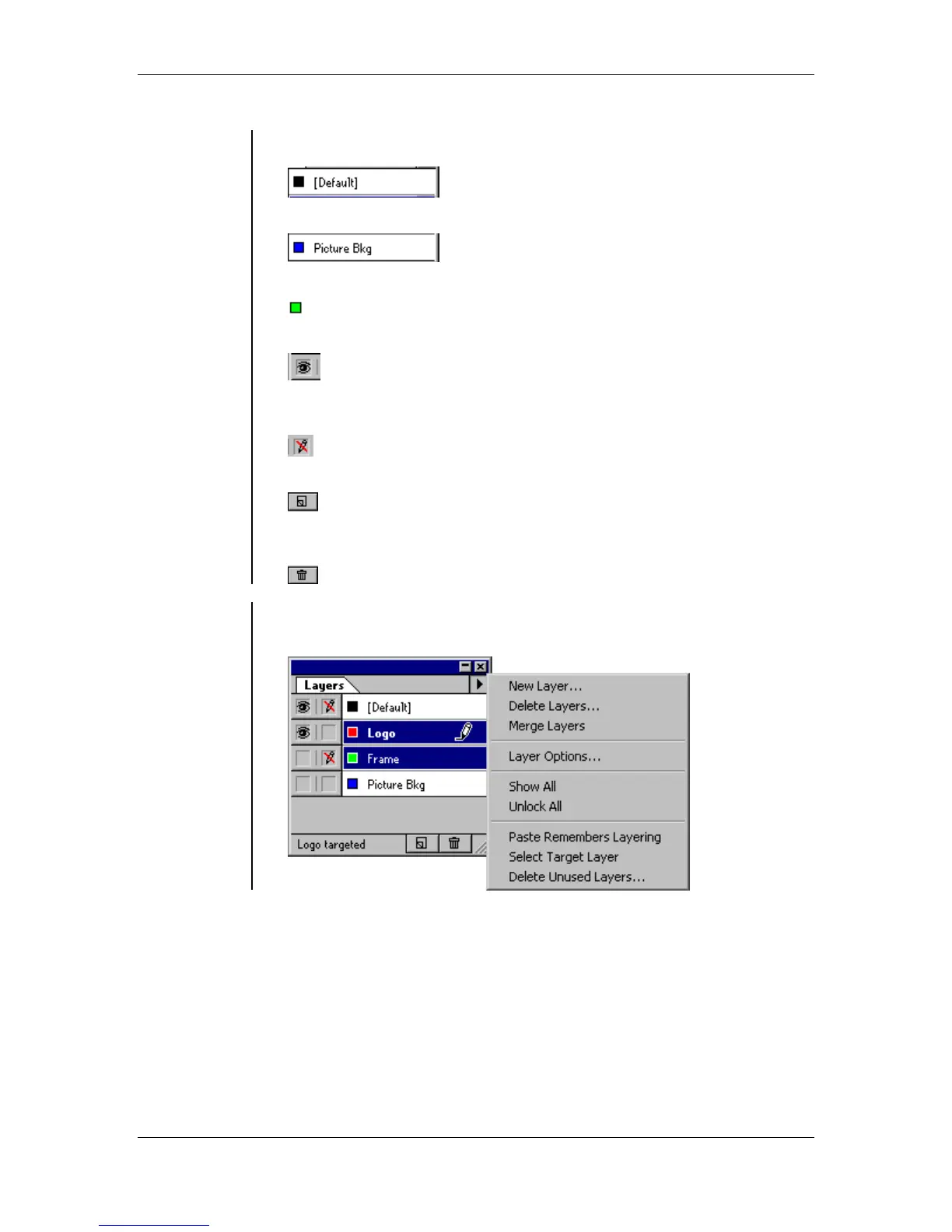
• Default Layer – this layer is the default working layer found in all
publications:
• Layer Name – allows you to organize and recognize your layers:
• Small Dot Icon – informs you of which layer a selected object is on:
• Show Layer Icon – informs you of which layers are visible or invisible:
• Lock Layer Icon – informs you of which layers are locked or
unlocked:
• New Layer Button – allows you to create a new layer:
• Trash Button – allows you to trash or delete a selected layer from the
palette:
Selecting the
Layers
palette menu
commands
• Select the arrow on the top right corner of the Layers palette window
to display the Layers palette menu commands:



 To Next Page