62 Text
2001 Cheltenham Computer Training PageMaker 6.5 Foundation
FOR USE AT THE LICENSED SITE(S) ONLY
Cheltenham Computer Training 1995-2001 - www.cctglobal.com
Using Text
Frames
• A Frame becomes a Text Frame or a Graphics Frame depending on
the content you add into it. Once you add a graphic to a new frame,
the frame becomes a graphic frame and you cannot include text into
the frame, unless you first delete or detach the graphic from the frame.
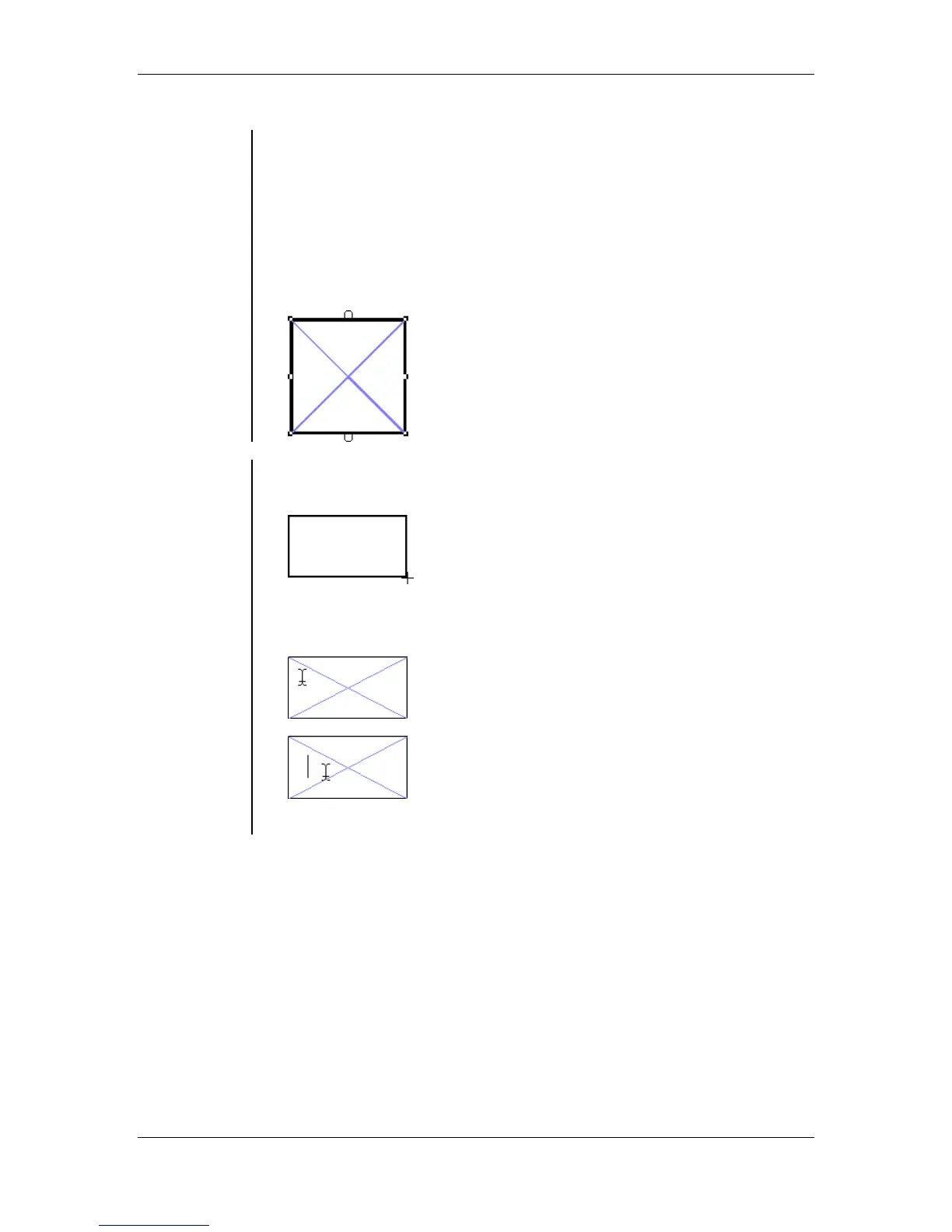
• A Text Frame functions in much the same way as the Text block, but
unlike the text block the text frame the height or width will not change
as you add or remove text. Also unlike the text block, empty text
frames will not disappear and It is possible to apply strokes or fills to
text frames:
To Create a
Text Frame
• Select a Frame Tool.
• Click and drag the mouse to the desired size:
• Select the text tool from the tools palette.
• Place the mouse inside of the frame and click the mouse button:
• Enter in the desired text.



 To Next Page