16 Libraries
2002 Cheltenham Computer Training PageMaker 6.5 Advanced
FOR USE AT THE LICENSED SITE(S) ONLY
Cheltenham Computer Training 1995-2002 - www.cctglobal.com
Removing
Library
objects
• From the main menu, choose Windows > Plug-in Palettes> Show
Library.
Note: If the library is not open, select the Open Library command
from the palette menu and open the library.
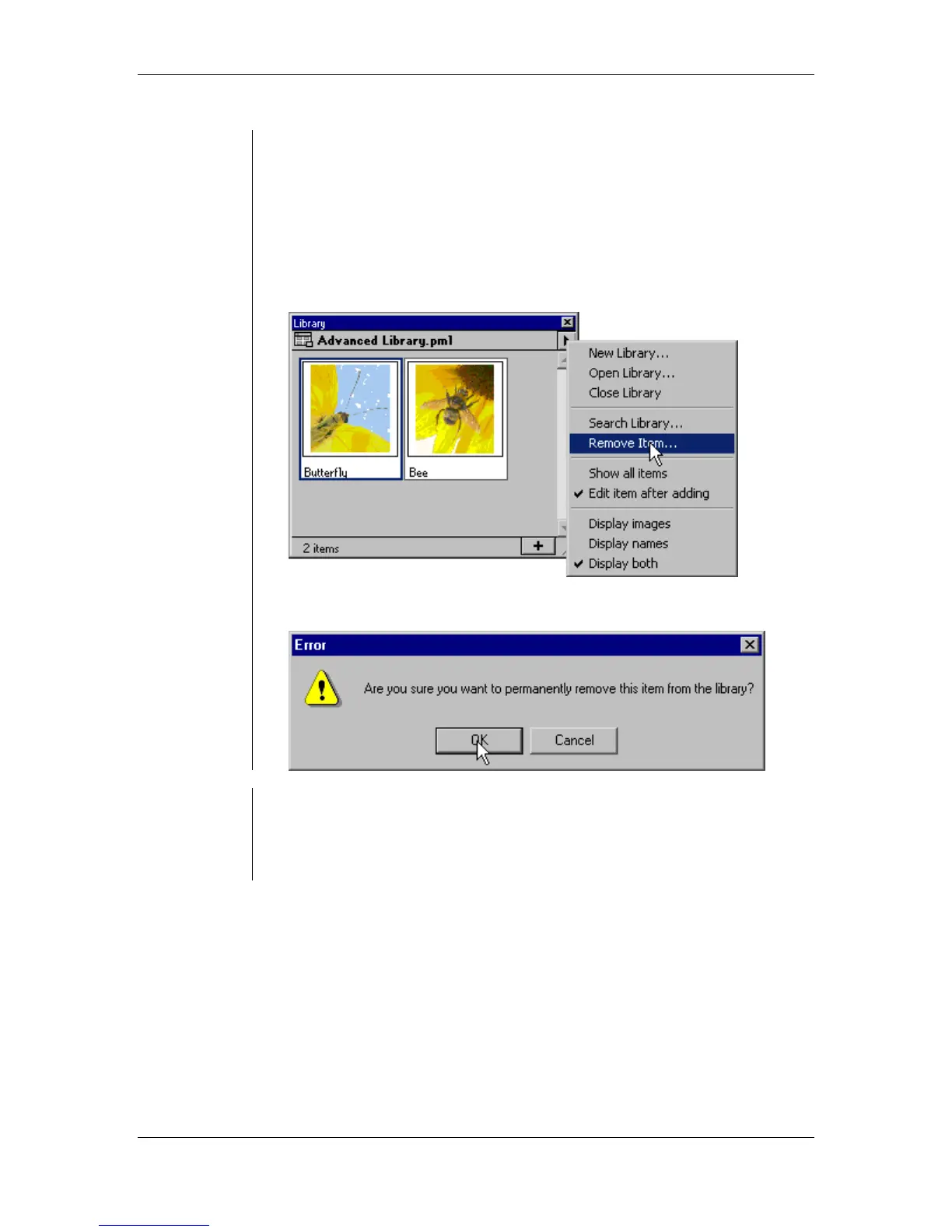
• Select the item from the Library palette that you would like to remove.
• From the Library palette menu and choose the Remove Item
command:
• Click the OK button when the error prompt appears:
Placing
Library
objects
To place a Library object on the page:
• From the main menu, choose Windows > Plug-in Palettes > Show
Library.
• From the palette menu, select the Open Library command.
• Click and drag the item from the Library onto the publication page.



 To Next Page