Tables 37
PageMaker 6.5 Advanced 2002 Cheltenham Computer Training
FOR USE AT THE LICENSED SITE(S) ONLY
Cheltenham Computer Training 1995-2002 - www.cctglobal.com
Setting
Colors for the
Borders
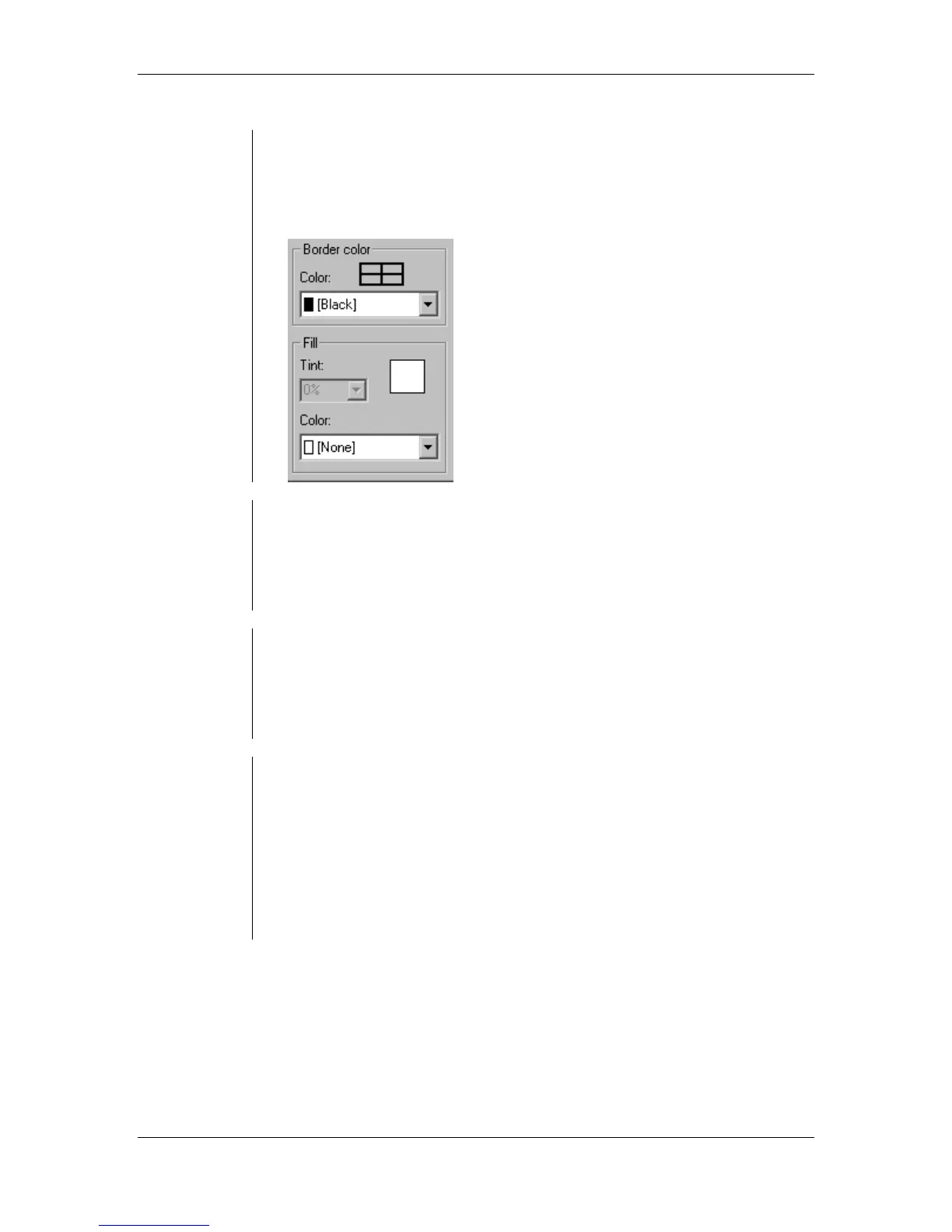
• You have to choose a color from the pop-up menu. Choosing None
resets all the border weights to 0pt.
• Setting the fill would apply color to the background of all cells in the
new table. A fill color can be applied at any percentage by using the
Tint Option between 0 and 100%:
Opening
Existing
Tables
• From the main menu, choose File > Open
OR press the Ctrl + O key combination.
• Select the table you would like to open.
• Click the OK button.
Switching
Between
Tables
• You can have as many tables as you want open at once as long as
you have enough RAM.
To switch between tables:
• Choose Window from the main menu.
• Select the title of the table to be viewed.
Saving a
Table
To save a file:
• From the main menu, choose File > Save
OR
press the Ctrl + S key combination to open the Save as dialog
box.
• Specify whether you would like to save it as a table or template.
• Choose a folder destination and enter a name into the File name
field.
• Click the Save button.



 To Next Page