EXERCISES - Pictures 35
PageMaker 6.5 Intermediate 2001 Cheltenham Computer Training
FOR USE AT THE LICENSED SITE(S) ONLY
Cheltenham Computer Training 1995-2001 - www.cctglobal.com
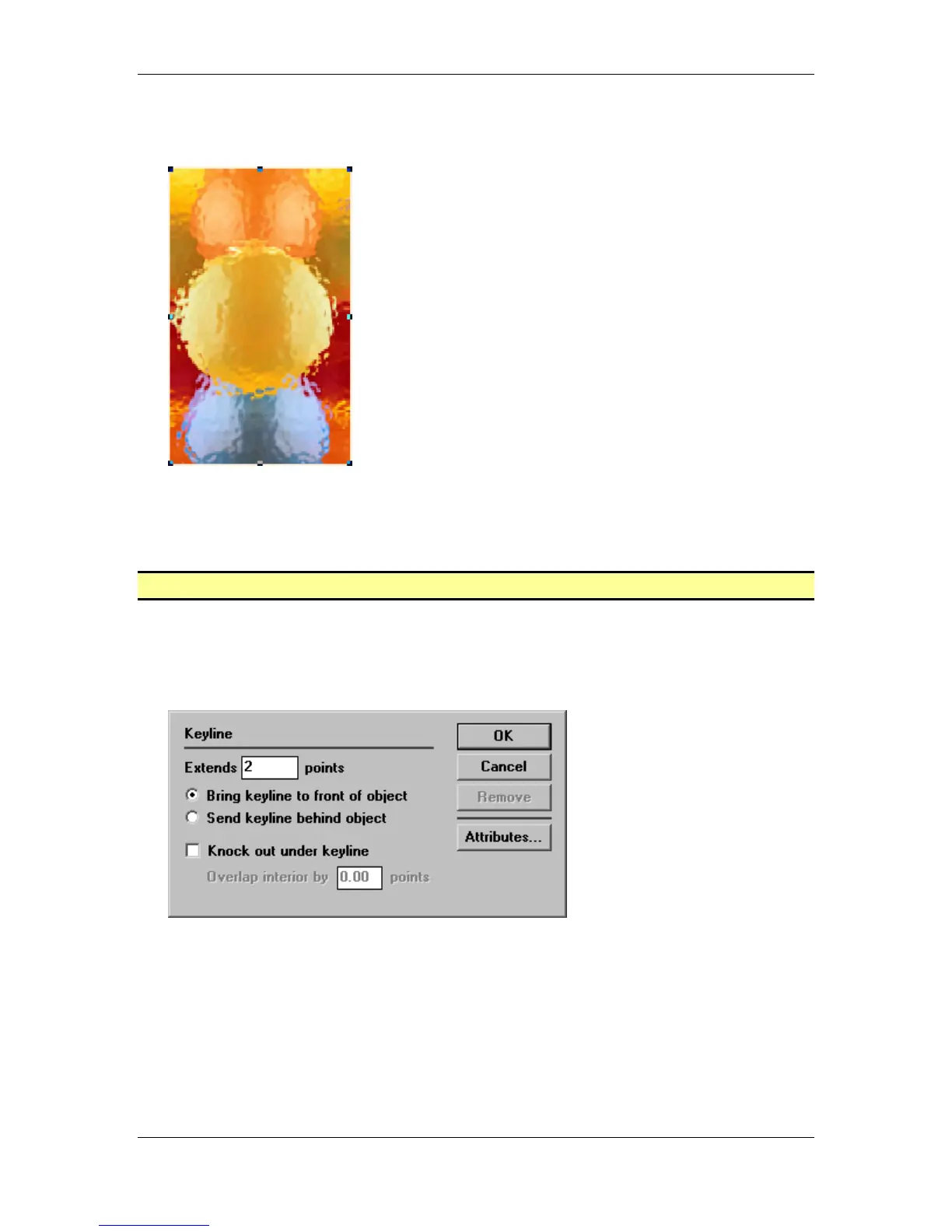
• When you are happy with the effect, click the OK button to apply the effect:
• Press the Ctrl + S key combination to save your progress.
• Save the publication as
Intermediate Exercise 6.p65
in the PageMaker 6.5 Intermediate
Work Folder.
Inserting Keylines
• Still in the
Intermediate Exercise 6.p65
file, with the Pointer tool, select the placed
Colors_efx.tif
image on the page.
• From the main menu, choose Utilities > Plug-ins > Keyline.
• Enter the following settings into the Keyline dialog box:
• Click the Attributes button.



 To Next Page