Advanced Plug-Ins 23
PageMaker 6.5 Advanced 2002 Cheltenham Computer Training
FOR USE AT THE LICENSED SITE(S) ONLY
Cheltenham Computer Training 1995-2002 - www.cctglobal.com
• The Running Headers and Footers plug-in only works on one story
and on one publication at a time.
• You can define the size and position or style of the Headers &
Footers so they are consistent throughout the publication.
Using the
Running
Headers and
Footer dialog
box
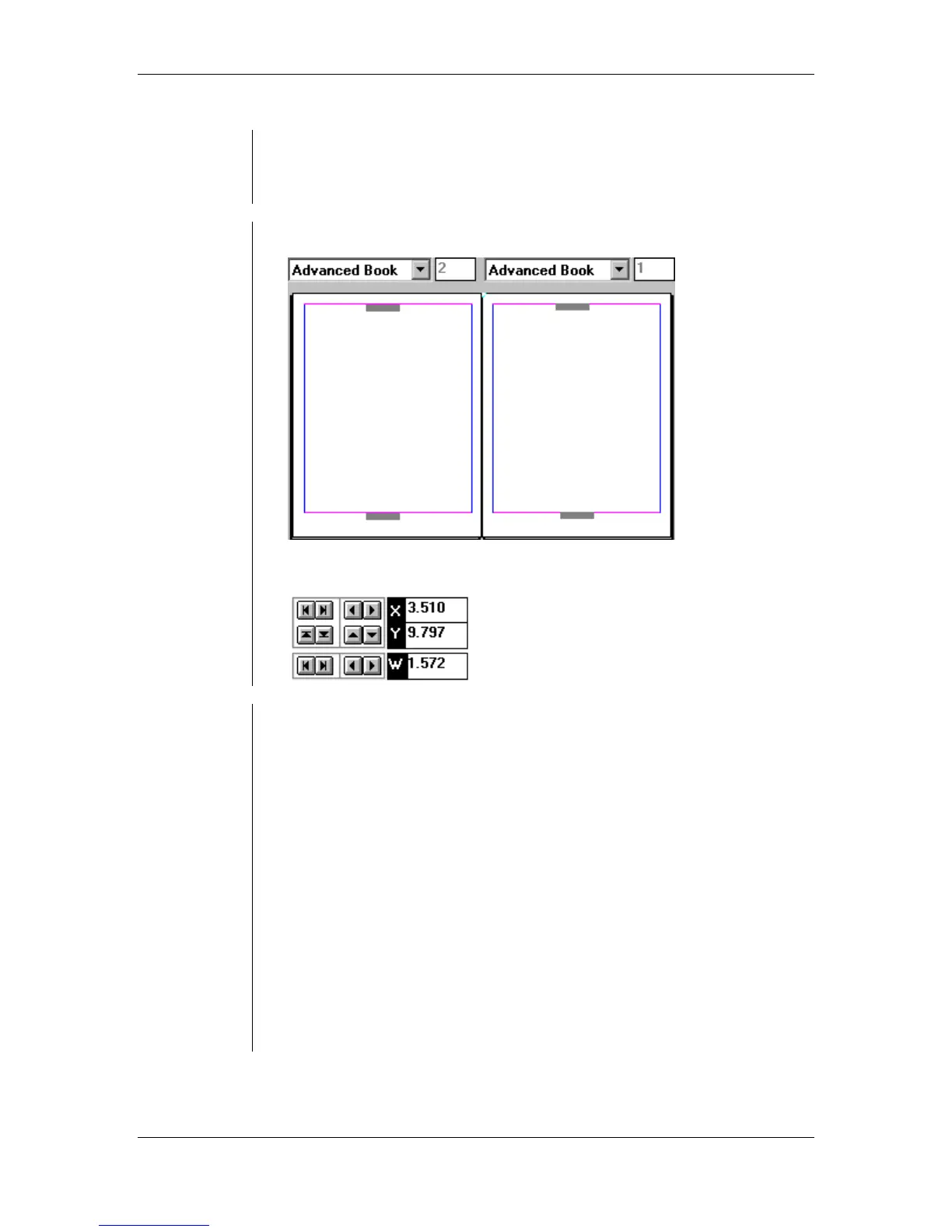
• Publication and Master Page drop-down list and Sample Window:
• Nudge buttons, Positioning fields and Text block width fields:
Positioning
Headers
Footers
To position and format the header’s or footer's text block:
• With the Pointer tool selected, choose the text block that will be
used for the header and footer.
• From the main menu, choose Utilities > Plug-ins > Running
Headers/Footers to reveal the Running Headers & Footers dialog
box.
• Use the Master Page drop-down list to select Master page or
Publication pages guides to apply the header and footer.
• Click, drag, and place the Place Holder icon onto the sample page to
add a text block to the sample page in dialog box.
Note:
Click and drag the Place holder off the page to remove it.
• Use the Nudge buttons or the Position and Width tool to make
adjustments to your placeholder.
• Select a Paragraph Style from the Content Style drop-down list to be
applied to your header and footer.
• Select the desired options in the Apply To section and choose a page
range to apply the headers and footers to.



 To Next Page