44 Working With Type
2001 Cheltenham Computer Training PageMaker 6.5 Intermediate
FOR USE AT THE LICENSED SITE(S) ONLY
Cheltenham Computer Training 1995-2001 - www.cctglobal.com
Using the
Styles Palette
• [No Style] – allows you to remove a style from a paragraph or
selected text:
• Style Name – allows you to organize and recognize your styles:
• Plus Sign Icon – informs you that the paragraph containing the style
has been modifies since the style was last applied:
• Disk Icon – informs you that a style was imported from another
publication:
• New Style Button – allows you to create a new style:
• Trash Button – allows you to trash or delete a selected style from the
palette:
Using the
Styles Palette
menu
commands
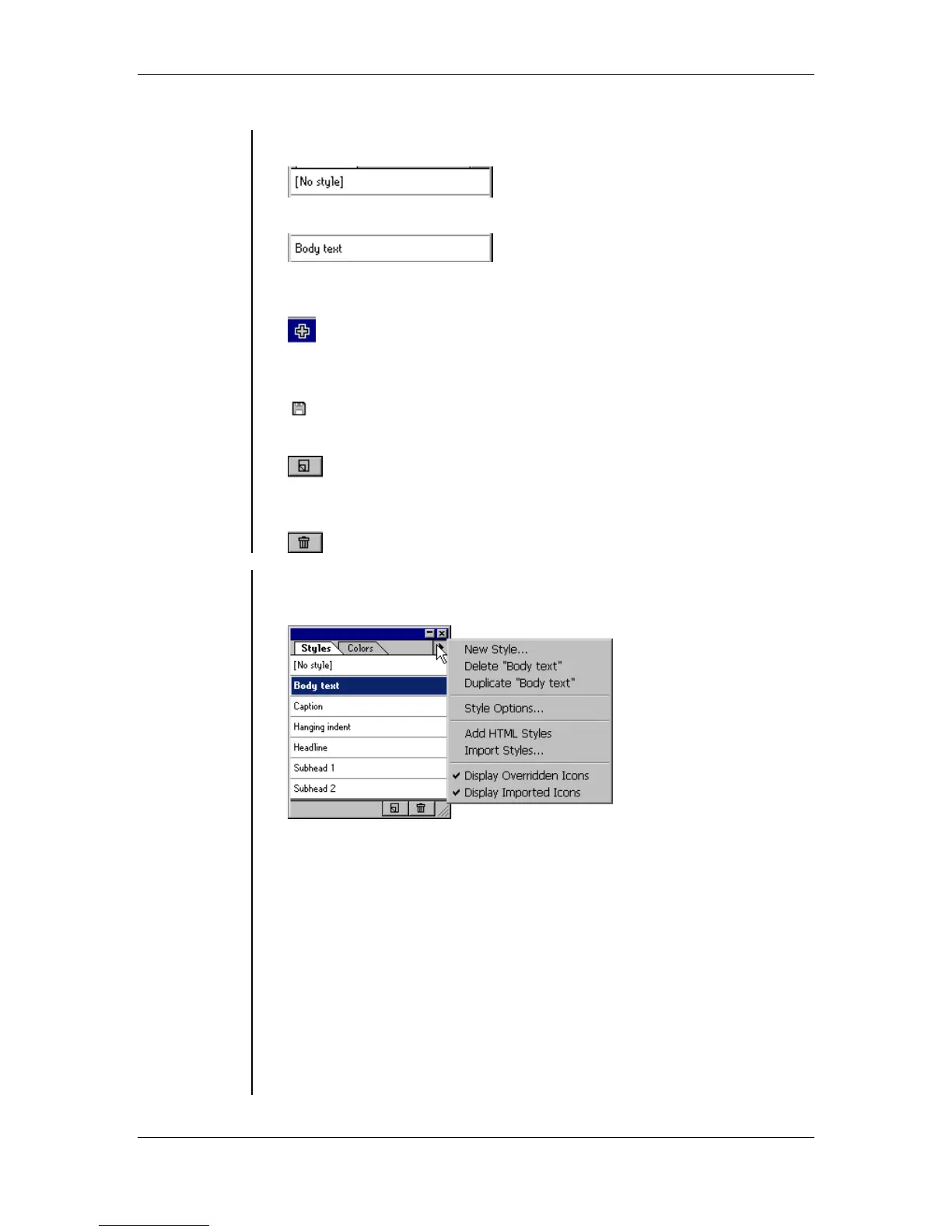
• Select the arrow on the top right corner of the Styles pallet window to
display the Palette menu commands:
The Styles Palette menu commands are:
• New Style - this command allows you to create new styles.
• Delete - this command allows you to delete styles.
• Duplicate - this command allows you to duplicate styles.
• Style Options - this command will display the Style Options dialog
box.
• Add HTML Styles - this command allows you to add HTML styles to
the list.
• Import Styles - this command allows you to Import styles from a
word-processor or other publications.
• Display Overridden Icons - this command allows you to turn on or off
the display of the plus sign icon.
• Display Imported Icons - this command allows you to turn on or off
the display of the disk icon.



 To Next Page