Colors and Fills 57
PageMaker 6.5 Foundation 2001 Cheltenham Computer Training
FOR USE AT THE LICENSED SITE(S) ONLY
Cheltenham Computer Training 1995-2001 - www.cctglobal.com
Using the
Color Model
Icon
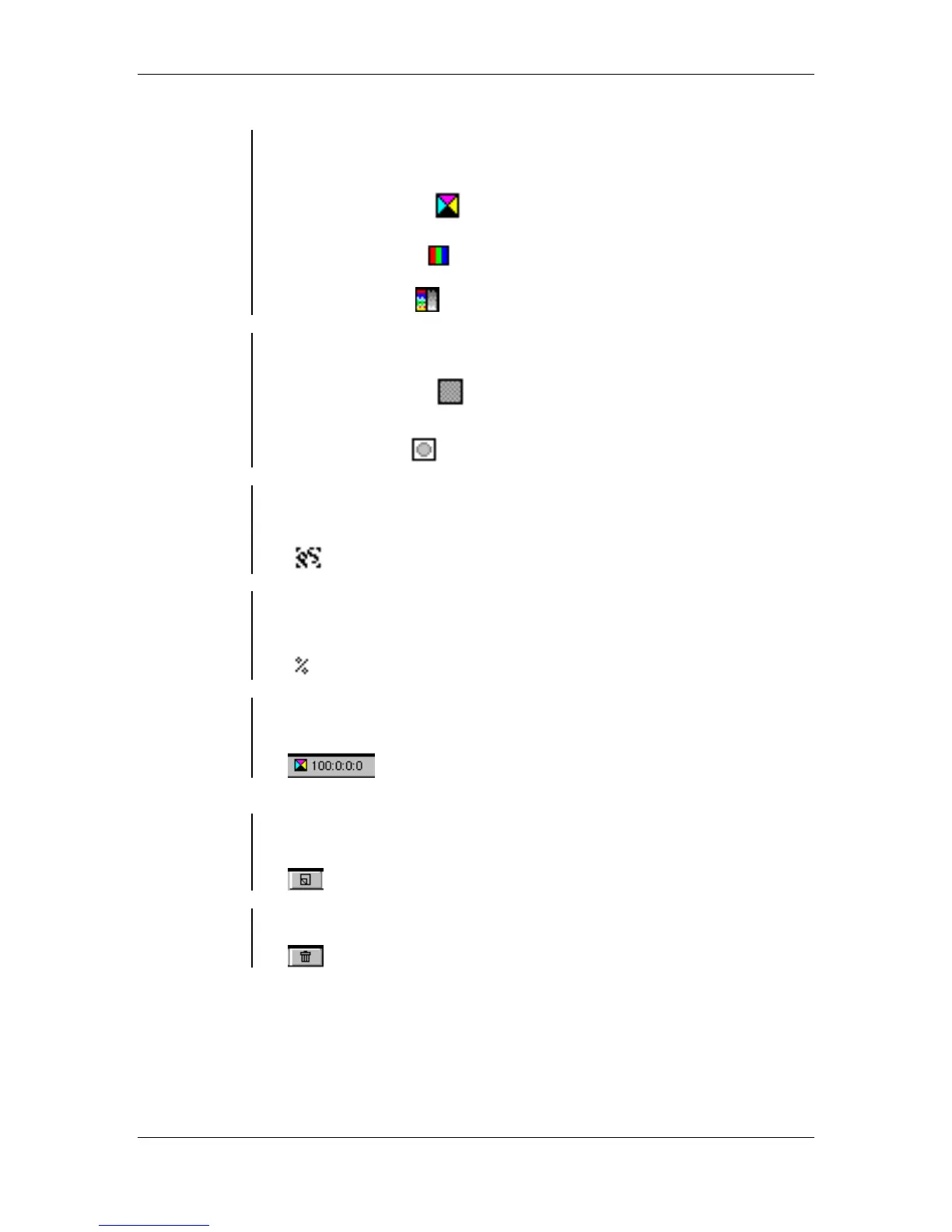
• The Color Model icon represents the colors model set in the Color
Options dialog box.
CMYK Color Model:
RGB Color Model:
HLS Color Model:
Using the
Color Type
Icon
• The Color Type icon indicates the color types set in the Color
Options dialog box.
Process Color icon:
Spot Color icon:
Using the
EPS Color
Icon
• EPS Color icon appears when you place EPS graphics containing
Process or Spot colors into the publication:
Using the
Color-Level
Tint Icon
• Color-level Tint icon indicates that the color you are looking at is
using a Color-level tint of a color found in your color list:
Using the
CMS Display
• CMS Display indicates the Color Model, Ink value, and/or Tint Value
of a selected color:
Using the
New Color
Button
• The New Color button allows you to quickly choose new colors from
the palette:
Using the
Trash Button
• The Trash button offers a quick and convenient way of deleting colors:



 To Next Page