PageMaker Interface 17
PageMaker 6.5 Foundation 2001 Cheltenham Computer Training
FOR USE AT THE LICENSED SITE(S) ONLY
Cheltenham Computer Training 1995-2001 - www.cctglobal.com
Using the
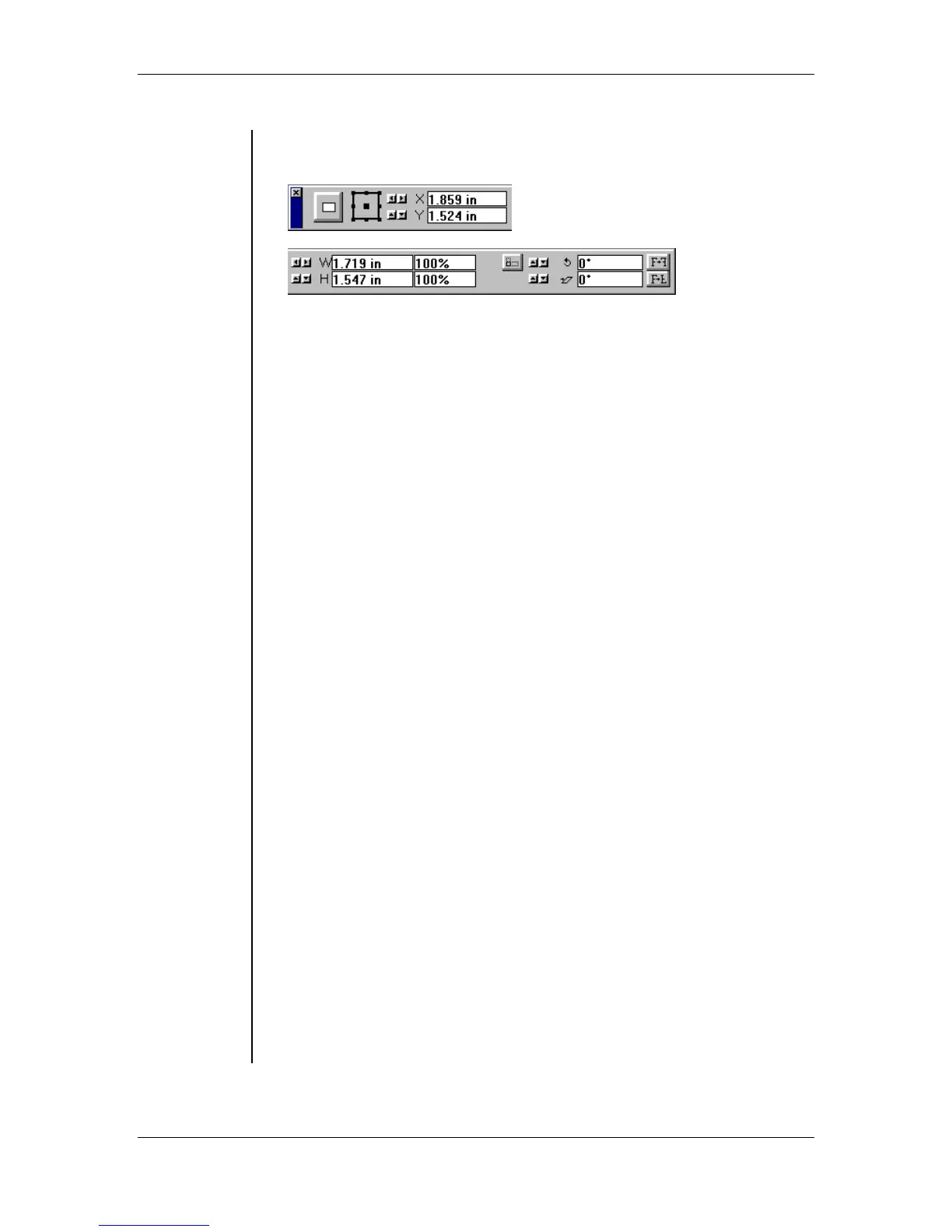
Object View
• When drawing/selecting objects, the Control palette will change
depending on the object type:
Apply button: Apply changes to objects using numeric values you
enter.
Proxy: Represents the selected object. Click to set a reference point,
or the point you are manipulating on the object.
Nudge buttons: Use to resize, click to move, or transform an object
incrementally. Press Shift while nudging to increase the nudge
increment by ten.
Position pointer: Displays the X and Y coordinate values of the
reference point or pointer, relative to the current rulers.
Sizing options: Specifies the width and height of the selected object
or cropping rectangle. Nudge amount 0.01 inches.
Percent scaling option: Specifies the percentage change from the
original size.
Scaling option: Click to use scaling option to resize an imported
graphic.
Cropping option: Click to use the cropping tool to crop imported
graphics.
Proportional-scaling option: Specifies whether you change an
object’s height or width independently, or maintaining its original
proportions.
Printer-resolution-scaling option: Constrains the scaling of
imported 1-bit bitmap graphics so that they are compatible with the
target printer specified in the Document Setup dialog box.
Skewing options: Skews objects horizontally –85 to 85 degrees in
relation to the selected reference point.
Rotating option: Rotates the object around the reference point.
Horizontal reflecting point: Reflect the object vertically, and then
rotate the object 180 degrees so it appears to be reflected horizontally.
Vertical-reflecting button: Reflects the object vertically.



 To Next Page