42 Tools
2001 Cheltenham Computer Training PageMaker 6.5 Foundation
FOR USE AT THE LICENSED SITE(S) ONLY
Cheltenham Computer Training 1995-2001 - www.cctglobal.com
Using the
Character
Specification
s dialog box
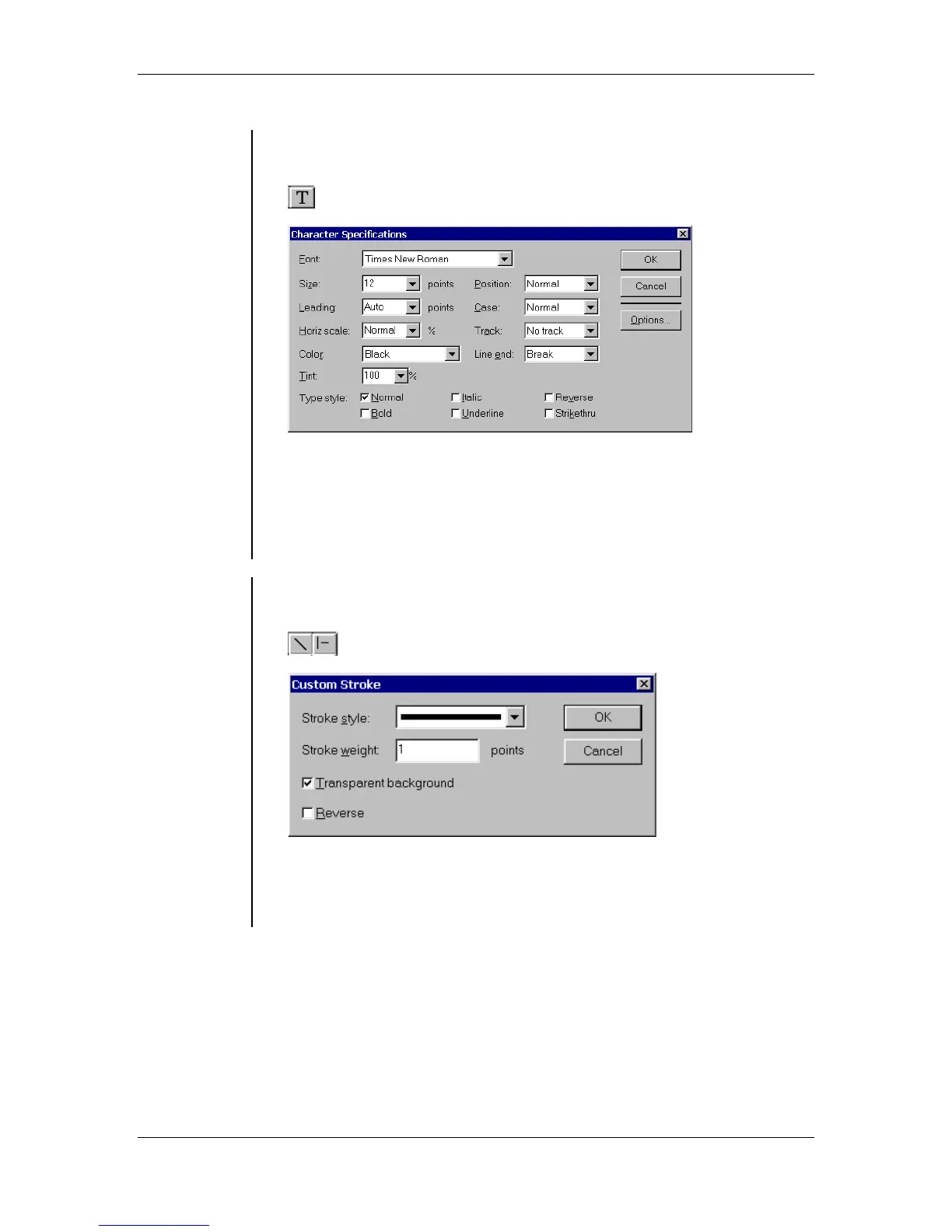
• Double-clicking the Text tool will display the Character
Specifications dialog box:
• The Character Specifications dialog box will allow you to control the
font, size, and other attributes of a selected range of text, part of the
default, or part of a style.
• Character attributes determine how text looks on the page. Size,
typeface, and character width (or horizontal scale) are a few of the
attributes that you can set in PageMaker.
Using the
Custom
Stroke dialog
box
• Double-clicking the Line tools will display the Custom Stroke dialog
box:
• You can use the Custom Stroke dialog box to apply fill and stroke for
drawn rectangles, polygons, or ellipses (including frames). Specify
whether the stroke or fill of the object should overprint; and also set an
object-level tint for either the stroke or the fill.



 To Next Page