Colors and Fills 53
PageMaker 6.5 Foundation 2001 Cheltenham Computer Training
FOR USE AT THE LICENSED SITE(S) ONLY
Cheltenham Computer Training 1995-2001 - www.cctglobal.com
Applying a
Color Name
• Cyan, black, and yellow are just a few of the colors to name when
trying to define a color in the color Name field. Black is the default
color:
Note: It is good idea to include the different color values you used to
create the color, rather than just giving the color a creative name. This
will help you keep track of how the color was created without always
having to keep going to the Color Options dialog box. If creating a
blue color using 100% cyan and 75% magenta, the color would be
something like: Blue C100, M75. If the value of a color is 0% you do
not need to include in the name.
Applying
Color Type
• Color Type can be changed to Spot, Process, or Tint:
Spot – Use when you do not want the color to print as a separation or
when you want to use Pantone colors. Spot colors are often
preferred as a way to use color without drastically increasing printing
cost.
Process – Use in conjunction with the CYMK color model. Process
colors are colors that you want to separate when they are printed.
Tint – Use when you want to use tints of a color. You can choose
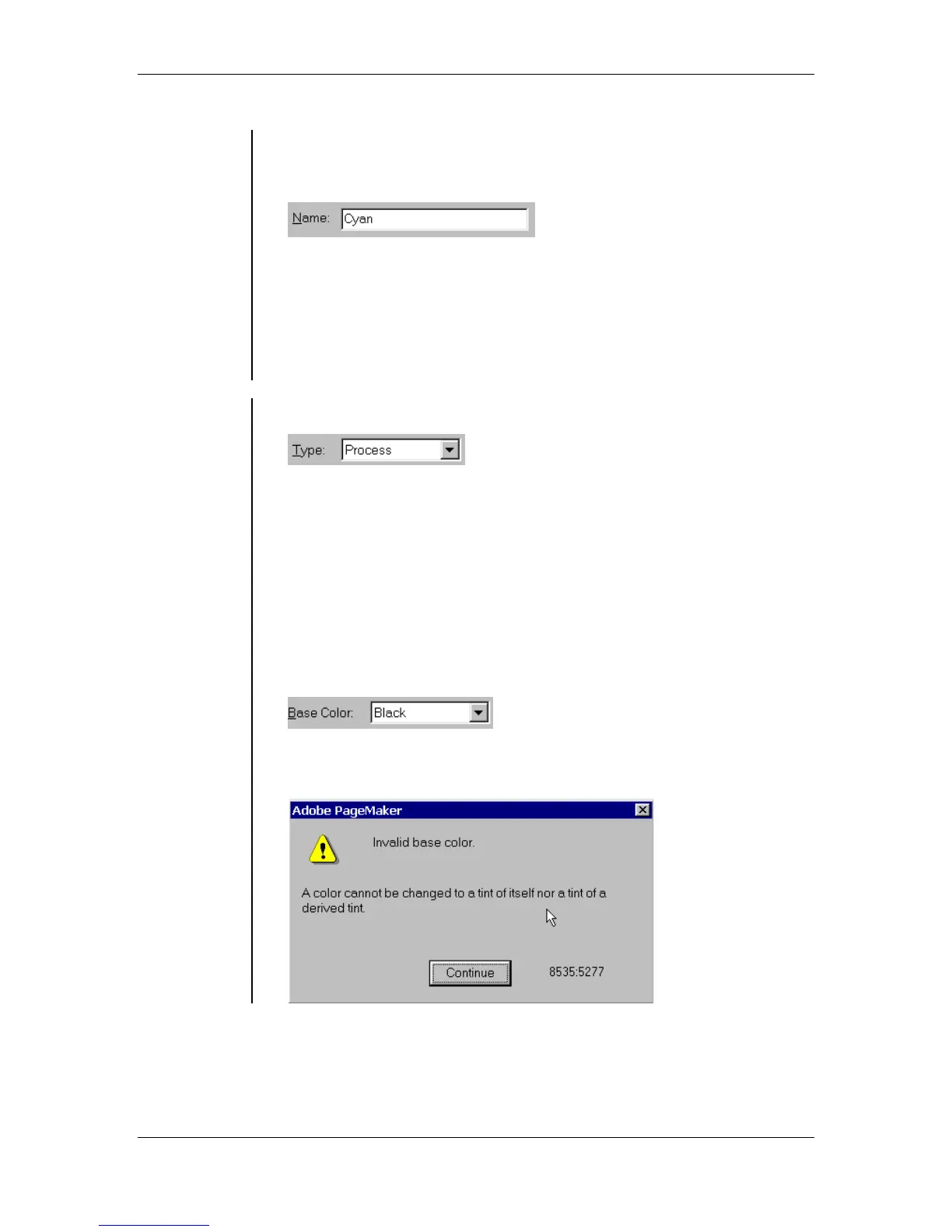
values of 0 – 100%. The Color Model field will change to a Base
Color field when you select the Tint color type:
Note: You cannot create a tint of a color that you are currently editing;
if you try you will get a warning:



 To Next Page