120 PostScript Printing
2001 Cheltenham Computer Training PageMaker 6.5 Intermediate
FOR USE AT THE LICENSED SITE(S) ONLY
Cheltenham Computer Training 1995-2001 - www.cctglobal.com
Scaling
pages
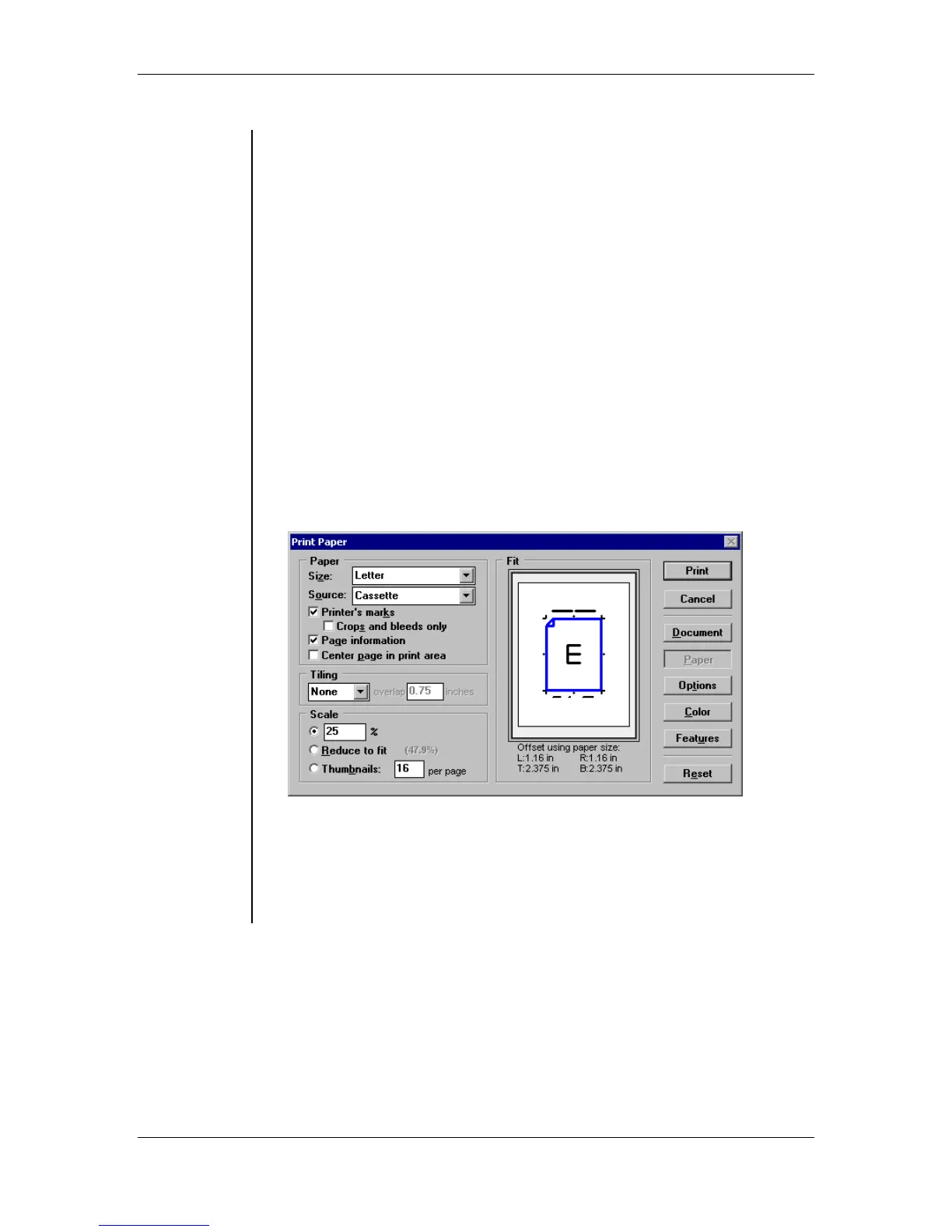
• The Scaling command allows you to fit an oversized publication on a
smaller piece of paper.
• You can scale your publication:
Manually, by entering a specified amount in the percentage (%) field
of the Print Paper dialog box
OR
Automatically, by using the Reduce to fit option to allow PageMaker
to scale the publication to fit the paper.
To scale a publication:
• From the main menu, choose File > Print.
• Select a PostScript printer from the printer drop-down list.
• Select the PPD for your printer type.
• Set any other option from the Print Document dialog box that may
apply to your publication such as page range, non-printing setting
and orientation.
• Click the Paper button.
• Enter in a value from 5 to 1600 into the Scale percentage field
OR
click Reduce to Fit to auto scale your publication to fit onto the
selected paper size:
• Set any other option from the Print Options, Print Color, and Print
Features dialog boxes that apply to your publication.
• Click the Print button.
Note: Not all devices can scale from 5 to 1600; check your printer
manual for the range of scaling that is supported.



 To Next Page