Master Pages 13
PageMaker 6.5 Intermediate 2001 Cheltenham Computer Training
FOR USE AT THE LICENSED SITE(S) ONLY
Cheltenham Computer Training 1995-2001 - www.cctglobal.com
To adjust and rename a master page:
• Go to the publication page you want to change.
• From the main menu, choose Window > Show Master Pages.
• Enter a new name into the Name field
• Enter the new Margins values.
• Enter the new Columns Guides values.
• Select the Adjust layout checkbox if desired and click OK.
Note: A Master Page can be edited in the same ways you would edit
a Publication Page. However, to change the margins and guides of a
master page, you have to use the Master Page Options command
from the master page palette menu, rather than the Document Setup
command from the File menu. The Document Setup will only adjust
the margins or the default Document Master.
Changing the
Column
Guides
• There are several ways to change the Column Guides in a master
page:
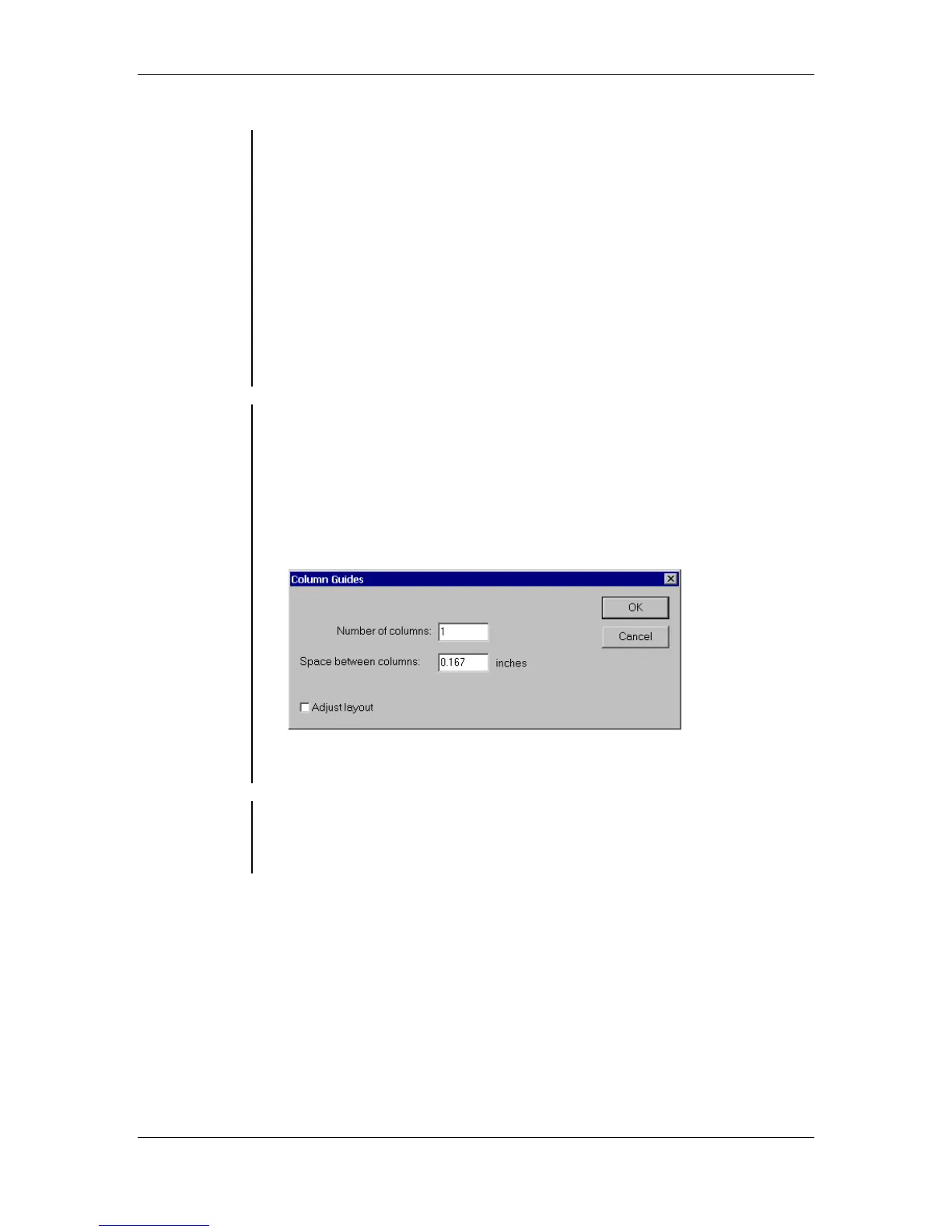
• You can make the changes in the Master Page Options dialog box.
• You can adjust the column guides manually on the Master Page. You
cannot use this option to change the Number of columns, or Space
between columns.
• You can also use the Layout > Column Guides command:
Note: If you hide your guides, you will not be able to select the
Column Guides command from the Layout menu.
Changing the
content of a
Master Page
• Since the Master Page functions like a Publication Page, you can
modify any text, graphics, shapes or nonprinting guides on the
page. All the changes will instantly take affect on the publication
pages associated with the master.



 To Next Page