Advanced Plug-Ins 25
PageMaker 6.5 Advanced 2002 Cheltenham Computer Training
FOR USE AT THE LICENSED SITE(S) ONLY
Cheltenham Computer Training 1995-2002 - www.cctglobal.com
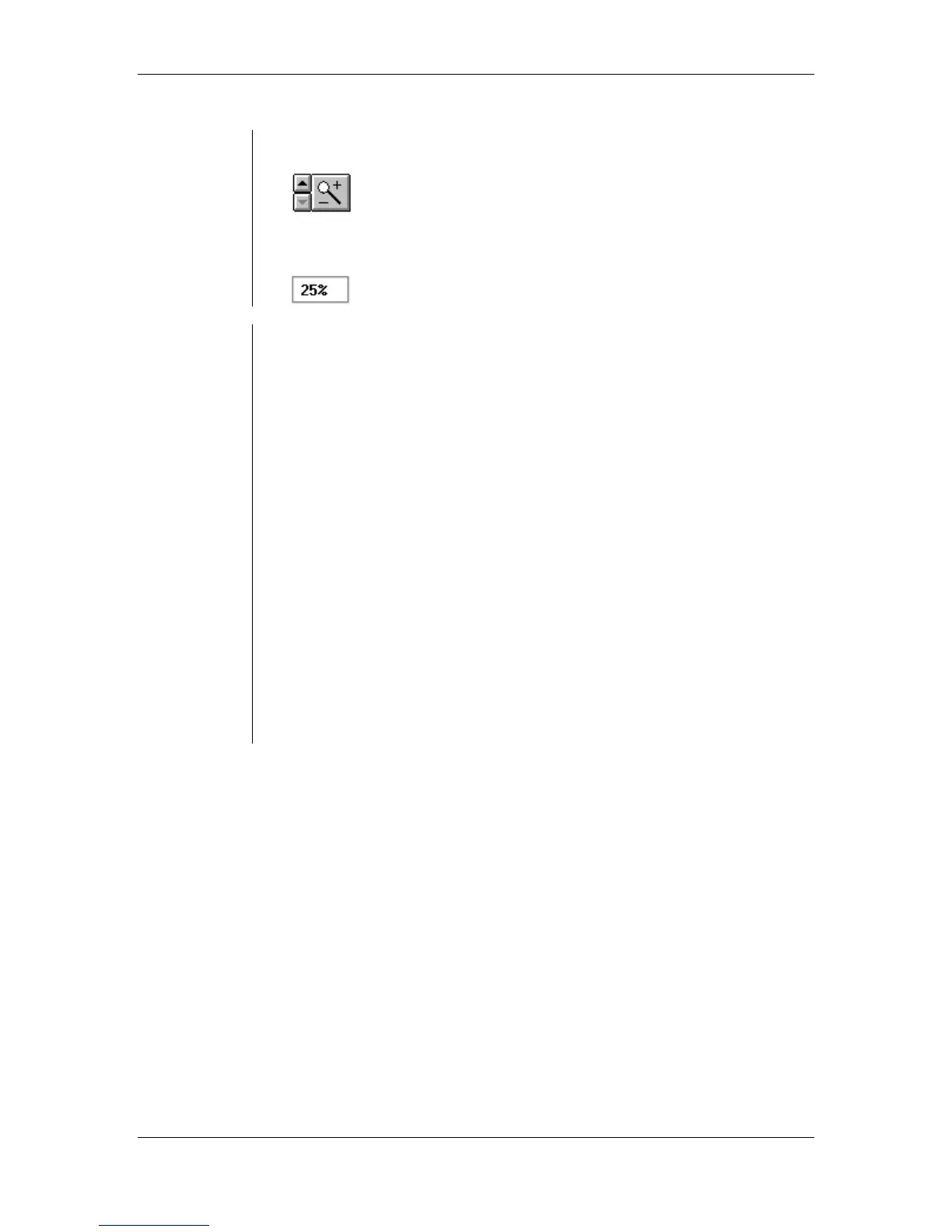
• Preview Magnification and nudge buttons:
• Preview Magnification Amount:
Previewing
Headers and
footers
To preview headers and footers:
• From the Running Headers and Footers dialog box, click the
Preview button to display the Preview dialog box.
Note: The preview will display the pages entered into the Apply To
section of the Running Headers and footers dialog box.
To center the header or footer text block:
• Click the View Next button.
• Repeat for each header or footer you want to preview.
To change pages:
• Click a Page tab at the bottom of the preview window.
To change the page view:
• Click the Magnify icon and choose the preset size
OR
click the up or down arrow to go to the next lower or higher view.
To scroll through the preview:
• Move the cursor within the preview window and drag the hand icon.
• Click the OK button to return to the Running Header/Footer dialog
box.



 To Next Page