Test Set Operation
Subject to Export Control, see Cover Page for details.
3-15
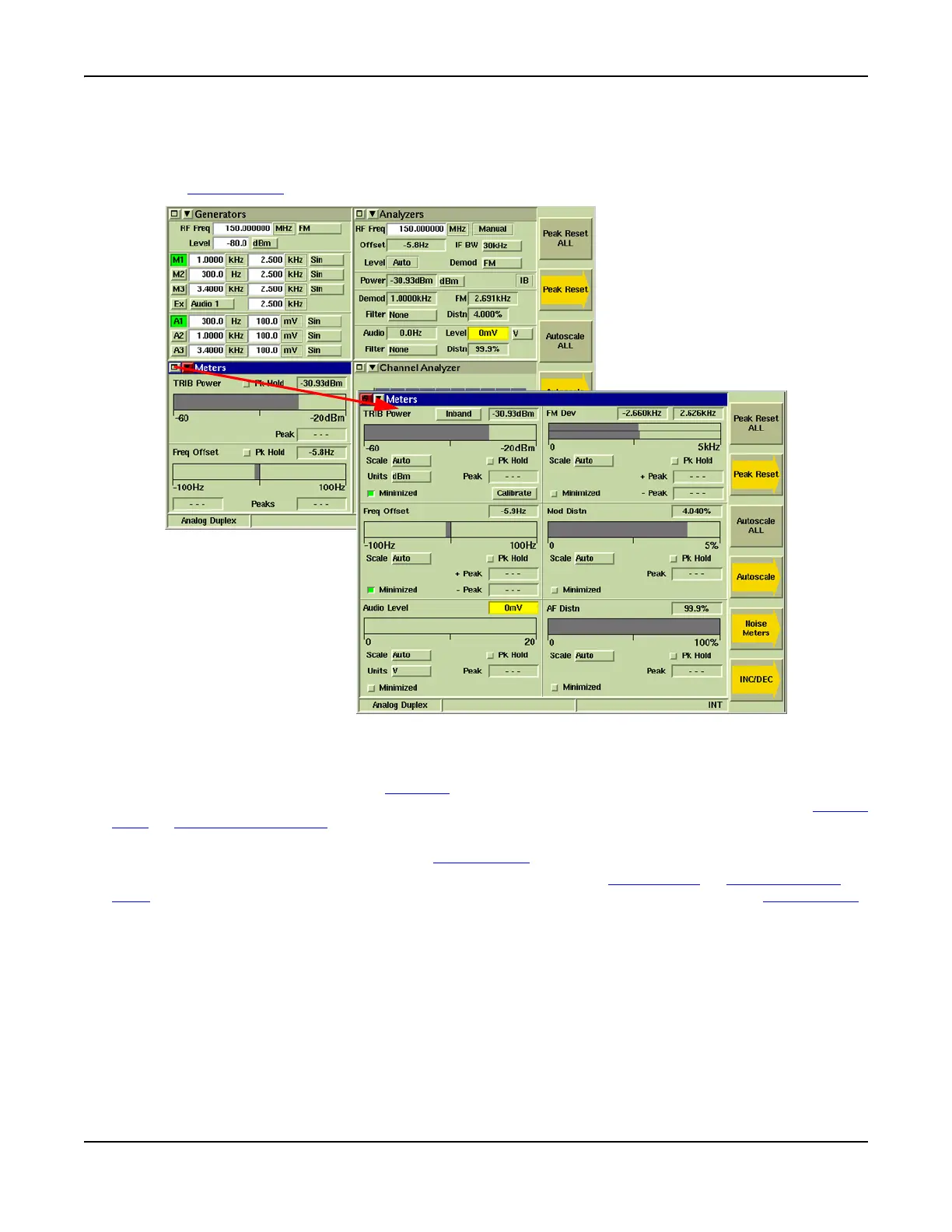
Maximized and Minimized Views
Select the Maximize/Minimize symbol on the Tile’s menu bar to maximize or minimize a Tile. To
change the maximize/minimize state of the active Tile, navigate to the maximize/minimize button and
press the SELECT Key
.
Fig. 3-7 Minimized - Maximized Viewing Options
Navigating Display Tiles
When a Tile is minimized, press the TAB Key to navigate from Tile to Tile. The title bar of each Tile
changes to BLUE as the TAB key moves focus from Tile to Tile. When a Tile is selected, the Cursor
Keys or Rotary Control Knob can be used to navigate from field to field within the selected Tile.
Each field or button on the screen is highlighted by a RED outline when it is reached. When the
desired field or button is active, press the SELECT Key
to edit or enable the item.
To navigate to a menu item on a drop-down menu, use the ∧ or ∨ Cursor Keys
or Rotary Control
Knob to move up or down the menu. When the required item is highlighted, press the SELECT Key.



 To Next Page